
Blog
What Is a PDF Planner? Printable, Fillable, and Digital PDF Planner Templates

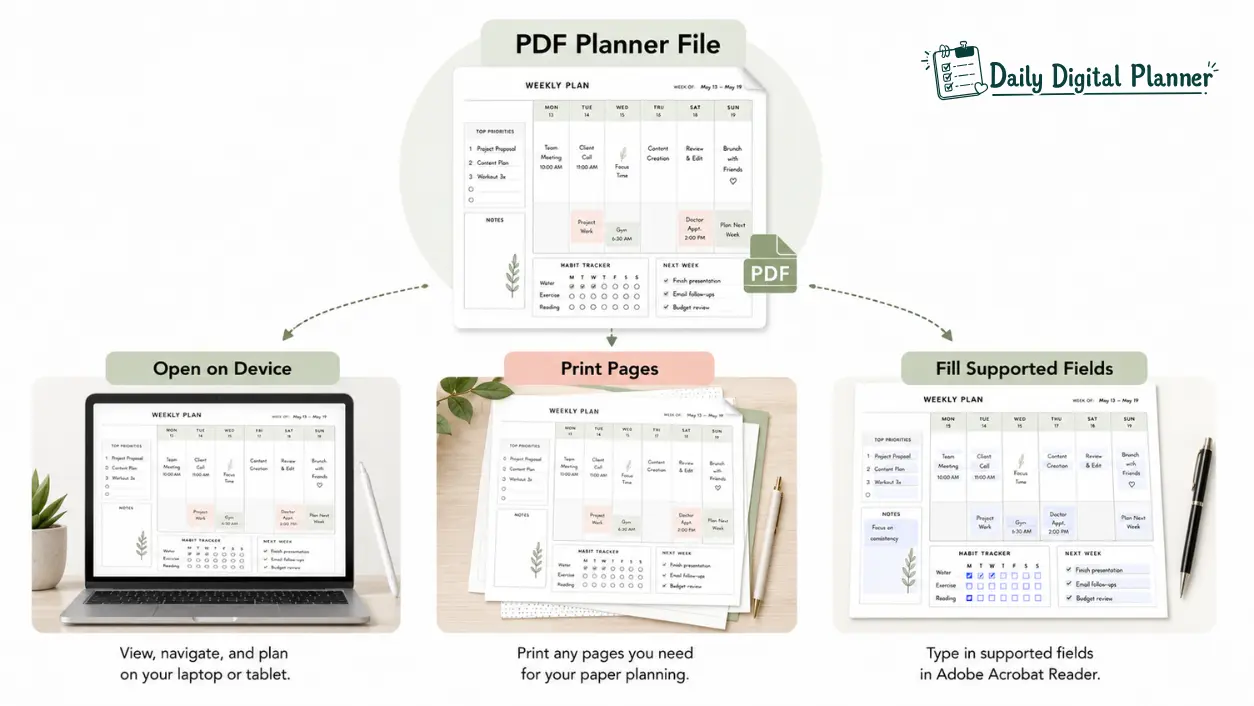
A PDF planner is a downloadable planner file saved in PDF format so you can open it on a device, print planner pages, or fill supported fields when the file is designed for that use. In Daily Digital Planner’s context, a PDF planner is a digital download for planning work, home routines, daily schedules, weekly tasks, productivity systems, or printable paper workflows.
The important detail is that “PDF planner” describes the file format first. A PDF planner may be printable, fillable, annotatable in an app, or bundled with other planner templates, but those features depend on the actual file and the product details.
This guide explains what a PDF planner is, how a planner PDF works after download, which types of PDF planner templates exist, and what to check before buying one. If you want the broader format hub, Daily Digital Planner groups printable, fillable, and bundle options under digital planner templates.
PDF Planner: Quick Definition
A PDF planner is a downloadable PDF planner template used for planning tasks, routines, schedules, or projects on a device or on printed pages.
The PDF format keeps the planner layout stable across many devices, readers, and printers. That makes a PDF planner useful when you want a clean page design that can move between screen use and paper use without rebuilding the layout each time.
A PDF planner is not automatically fillable, printable, hyperlinked, or app-specific. A printable PDF planner is designed for printing. A fillable PDF planner includes supported fields for typing. A digital planner PDF may be used in a note-taking or annotation app when the app and file support that workflow.
The safest way to think about the term is simple: a PDF planner is the planner file; printable, fillable, annotatable, and bundle describe how that file is meant to be used.
How a PDF Planner Works After Download
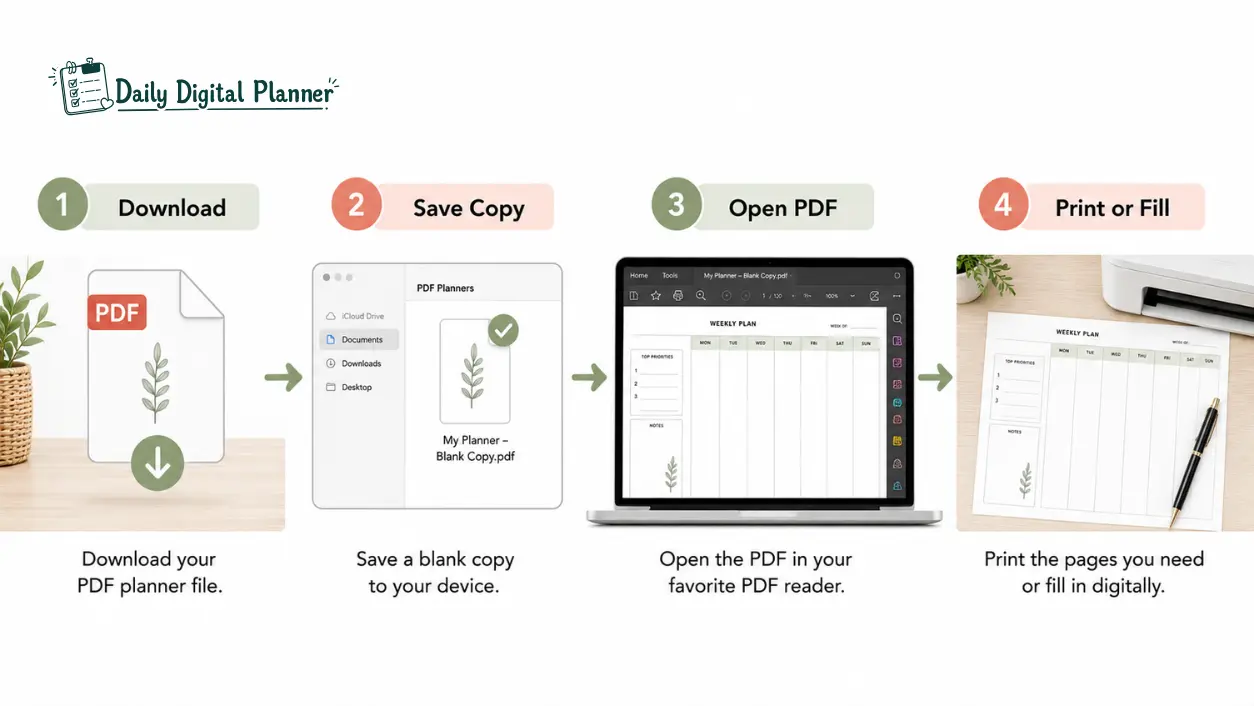
A PDF planner works by giving you a digital planner file that you download, save, open, and then use according to the file’s supported format.
For Daily Digital Planner products, the purchase is a digital download, not a physical planner shipped in the mail. If you are new to that process, the support page on how digital planner downloads work explains the basic access and download flow.
A typical PDF planner workflow looks like this:
- Download the planner file after purchase.
- Save a blank master copy before writing in it.
- Open the PDF in a compatible reader or annotation app.
- Type, annotate, or print depending on the file design.
- Reuse copies according to the product details and license terms.
The same PDF planner can feel different depending on the workflow. A work planner PDF might be printed for a desk binder, opened on a laptop for typed notes, or imported into an app for handwriting with a stylus. The product page should tell you which of those workflows the file is intended to support.
Download and Save the PDF Planner File
A PDF planner download should be saved as a clean original file before you start typing, printing, or marking it up.
This blank copy protects the planner template. If you accidentally write in the wrong section or need a fresh weekly PDF planner layout, you can return to the saved original instead of downloading or recreating the file again.
Some planner downloads may arrive as a single PDF. Others may include a ZIP file, instructions, multiple sizes, or several templates inside a planner bundle. Check the product details before assuming what is included.
Open the PDF Planner in a Reader or App
A PDF planner opens in a PDF reader, browser preview, or annotation app when the file and device support that workflow.
For basic viewing and printing, many users open the file in a standard PDF reader. For typed entries, a fillable PDF planner needs supported text fields or checkboxes. For handwriting, highlighting, or stylus notes, the planner PDF may be imported into a PDF annotation app such as GoodNotes, Notability, Xodo, or Samsung Notes when that workflow fits the user’s device.
The important condition is compatibility. A product page can say a planner is printable, fillable, or app-friendly, but those are different attributes. Do not assume that every PDF planner works the same way in every reader or app.
Print, Type, Annotate, or Reuse the Planner Pages
A PDF planner can be printed, typed into, annotated, or reused only when the file design and product terms support that specific action.
Printable PDF planners are usually made for handwriting after printing. Fillable PDF planners include digital fields so you can type before saving or printing. Annotatable PDF planners are used like a digital notebook inside a compatible app.
Reusable planning depends on the file and license. For personal planning, the practical habit is to save a blank copy first, then create working copies for a week, month, project, class, client, or home routine.
How to Print a PDF Planner
To print a PDF planner, check the planner’s paper size, open print preview, choose the right scaling option, test one page, and then print only the pages you need.
Start by checking whether the product lists US Letter, A4, or another size. US Letter is 8.5 x 11 inches, while A4 is 210 x 297 mm. Those size labels matter because the wrong print setting can shrink, crop, or misalign a planner layout.
A simple print workflow is:
- Open the PDF planner in a reliable PDF reader.
- Check the product instructions for paper size and orientation.
- Open print preview before printing.
- Choose actual size, fit to page, or scale settings based on the file instructions.
- Print one test page before printing a full planner section.
- Print only the pages you need for the week, month, or project.
Not every PDF planner is intended for printing. If the product page does not mention printable support, paper size, or print instructions, treat printability as unconfirmed.
Is a PDF Planner the Same as a Digital Planner?
A PDF planner is a common type of digital planner, but a digital planner is the broader category.
A digital planner can include PDF files, app-based planners, tablet planner templates, or other digital planning systems. A PDF planner is more specific because it refers to a planner file saved in PDF format. That file may still be used digitally, but its defining attribute is the PDF file type.
This distinction matters when choosing a product. If you want a broader explanation of device-first, printable, and fillable planner options, the guide on what is a digital planner explains digital planners beyond the PDF file format.
For this page, the Page Entity stays narrower: PDF planner means the downloadable planner PDF file, not every productivity app or digital calendar.
What Types of PDF Planners Are There?
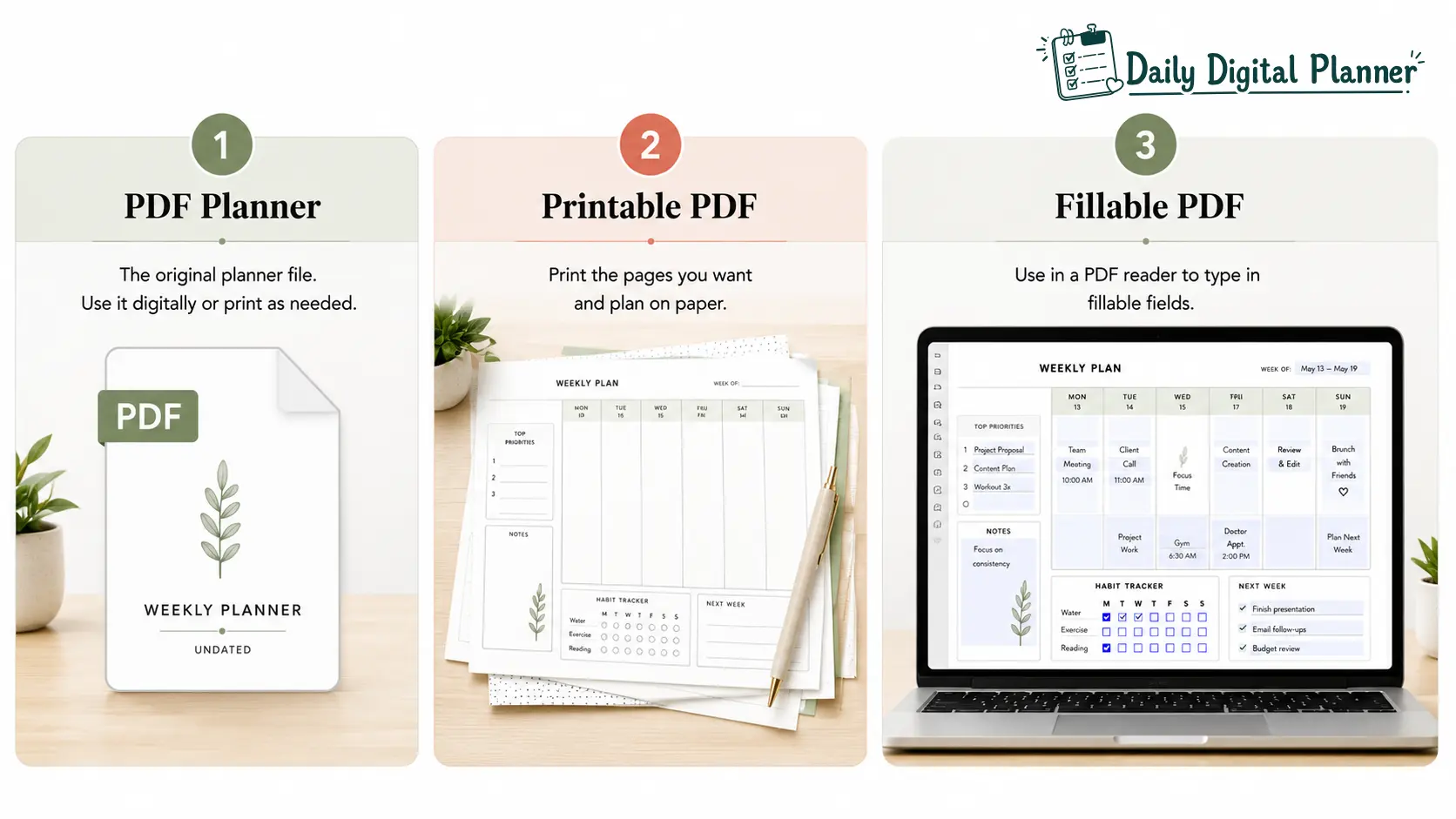
The main types of PDF planners are printable PDF planners, fillable PDF planners, annotatable PDF planners, and PDF planner bundles.
Each type is still a planner PDF, but the main action changes. One user may want to print pages for a binder. Another may want to type into fields before saving. A third may want a planner bundle with daily, weekly, work, and home templates.
| PDF planner type | Main action | Best for | What to check | Related page |
|---|---|---|---|---|
| Printable PDF planner | Print and write by hand | Binders, desk planning, classroom pages, home routines | Paper size, margins, color use, license terms | Product instructions or printable planner products |
| Fillable PDF planner | Type into supported fields | Work tasks, client notes, digital forms, reusable planning | Text boxes, checkboxes, save support, reader guidance | fillable PDF planners |
| Annotatable PDF planner | Write or mark up in an app | Tablet handwriting, stylus notes, digital notebooks | App compatibility, import instructions, page navigation | Product instructions or app setup notes |
| PDF planner bundle | Use multiple related templates | Work plus home planning, daily plus weekly systems, larger routines | Included files, sizes, categories, instructions | PDF planner bundles |
The table shows why “PDF planner” should not be treated as one fixed workflow. PDF is the format. Printable, fillable, annotatable, and bundle describe the use case.
Printable PDF Planners
Printable PDF planners are planner files designed to be printed and written on by hand.
This format fits people who like paper planning, binders, desk pages, classroom handouts, or home command centers. A printable planner PDF can be especially useful when you want to print only the pages you need instead of carrying a full bound planner.
Before buying, check the paper size, orientation, ink use, margin style, and whether the product page confirms printable support. If the product lists US Letter or A4, use that information when setting up print preview.
Fillable PDF Planners
Fillable PDF planners are PDF planner files with supported fields for typing before saving or printing.
A fillable PDF planner can work well for users who prefer typed task lists, work notes, client planning, or clean digital records. The key feature is not just that the file opens on a computer. The planner must include fillable fields, or the user must use a separate annotation workflow.
If typing into the planner is the priority, choose the fillable PDF planners path and check the product instructions before purchase.
PDF Planners for Annotation Apps
PDF planners for annotation apps are planner PDFs used inside apps that support writing, highlighting, or markup.
This workflow is common for tablet users who like handwriting with a stylus. The PDF file is imported into an app, then used like a digital notebook. Some users prefer this because it keeps the visual feel of paper planning while staying on a screen.
App workflows should stay conditional. GoodNotes, Notability, Xodo, Samsung Notes, and similar tools can support PDF annotation, but the best app depends on the device, the file, and the product instructions.
PDF Planner Bundles
A PDF planner bundle groups multiple related planner templates into one download or product set.
Bundles are useful when one planner page is not enough for the job. A small business owner may need daily tasks, weekly priorities, campaign tracking, and client notes. A homemaker may need routines, meals, chores, and habit pages. A professional may want a work planner, weekly PDF planner, and meeting notes in the same planning system.
If you need several layouts, PDF planner bundles are often easier to compare than individual planner PDFs one by one.
What Should You Check Before Buying a PDF Planner?
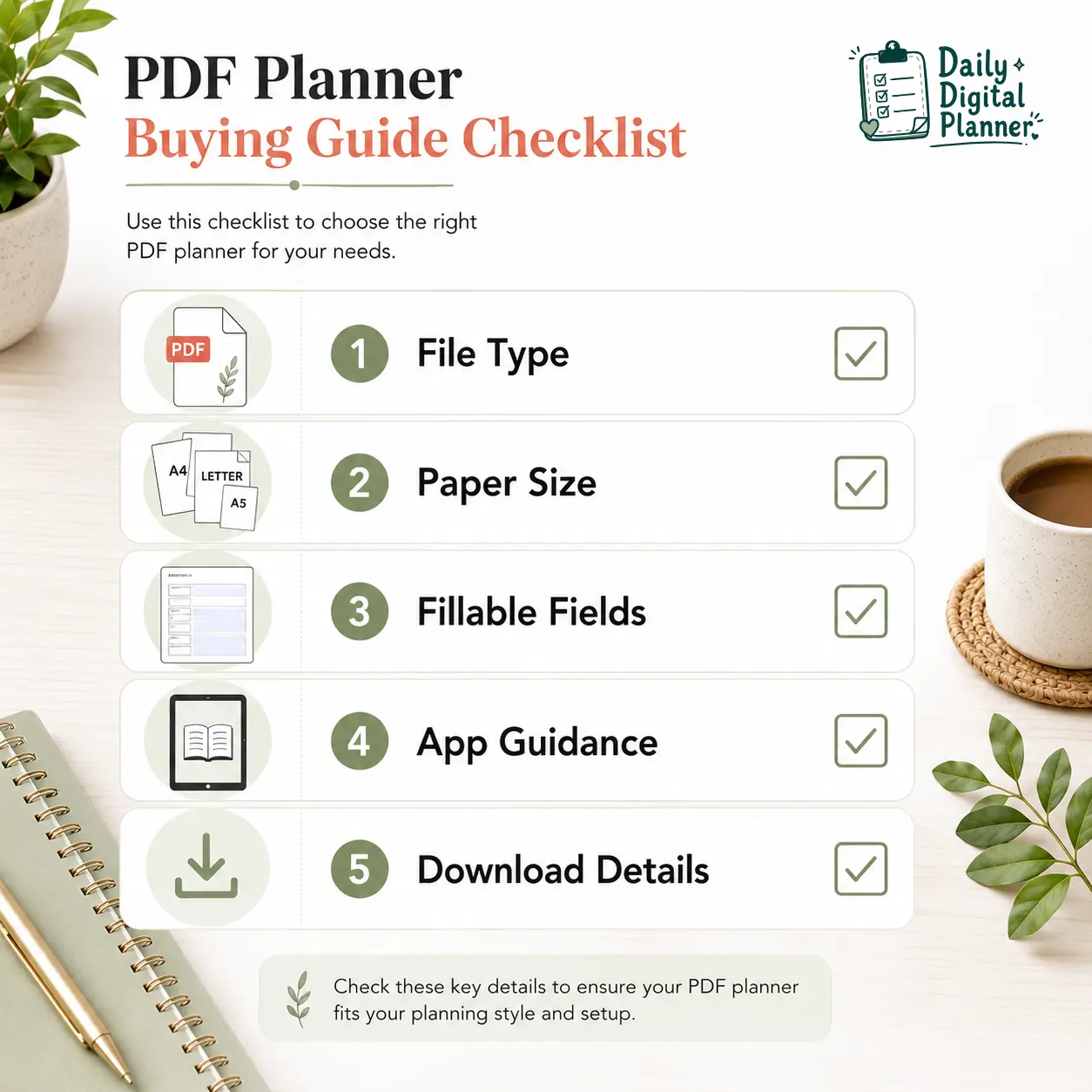
Before buying a PDF planner, check the file type, supported workflow, paper size, fillable fields, app guidance, license terms, and download instructions.
This checklist prevents the most common wrong-format purchase: buying a planner PDF because it looks good, then discovering it does not support the exact way you wanted to use it.
| Check before buying | Why it matters | What to look for |
|---|---|---|
| Included file type | Confirms what you actually receive | PDF, ZIP, instructions, separate sizes, bundle files |
| Printable support | Confirms paper workflow | US Letter, A4, orientation, print notes |
| Fillable field support | Confirms typed workflow | Text boxes, checkboxes, save instructions |
| App guidance | Confirms screen workflow | PDF reader, annotation app, device notes |
| Color options | Affects printing cost and readability | Color version, black-and-white version if listed |
| License or usage terms | Clarifies personal use and reuse | Personal-use terms, printing terms, file access notes |
| Digital delivery | Prevents shipping confusion | Download instructions and no physical shipment language |
The product page should answer these questions before purchase. If one attribute matters most, such as fillable fields or A4 printing, confirm that attribute directly instead of assuming it comes with every PDF planner template.
PDF Planner Examples from Daily Digital Planner
PDF planner examples from Daily Digital Planner should show real planning jobs, such as daily schedules, work tasks, business planning, home routines, and planner bundles.
The catalog is strongest when the product examples make the format concrete. A reader should be able to see whether a planner is meant for printing, typing, daily planning, work planning, or a larger bundle workflow.
Useful product example categories include:
| Planning need | Example direction | Natural next path |
|---|---|---|
| Daily structure | Simple daily planner PDF templates for tasks, schedule blocks, and priorities | daily planner PDF templates |
| Work productivity | Workday planners, task planners, meeting notes, and focus layouts | productivity planner PDFs |
| Small business planning | Campaign trackers, client notes, marketing planners, and business task pages | business planner PDFs |
| Home and life routines | Home planner PDF templates for routines, chores, meals, or recurring planning | Home and life planner products |
| Multi-template planning | Bundles that combine daily, weekly, work, or home planner layouts | PDF planner bundles |
Who Should Use a PDF Planner?
A PDF planner is best for people who want a low-friction planning file they can download, save, print, type into, or use in a compatible app.
Different audiences need different planner attributes. A teacher may care about printable weekly pages. A small business owner may want typed campaign notes. A homemaker may want a home planner PDF for routines. A professional may want a work planner that can move between laptop and paper.
| User group | Planning job | Best PDF workflow | What to check |
|---|---|---|---|
| Teachers | Classroom tasks, weekly prep, admin notes | Printable or reusable weekly PDF planner | Paper size, print clarity, page layout |
| Small business owners | Client work, campaigns, tasks, follow-up | Fillable PDF planner or business planner PDF | Fillable fields, save support, category fit |
| Homemakers | Meals, chores, routines, family planning | Home planner PDF or printable routine pages | Layout simplicity, reprint support, page types |
| Professionals | Workday tasks, meetings, project notes | Work planner PDF, daily planner, or productivity planner | Daily workflow, task structure, device use |
| Low-friction productivity users | Simple planning without complex setup | Minimal printable or fillable PDF planner | Clear instructions, uncluttered pages, easy reuse |
For ADHD/productivity readers, the safe wording is practical rather than medical. A PDF planner can support low-friction routines, simple layouts, and repeated planning habits, but it should not be presented as treatment or medical support.
PDF Planner vs Printable Planner vs Fillable PDF Planner
A PDF planner is the file format; printable planner and fillable PDF planner describe how that file is designed to be used.
The difference is easiest to understand by comparison basis:
| Term | What it defines | Main action | Best fit |
|---|---|---|---|
| PDF planner | The planner file format | Open, save, print, fill, or annotate depending on design | Users comparing downloadable planner PDFs |
| Printable planner | Paper-first use | Print pages and write by hand | Users who want binders, desk pages, or handwriting |
| Fillable PDF planner | Typed-field support | Type into fields, save, and sometimes print | Users who want clean typed planning |
| Digital planner PDF | Digital use of a planner PDF | Open or annotate on a device | Users who prefer screen-based planning |
This overlap is why product wording can feel confusing. A planner can be a PDF planner and printable at the same time. A planner can also be a PDF planner and fillable. But printable and fillable are not identical.
If you are deciding between screen-first and paper-first planning, use the digital planner vs printable planner guide. If your main decision is typing into fields versus printing blank pages, use the fillable PDF planner vs printable planner comparison.
Final Recommendation: Choose the PDF Planner Workflow First
The best PDF planner is the one that matches your workflow before it matches your favorite design style.
Start with the action you want:
- Choose a printable PDF planner if you want to print pages and write by hand.
- Choose a fillable PDF planner if you want to type into supported fields.
- Choose an annotatable PDF planner if you want to write on a tablet or inside a compatible app.
- Choose a PDF planner bundle if you need several templates for work, home, daily, or weekly planning.
After the workflow is clear, check the product details for file type, paper size, fillable support, app guidance, and download instructions. Then choose the planner design that fits the job.
Daily Digital Planner is built around practical downloadable planner templates, so the best next step is to browse by use case rather than by the broad word “planner.” Start with digital planner templates, fillable PDF planners, or PDF planner bundles depending on how you want to plan.
FAQ About PDF Planners
How do PDF planners work?
PDF planners work by giving you a downloadable PDF file that you can save, open, print, type into, or annotate depending on the file’s supported features.
The usual workflow is download, save a blank copy, open the PDF in a reader or app, then use the planner according to the product instructions. The PDF format keeps the planner page layout stable while the usage method changes.
Do you need an iPad for a PDF planner?
No, you do not need an iPad for a PDF planner.
A PDF planner can be opened on many devices that support PDF files. An iPad or tablet can be useful for handwriting and annotation workflows, but printable and fillable PDF planner workflows can also happen on a computer or with a printer.
Is every PDF planner fillable?
No, every PDF planner is not fillable.
A fillable PDF planner needs supported text fields, checkboxes, or another compatible typing workflow. If the product page does not mention fillable support, assume the PDF is not typeable until the seller confirms it.
Is every PDF planner printable?
No, every PDF planner is not automatically printable in a useful way.
Many planner PDFs are designed for printing, but print quality depends on layout, paper size, margins, color use, and product terms. Check for printable support, US Letter or A4 sizing, and print instructions before buying.
Is a PDF planner a physical product?
No, a PDF planner from Daily Digital Planner is a digital download, not a physical product shipped to your address.
That means you receive access to a file instead of a printed planner. The how digital planner downloads work page is the right place to check download and access details before purchase.
Are free PDF planners enough?
Free PDF planners can be enough for testing a layout, but they may not include the format support, instructions, or template variety you need for regular planning.
If you use a free PDF planner, still check whether it is printable, fillable, correctly sized, and licensed for your intended use. If you need a polished work planner, home planner PDF, weekly PDF planner, or planner bundle, a paid template may be easier to evaluate through product details.
What is the best planner for people with ADHD?
The best planner for ADHD-related productivity needs is usually a low-friction planner with a simple layout, clear prompts, and a repeatable routine.
A PDF planner can support that kind of structure when it reduces setup work and keeps daily or weekly planning visible. It should not be treated as medical advice or treatment. For this use case, look for simple pages, limited clutter, and a workflow you can repeat consistently.
What is a PDF and how do I use it for planning?
A PDF is a portable document format that keeps a page layout stable when you open, save, or print it.
For planning, that means the planner page can keep its structure across common readers, devices, and printers. You use the PDF by opening the file, saving a clean copy, then printing, typing, or annotating according to the planner’s supported features.