
Blog
Client Workflow Planner for Freelancers and Service Providers

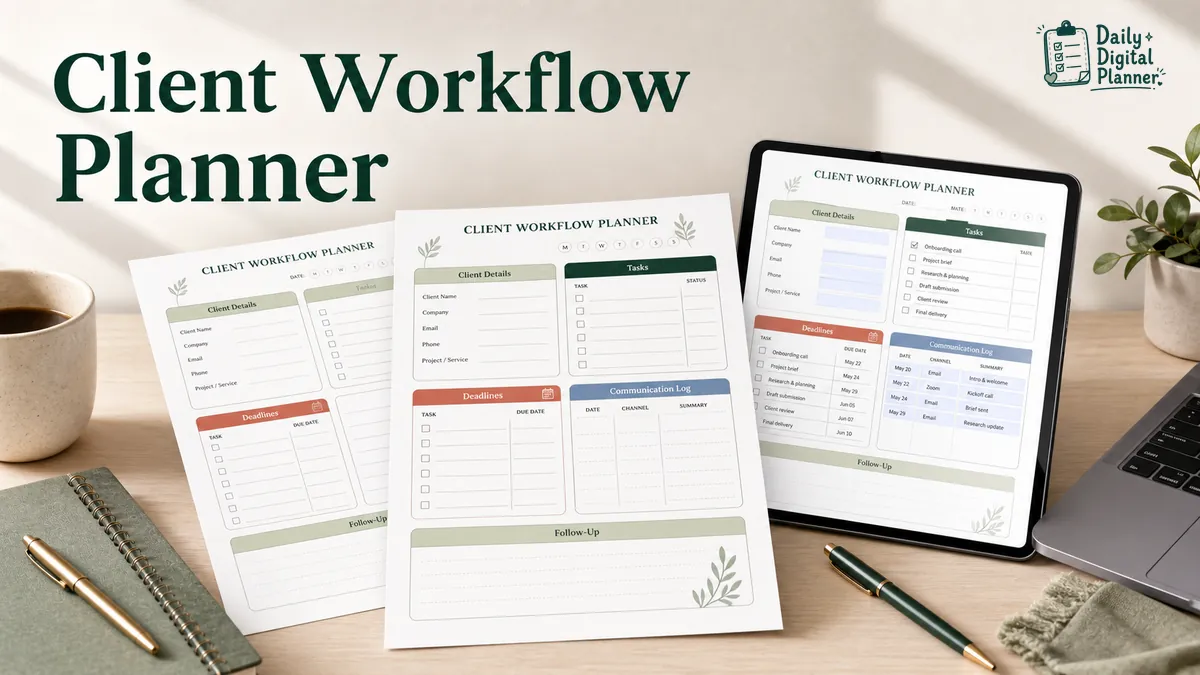
A client workflow planner is a printable or fillable PDF planner that helps freelancers and service providers track client details, project stages, tasks, deadlines, communication, and follow-up in one workflow. It is useful when client work is too detailed for a plain to-do list but not complex enough to require a full CRM or project management system.
For Daily Digital Planner, the practical version is a page-based planner: a client workflow planner, client project tracker, client task planner, or service provider project tracker that can be printed, typed into when the PDF supports fillable fields, saved, and reviewed with the rest of your work planner pages. If you already know you want ready-made planning pages, browse the client workflow planner PDFs in the Project Planner category.
Use a client workflow planner when you need to:
- Keep client names, project notes, and status details in one place.
- Track client tasks, due dates, deliverables, and revisions.
- Record communication notes after calls, emails, or meetings.
- Move client work from inquiry to onboarding, delivery, invoice, and follow-up.
- Connect client tasks to a daily work planner without losing the client context.
This guide focuses on printable and fillable PDF planning pages. It mentions spreadsheets, Notion, CRM tools, and project management software only where the format choice changes the workflow.
What Is a Client Workflow Planner?
A client workflow planner is a planner page or template for keeping client information, project tasks, communication notes, deadlines, and follow-up steps in one workflow. It gives freelancers and service providers a repeatable place to track client work from the first inquiry to the final follow-up.
A client workflow planner can support different service businesses. A designer might use it to track a logo project, a consultant might use it for a client engagement, a virtual assistant might use it for a retainer, and a coach might use it for session notes and action items. The same structure works because the planner is built around the client, the project, and the next step.
A project planner PDF usually focuses on the project goal, tasks, milestones, and progress. A client workflow planner adds the relationship and process around that work: client details, communication, revisions, delivery, invoice status, and follow-up.
| Planner part | What it records | Why it matters |
|---|---|---|
| Client details | Name, contact notes, business or project context | Keeps the client record attached to the work. |
| Project summary | Project name, service type, deliverable, status | Shows what the client hired you to do. |
| Workflow stage | Inquiry, discovery, proposal, onboarding, project work, revision, delivery, invoice, follow-up | Keeps the client lifecycle visible. |
| Task list | Action items, priorities, due dates, and status | Turns client work into trackable steps. |
| Communication log | Calls, emails, meetings, decisions, and waiting items | Prevents client context from getting buried in inboxes. |
| Deliverables | Files, documents, drafts, sessions, reports, or final outputs | Clarifies what needs to be sent or completed. |
| Follow-up notes | Revision requests, invoice status, next check-in, or offboarding notes | Helps close the work cleanly. |
The planner does not need to act like software. Its main job is to make the client workflow visible enough that you can review the page and know what needs attention.
What Should a Client Workflow Planner Track?
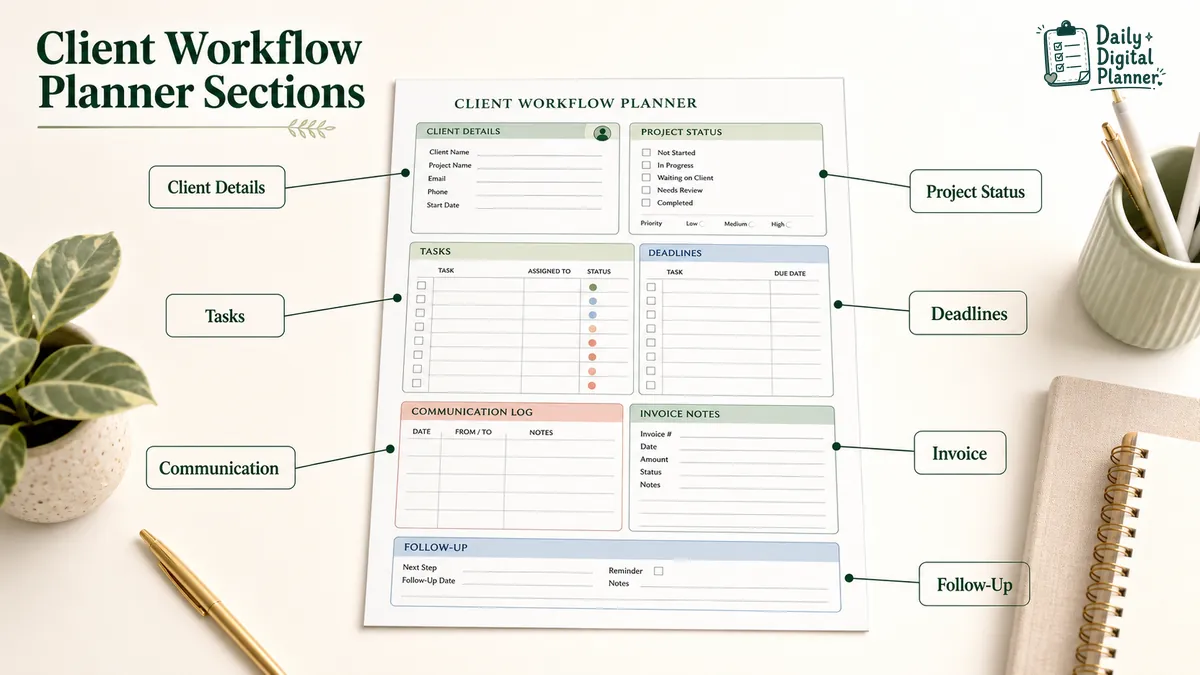
A client workflow planner should track client details, project name, workflow stage, task list, deadlines, project status, deliverables, communication notes, meeting notes, revision notes, invoice or payment status, and follow-up. Those fields keep the client relationship and the work itself on the same page.
The exact page layout can vary, but a useful client workflow planner usually includes these fields:
| Field | What it records | Why it matters |
|---|---|---|
| Client name and contact | Client identity, email, phone, business name, or account note | Makes the page easy to identify. |
| Project or service name | The work being delivered | Separates one client project from another. |
| Workflow stage | Inquiry, discovery, proposal, onboarding, active work, revision, delivery, invoice, follow-up | Shows where the client sits in the process. |
| Task list | Next actions, due dates, priorities, and status | Converts the workflow into visible work. |
| Deadline or due date | Project date, task date, delivery date, or review date | Keeps timing attached to the client record. |
| Project status | Not started, waiting, active, reviewing, delivered, or closed | Makes progress scannable. |
| Deliverables | Files, documents, sessions, reports, designs, or other outputs | Clarifies what the client should receive. |
| Communication log | Calls, emails, decisions, waiting items, and follow-up notes | Keeps conversation history near the project. |
| Meeting notes | Discovery notes, client requests, action items, or approvals | Turns calls into trackable decisions. |
| Revision notes | Requested changes, feedback rounds, or approval notes | Keeps feedback separate from the main task list. |
| Invoice or payment status | Sent, waiting, paid, or follow-up needed | Supports organization without turning the page into billing guidance. |
| Follow-up | Next check-in, testimonial request, offboarding note, or future service idea | Helps finish the client workflow instead of dropping it after delivery. |
A client workflow planner should not try to hold every piece of business information. Keep the page focused on what changes the next action: client context, work status, dates, decisions, and follow-up.
How Do Freelancers Use a Client Workflow Planner From Inquiry to Follow-Up?
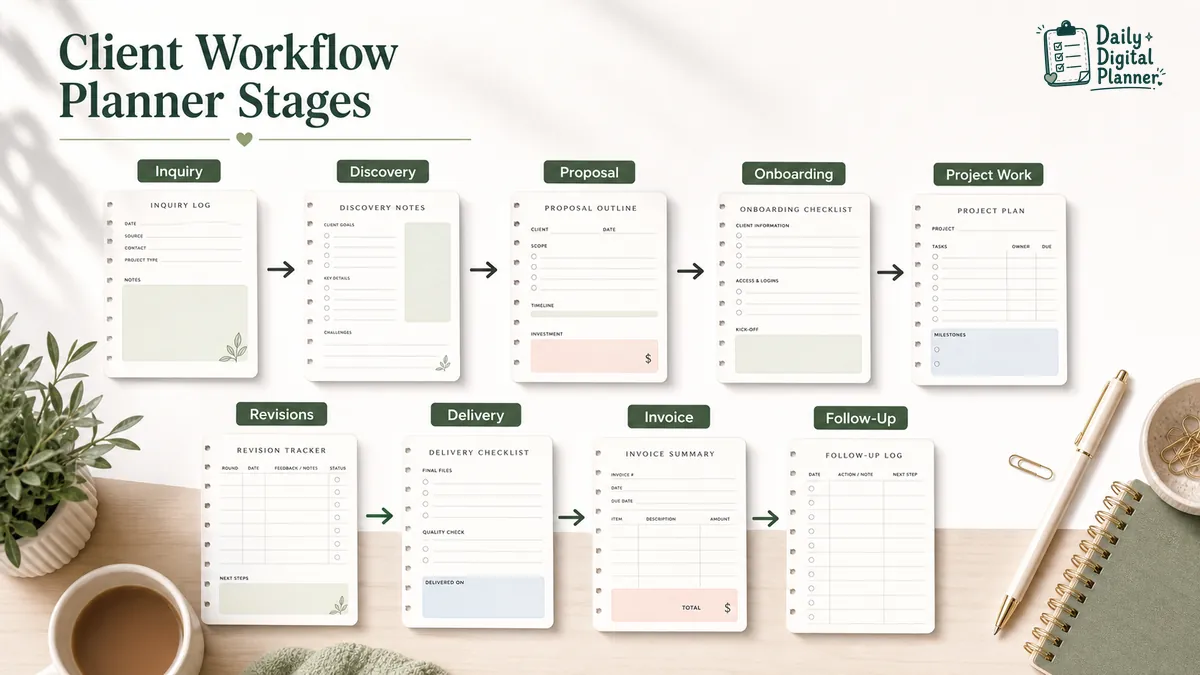
Freelancers use a client workflow planner by moving each client through a visible sequence from inquiry to discovery, proposal, onboarding, project work, revisions, delivery, invoice, and follow-up. The page works best when each stage has one clear decision or next action.
The sequence below is a practical client lifecycle for a freelancer or service provider. Not every business needs every stage, but the order helps keep client work from scattering across notes, email, and calendars.
| Workflow stage | Planner note to record | What to decide next |
|---|---|---|
| Inquiry or lead | Client name, request, source, and first contact date | Is this a fit for your service? |
| Discovery | Client needs, project scope, questions, and meeting notes | What information is still missing? |
| Proposal | Service option, quote note, timeline, and follow-up date | Has the client accepted, declined, or asked for changes? |
| Contract or agreement | Start condition, scope confirmation, or approval note | What needs to happen before work starts? |
| Onboarding | Client materials, access, intake form, or kickoff notes | What is needed to begin the project? |
| Project work | Task list, due dates, deliverables, and status | Which task moves the project forward? |
| Revision | Feedback, requested changes, approval notes, and waiting items | What changed, and who is responsible for the next step? |
| Delivery | Final file, session, report, handoff, or completion note | What has been sent or completed? |
| Invoice or payment | Invoice status, payment status, or follow-up reminder | Is there an admin step to close? |
| Follow-up or offboarding | Thank-you note, testimonial request, renewal idea, or future task | Should the client be contacted again later? |
Discovery and client meetings are usually where the planner earns its place. A meeting planner template can capture the call agenda, notes, decisions, and action items before those items move into the client workflow planner.
The important habit is to update the client page after each meaningful touchpoint. A quick note after a call, revision request, delivery, or payment follow-up is easier than rebuilding the whole project from memory later.
How Is a Client Workflow Planner Different From a Project Planner?
A client workflow planner tracks the client relationship and service process around the work, while a project planner PDF tracks the project goal, tasks, milestones, and progress. The difference is the planning object: one starts with the client lifecycle, and the other starts with the project.
Both planners can overlap. Client work often includes a project, and many projects include client tasks. The distinction matters because a client workflow planner needs fields for communication, onboarding, revisions, delivery, invoice status, and follow-up. A project planner can stay focused on the project goal, task list, milestones, timeline, and review.
| Planning page | Main object | Best for | Fields that matter most |
|---|---|---|---|
| Client workflow planner | Client relationship plus service process | Freelancers, consultants, coaches, VAs, designers, small service businesses | Client details, workflow stage, communication log, client tasks, revisions, delivery, invoice, follow-up |
| Project planner PDF | Project goal and progress | Client projects, business projects, creative projects, home projects, school projects | Goal, scope, task list, timeline, milestones, priority, status, review |
| Client task planner | Client-specific action list | Retainers, recurring service work, admin-heavy client work | Client tasks, due dates, priority, waiting items, completion status |
Use the client workflow planner when the client relationship changes the next action. Use the project planner when the project structure is the main thing to control.
Should You Use a PDF Planner, Spreadsheet, Notion Template, CRM, or Project Management Software?
Use a PDF planner for lightweight page-based client planning, and use a spreadsheet, Notion template, CRM, or project management software when you need sorting, databases, collaboration, automation, or a client portal. The right tool depends on whether you need a planning page or a live system.
Search results for client workflow planners often mix printable planners, Canva templates, Notion systems, spreadsheets, CRM tools, and project management software. That mix is useful because it shows the real decision: simple page workflow or heavier digital system.
| Format | Best for | Watch for |
|---|---|---|
| Printable PDF planner | Handwriting client notes, tasks, due dates, and follow-up on fixed pages | Check print settings, page size, and readability before printing many pages. |
| Fillable PDF planner | Typing into supported PDF fields, saving a copy, and printing when needed | Confirm the selected product is fillable before expecting typed fields. |
| Spreadsheet | Sorting client rows, dates, and status fields | Useful for data, less comfortable for page-based review. |
| Notion template | Building a flexible database or workspace for client work | More customizable, but setup can become part of the workload. |
| CRM | Managing contacts, pipeline stages, reminders, and client records in software | Better for database-driven client management than printable planning. |
| Project management software | Shared team tasks, assignments, dashboards, dependencies, and automations | Useful for collaboration, but heavier than a PDF planner. |
A printable planner is enough when one person owns the workflow and can review the page manually. A fillable PDF planner works well when you prefer typed planning, saved copies, and a printable backup. If you plan to type into supported PDF fields, the guide on using a fillable PDF planner in Adobe Acrobat Reader explains the basic type-save-print workflow.
If you want to print the planner pages, use the guide on how to print a printable planner PDF before printing a full set. Print testing matters because page size, scale settings, and margins can affect readability.
Use software when the client workflow needs shared assignments, automatic reminders, complex reporting, or a client portal. That is a different use case from choosing a printable or fillable client workflow planner.
How Does Client Workflow Planning Connect to Meetings, Priorities, and Daily Work?
Client workflow planning connects meeting notes, project tasks, priorities, and daily work by turning client context into actions you can schedule. The client workflow planner holds the client record, while related planner pages help capture, sort, and execute the work.
A client call may create new requests, decisions, and waiting items. Those details can begin in a meeting planner template, then move into the client workflow planner as tasks, deadlines, or revision notes.
After the tasks are clear, a priority planner template helps decide what matters first. Then daily work planner PDFs move selected client tasks into the workday.
The flow looks like this:
- Client call creates notes, questions, and action items.
- Meeting notes become client workflow updates.
- Client workflow updates become project tasks, deadlines, and follow-up reminders.
- Priority planning sorts which client tasks matter first.
- Daily work planning schedules the next action.
Client workflow planning is one part of a broader work planner PDFs system. The client page keeps the relationship context; the daily or priority page helps decide what gets done today.
Browse Client Workflow and Project Planner PDFs
Browse the Project Planner category when you want client workflow planner PDFs, client task planner pages, project trackers, milestone planners, progress trackers, and related service-provider planning pages. Daily Digital Planner’s product category gives the article a practical next step without turning the guide into a software comparison.
Use the Project Planner category when you want printable or fillable pages for client details, task tracking, communication notes, deadlines, revisions, delivery, and follow-up. Product details can vary by planner, so check the product page before buying.
Browse client workflow and project planner PDFs when you want printable or fillable pages for client details, task tracking, communication notes, deadlines, revisions, delivery, and follow-up. View the category.
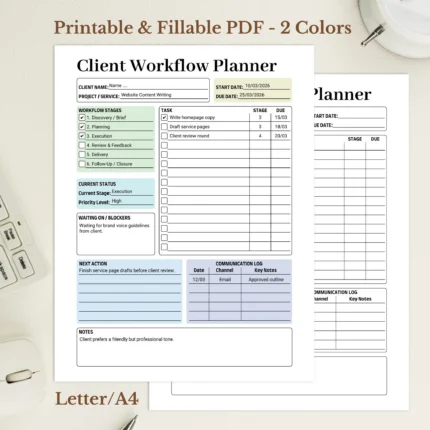
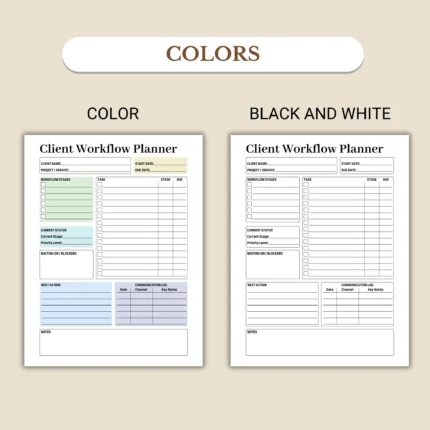
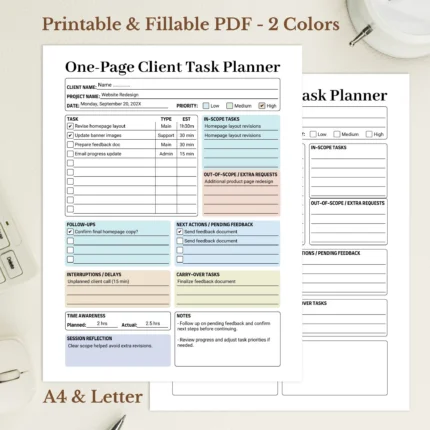
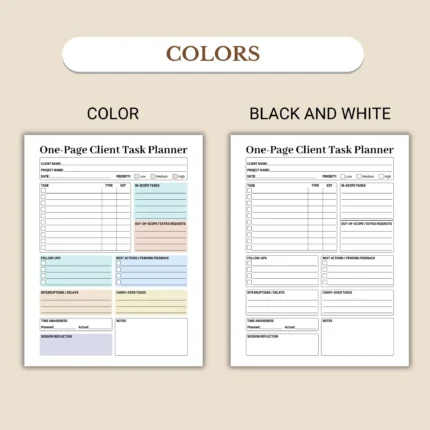
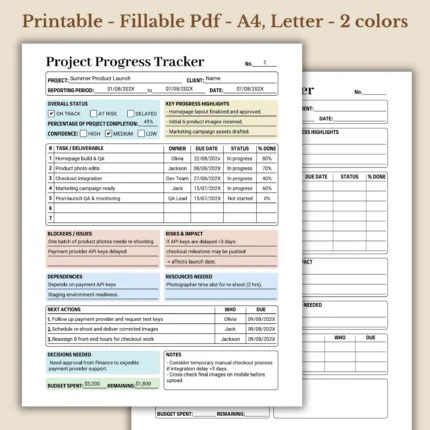
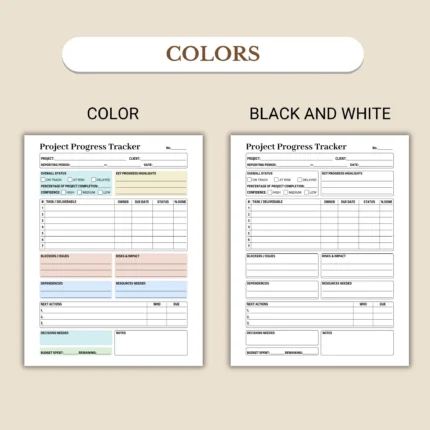
Before buying a client workflow planner, check:
- File type and whether the planner is printable, fillable, or both.
- Included pages or templates.
- Product screenshots and preview images.
- Page size and printing notes.
- Whether fillable fields are supported.
- Instructions for use.
- Current price and download access.
The how to buy and download a planner PDF page explains the purchase path. After payment, customers receive download links by email, and downloadable files can also be accessed from the website Downloads/account area when logged in.
Common Client Workflow Planner Questions
Common client workflow planner questions usually come down to the difference between a planner and CRM, whether one PDF can handle multiple clients, and what details to check before buying. The short answers below keep the page focused on PDF planner use.
Is a client workflow planner the same as a CRM?
No, a client workflow planner is not the same as a CRM. A client workflow planner is a page-based planning template, while a CRM is software that usually stores client records, pipeline stages, reminders, automations, and reporting.
Use a planner when you want a printable or fillable page for client work. Use a CRM when you need searchable records, automatic reminders, team access, or a client management database.
Can I use a PDF planner for multiple clients?
Yes, you can use a PDF planner for multiple clients if you duplicate, print, or save separate pages for each client or project. The cleanest method is to keep one client page or page set per active client.
For a small client list, that can be enough. For a larger client base with many shared fields, a spreadsheet, CRM, or project management system may be easier to sort and search.
What should I check before buying a client workflow planner?
Check the file type, included pages, screenshots, page size, fillable support, instructions, current price, and download access before buying a client workflow planner. Those details tell you whether the product fits your printing, typing, and planning workflow.
Do not assume that every printable PDF is fillable. Product titles, screenshots, and descriptions should confirm what the planner supports.
Should I use a free template or a paid client workflow planner?
Use a free template if you only need a simple test page, and consider a paid client workflow planner when you want a more complete, ready-made workflow with product screenshots and clearer download details. The better choice depends on how much structure your client work needs.
A paid planner should still be checked carefully. Look for the file type, included templates, page size, preview images, fillable support, instructions, and download access before purchasing.
Does a client workflow planner replace project management software?
No, a client workflow planner does not replace project management software for team collaboration, automated reminders, shared dashboards, or complex dependencies. It replaces scattered notes, loose task lists, and unclear client follow-up when the workflow is simple enough to manage manually.
That boundary is useful. A PDF planner is strongest when you want a page you can print, fill, save, review, and keep with your other planner templates.