Blog
How to Print a Printable Planner PDF at Home

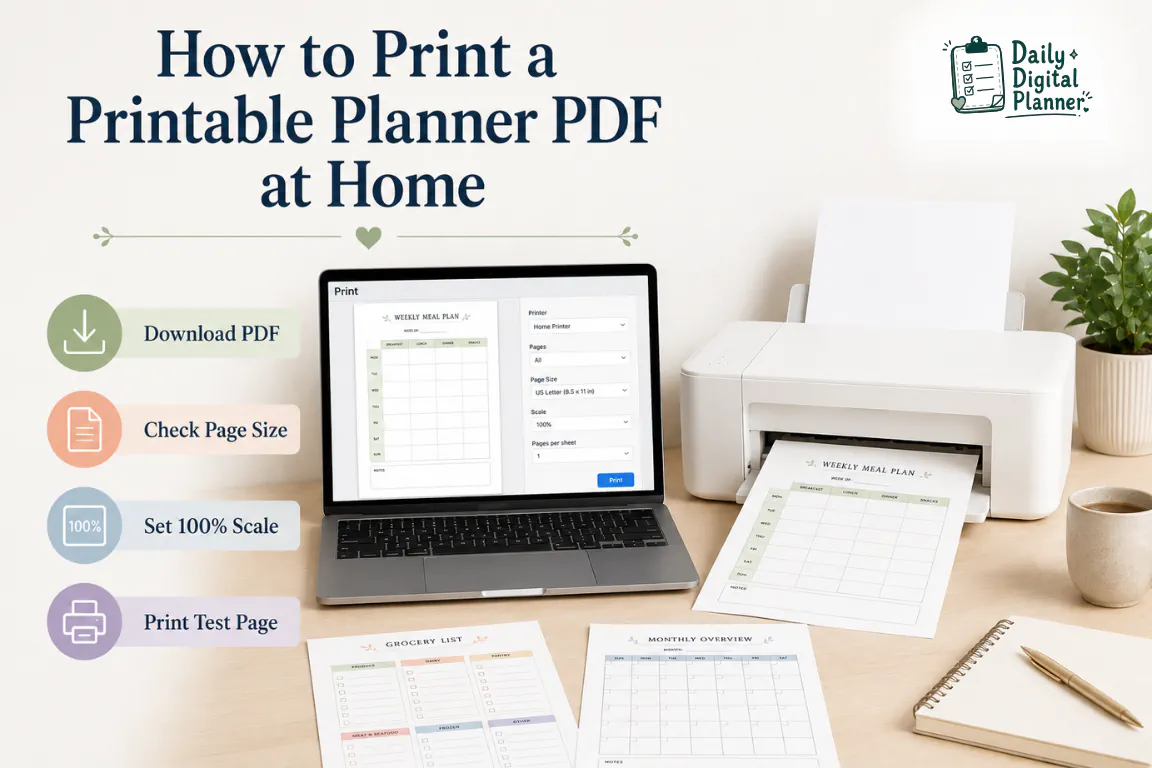
To print a printable planner PDF at home, save the PDF, open it in a PDF reader, match the paper size, choose the right scale setting, print one test page, and then print the planner pages you need.
Daily Digital Planner creates downloadable PDF planner templates, so this guide focuses on practical printing for printable planner PDFs rather than printer repair, physical planner binding, or software project-management tools. The goal is simple: get the planner page onto paper at the right size, without cut-off edges, tiny pages, reversed double-sided pages, or missing typed fields.
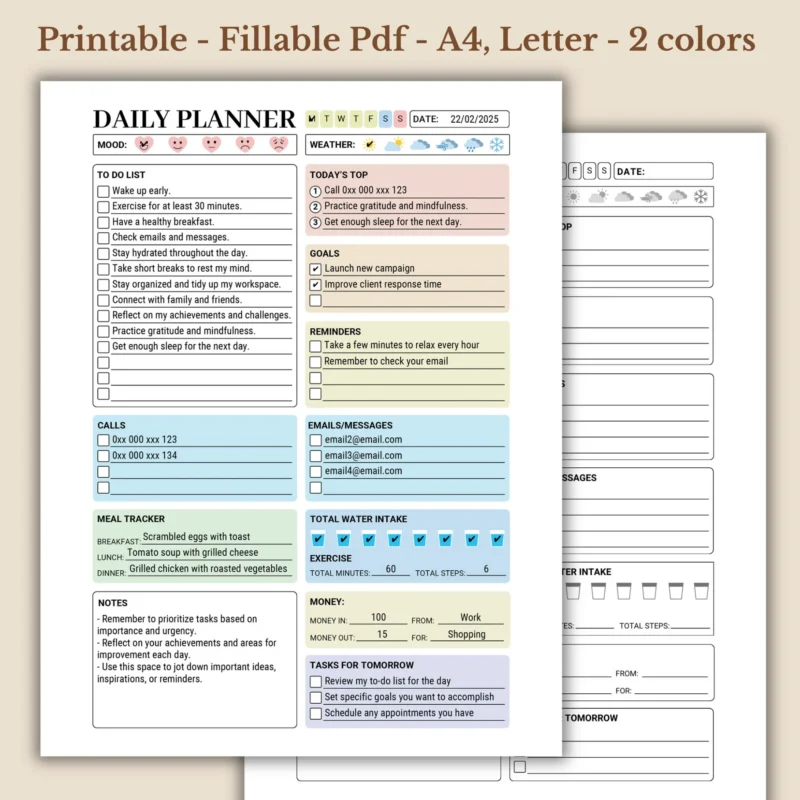
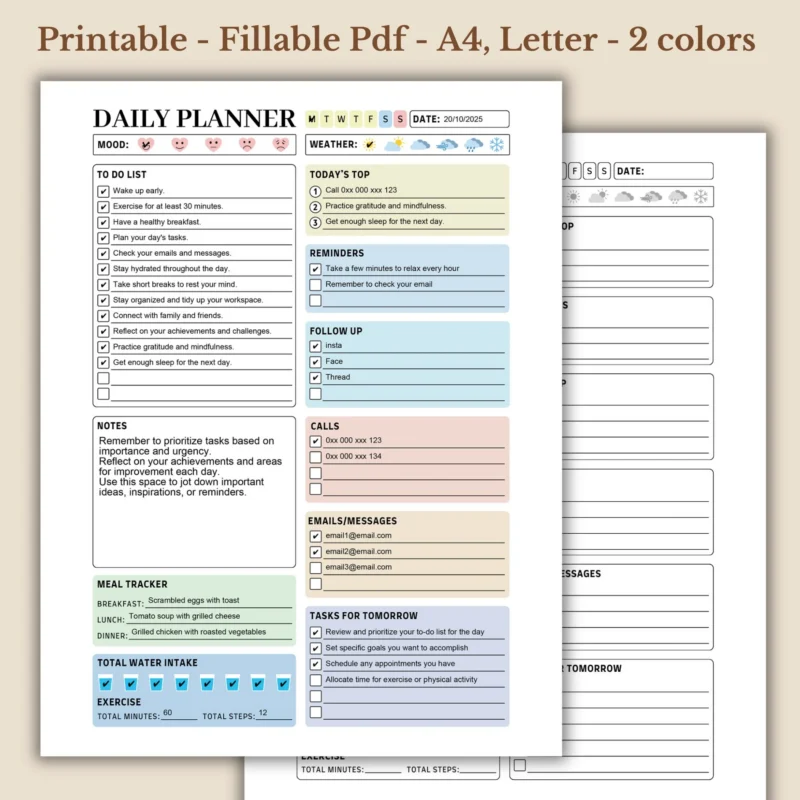
If you bought a planner from Daily Digital Planner, keep your original download saved before printing. If you are still learning how the format works, a PDF planner can be printable, fillable, or used digitally depending on the file design.
How to Print a Printable Planner PDF at Home: Quick Answer
Printable planner PDFs print best when you match the PDF page size to your paper, choose the correct scale setting, and test one page before printing a full batch.
Use this quick workflow:
- Download and save the PDF file to your device.
- Open the saved PDF in a PDF reader or a print-capable PDF viewer.
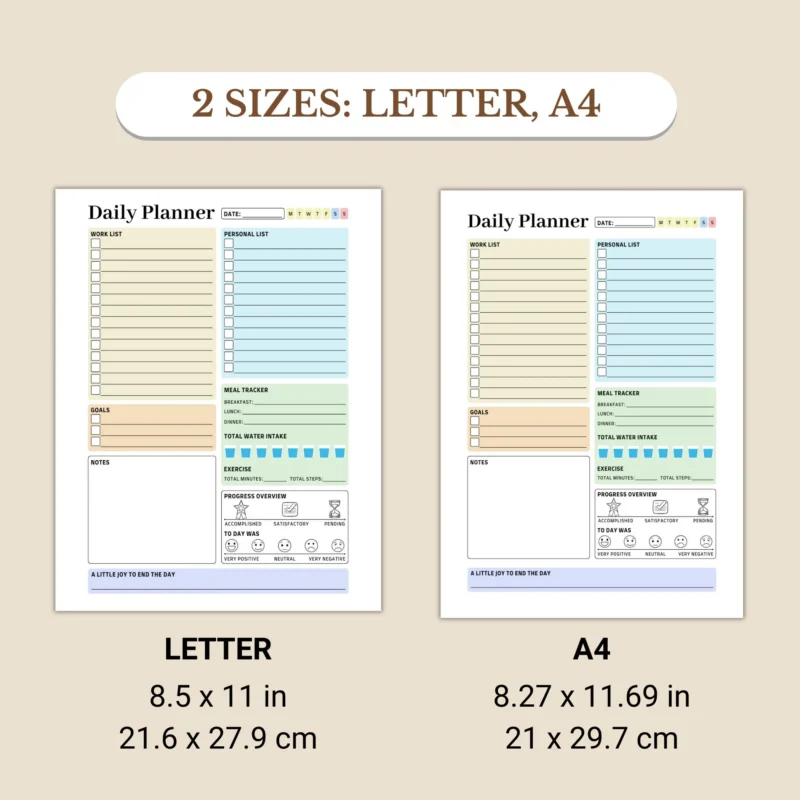
- Check whether the planner page is US Letter, A4, or another listed size.
- Choose Actual Size / 100% Scale when the PDF size and paper size match.
- Choose Fit to Printable Area if the page edges are being cut off by printer margins.
- Print one test page before printing selected pages or the full planner.
Daily Digital Planner products are digital downloads, so the file should be saved after purchase. If you need the purchase and download path first, use the guide on how to buy and download planner files before printing.
Before You Print: Check the PDF File, Page Size, and Product Details
Printable planner PDFs should be checked before printing because page size, orientation, and fillable support can change how the file should be printed.
Start with the product page or the download folder, then check these details:
- File type: confirm that the planner is a PDF file.
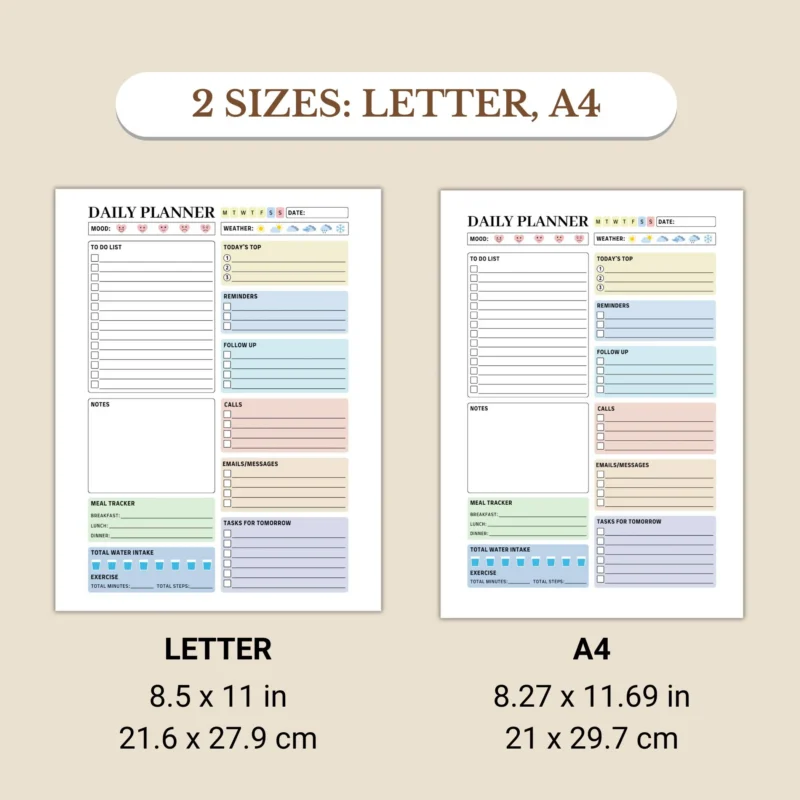
- Page size: check whether the product says US Letter, A4, or another size.
- Orientation: check whether the page is portrait or landscape.
- Included pages: check whether you need a daily page, weekly page, monthly page, or only selected pages.
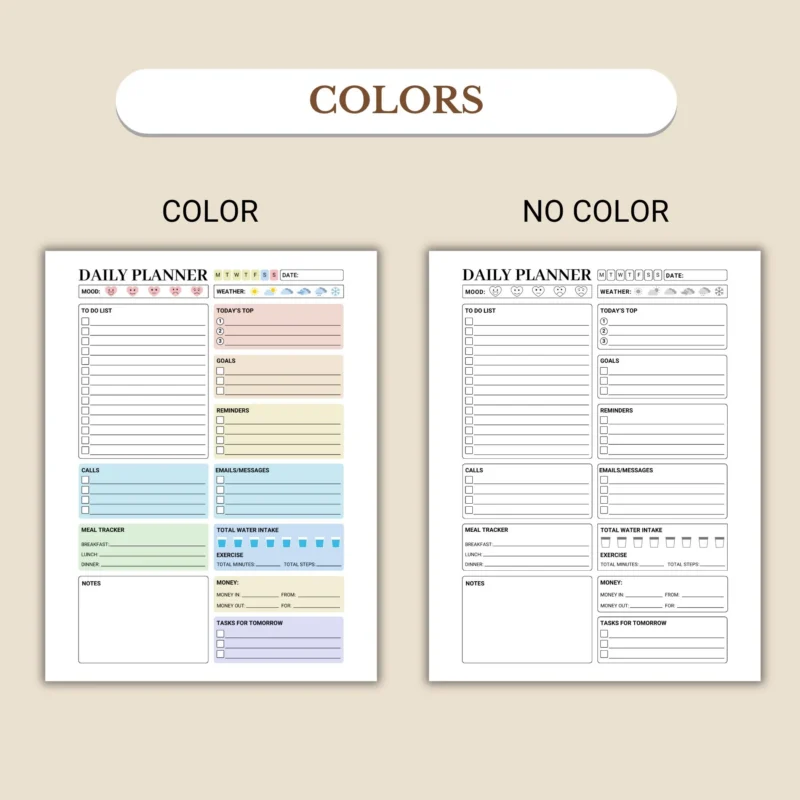
- Printable support: confirm that the design is meant to be printed.
- Fillable support: confirm fillable fields only if you want to type before printing.
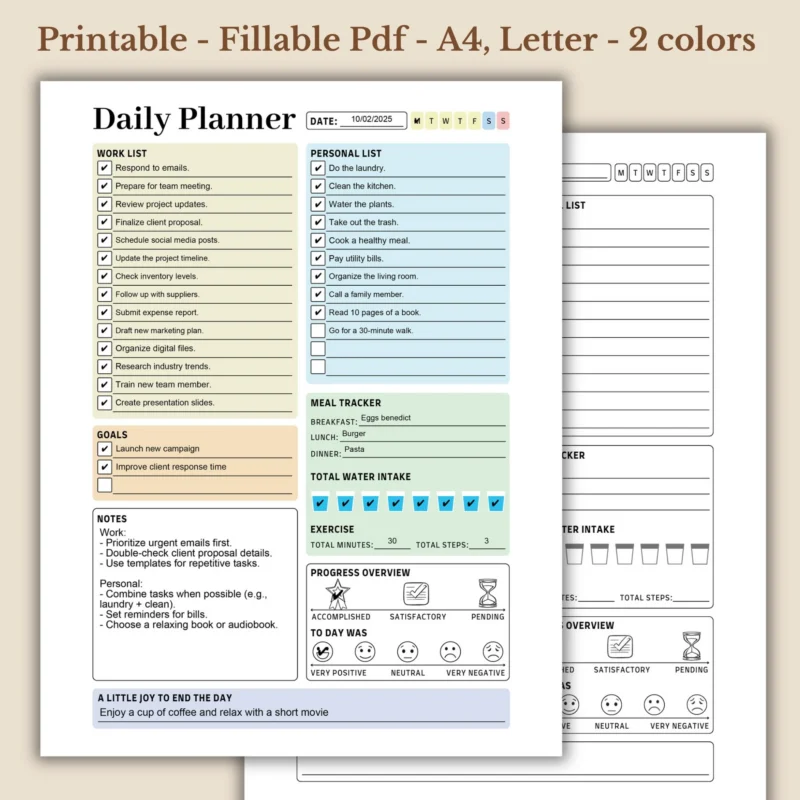
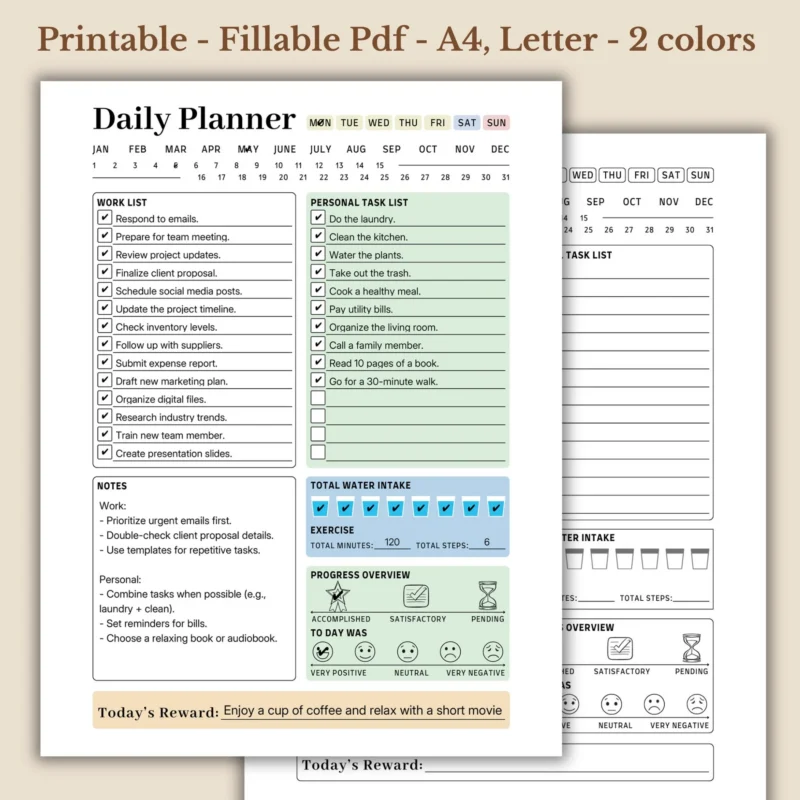
- Screenshots: use product images to understand page layout before wasting paper.
This check matters because a planner can look correct on screen but print incorrectly if the paper size or scale setting is wrong.
Download and Save a Clean Copy of the Planner PDF
Download and save a clean copy of the planner PDF before editing, typing, or printing.
A saved copy gives you a stable file to reopen later. It also protects your blank planner file if you plan to type into a fillable version, print different page ranges, or reprint clean pages for a new week.
For purchased products, keep the original download in a folder you can find again. Daily Digital Planner products are digital downloads, so no physical planner is shipped unless the store’s product model changes.
Check Whether the Planner PDF Is US Letter, A4, or Another Size
Planner PDF page size should match the paper size in your printer whenever possible.
| Page Size | Common Value | Best Use | First Check |
|---|---|---|---|
| US Letter | 8.5 x 11 inches | Common US home printing | Product page, PDF page size, printer paper |
| A4 | 210 x 297 mm | Common international printing | Product page, PDF page size, printer paper |
| Other planner size | Product-specific | Inserts, binders, or specialty layouts | Product page and included file names |
Use US Letter paper for a US Letter planner PDF. Use A4 paper for an A4 planner PDF. If your printer paper does not match the PDF size, the page may need scaling, and the final printed planner page may be smaller than the original design.
Check Whether the Planner Is Printable Only or Fillable
Printable-only planners are made for handwriting after printing, while fillable PDF planners support typing only when the PDF includes fillable fields.
This distinction prevents a common mistake. A printable PDF can usually be opened and printed, but that does not mean the file has typeable fields. If you want to type into the planner before printing, check the product details and compare the format with a fillable PDF planner.
Best Print Settings for Printable Planner PDFs
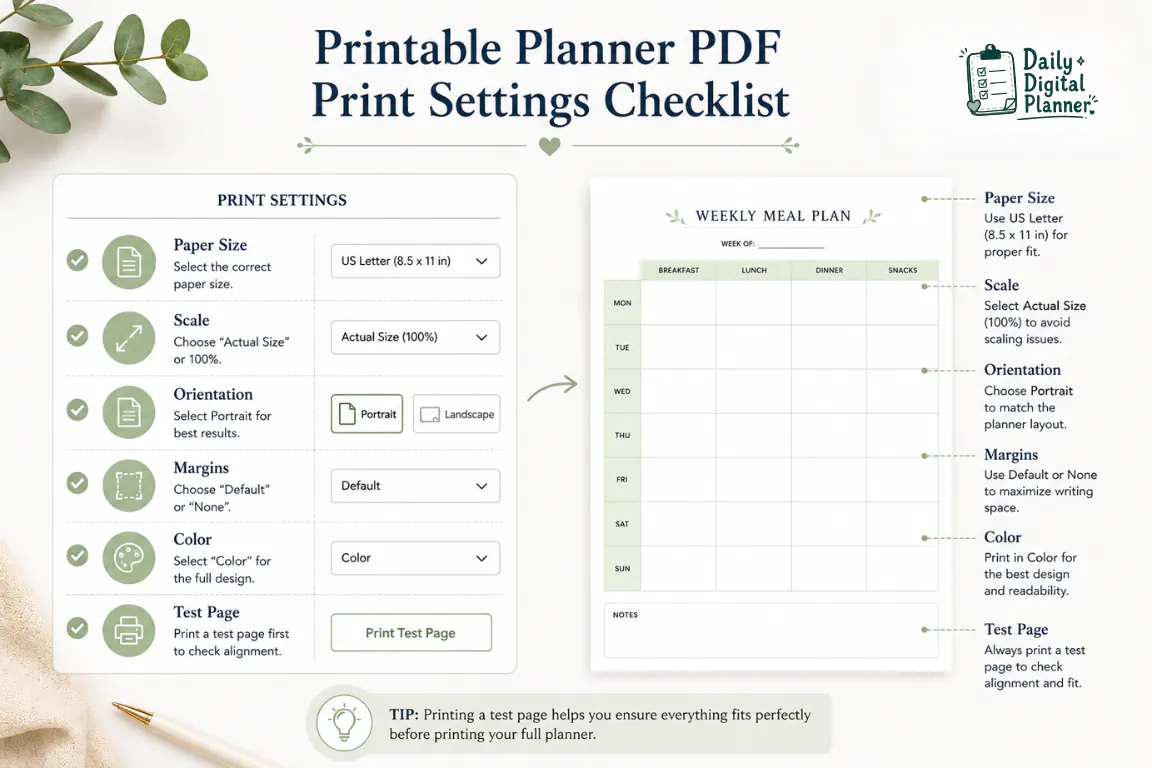
The best print settings for printable planner PDFs depend on paper size, page design, printer margins, orientation, and whether you want one-sided or double-sided pages.
Use this table as the print setup checklist:
| Print Setting | Use This When | Why It Matters | First Check |
|---|---|---|---|
| Paper size | The PDF is US Letter, A4, or another listed size | Paper size controls whether the planner fits the page | Match printer paper to the product page size |
| Actual Size / 100% Scale | PDF page size and printer paper size match | It preserves the designed planner size | Use for US Letter on US Letter or A4 on A4 |
| Fit to Printable Area | Edges are cut off or the printer cannot print close to the edge | It shrinks the page slightly so the design fits inside printer margins | Use after one test page shows cropping |
| Orientation | The planner page is portrait or landscape | Wrong orientation can rotate or shrink the page | Match the product screenshot or PDF preview |
| Color or black-and-white | The product design works in either style | Color affects ink use and readability | Print one test page first |
| Duplex / two-sided | You want front-and-back planner pages | Duplex settings can flip pages the wrong way | Test long-edge and short-edge before a batch |
Most print dialogs use similar ideas, but exact labels can vary by PDF reader, browser, operating system, and printer model. The preview pane is your friend here; check the page preview before printing.
Use Actual Size or 100% Scale When the Paper Size Matches
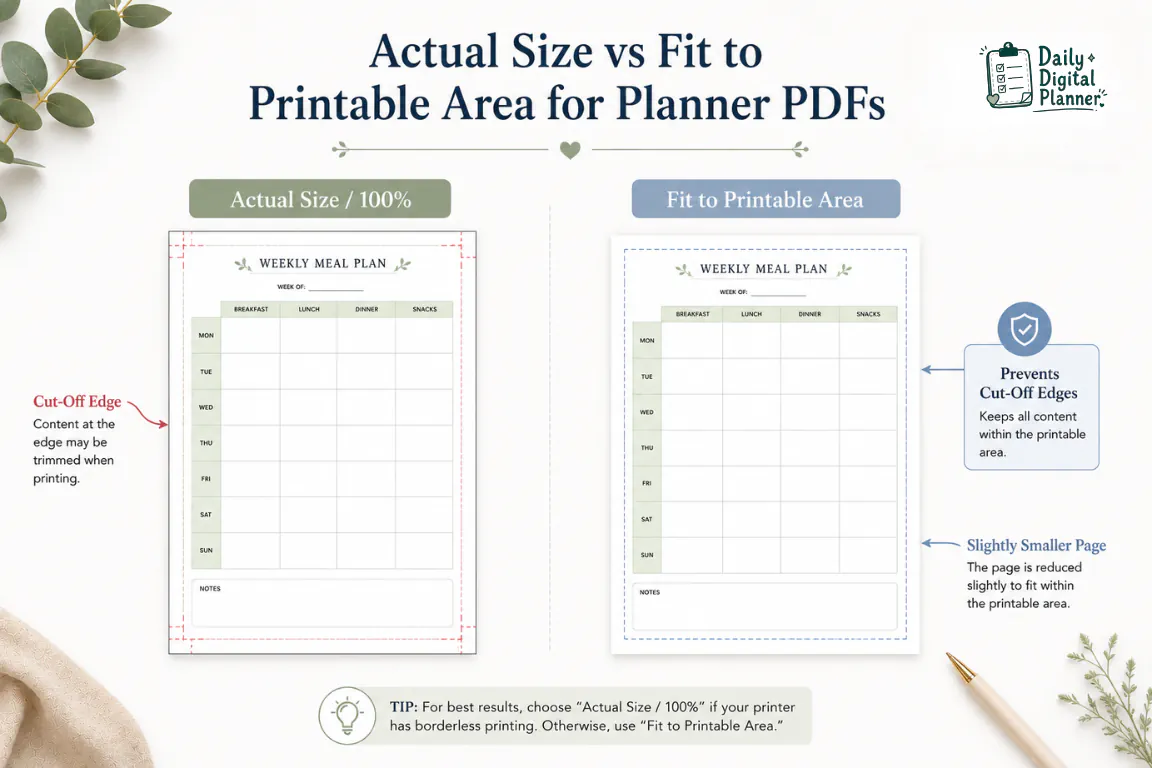
Actual Size or 100% Scale prints the planner PDF at its designed size when the PDF page size and printer paper size match.
Use this setting when a US Letter planner PDF is printing on US Letter paper, or when an A4 planner PDF is printing on A4 paper. This is usually the cleanest setting for planner pages that already match the paper in the printer.
The risk is printer margin. Some printers cannot print all the way to the edge of the paper. If a planner design sits close to the edge, Actual Size may crop small parts of the page.
Use Fit to Printable Area When Edges Are Being Cut Off
Fit to Printable Area shrinks the planner page slightly when the printer margins would otherwise cut off the design.
Use this setting after a test page shows cropped edges, missing borders, or planner boxes cut off near the margin. The printed page may be a little smaller than the original PDF size, but the full design is more likely to stay visible.
Do not treat Fit to Printable Area as automatically better. If the page prints too small, return to Actual Size / 100% Scale and confirm that the printer paper matches the PDF page size.
Match Paper Size, Orientation, and Color Settings
Paper size, orientation, and color settings should match the planner PDF before you print multiple pages.
Use this short check before printing:
- Paper size: choose US Letter, A4, or the product’s listed size.
- Orientation: choose portrait for upright pages or landscape for wide pages.
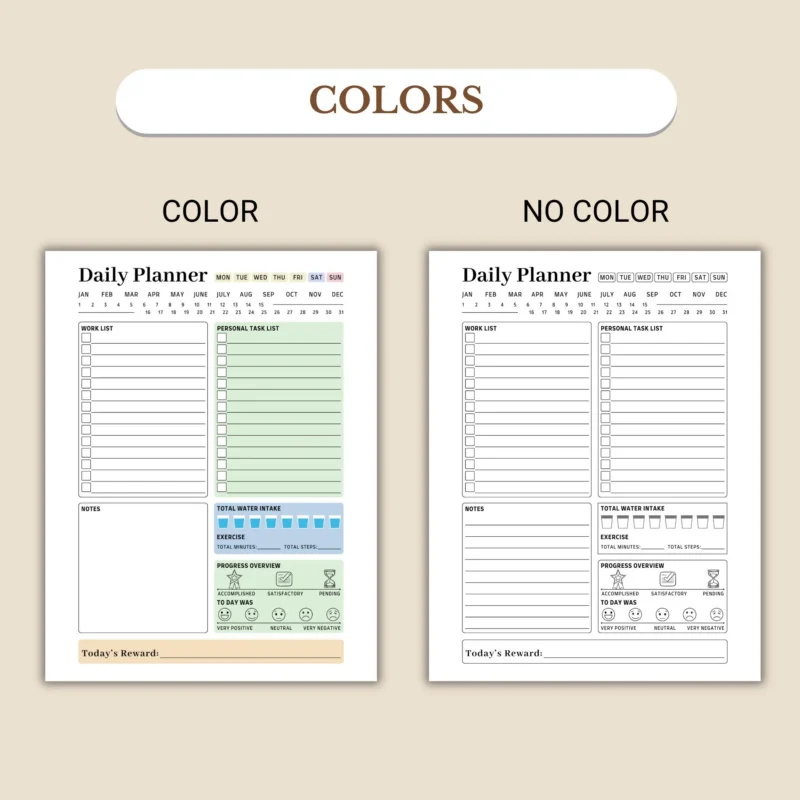
- Color: choose color when the design depends on color cues; choose black-and-white only if the planner remains readable.
- Margins: check the preview for cropped borders, boxes, or labels.
- Page range: choose selected pages when you do not need the whole file.
Print one test page after changing any of these settings. A single test page is cheaper than reprinting a full planner batch.
How to Print Printable Planner Pages Step by Step
Printable planner pages should be printed in a short test-first workflow, not as a full batch on the first try.
Follow these steps:
- Open the saved planner PDF.
- Open the print dialog from your PDF reader or browser.
- Select your printer.
- Select the paper size that matches the PDF.
- Choose Actual Size / 100% Scale if the paper and PDF size match.
- Choose Fit to Printable Area if your test page shows cut-off edges.
- Check portrait or landscape orientation in the print preview.
- Print one test page.
- Inspect the test page for size, margins, alignment, and readability.
- Print selected pages or the full planner after the test page looks right.
Exact menu names can differ across apps and printers, but the print logic is the same: match the page size, choose the scale, preview the page, and test before printing more.
Print One Test Page First
A test page helps catch wrong paper size, tiny output, cut-off edges, missing typed fields, and upside-down duplex pages before you waste paper.
Choose one page that has enough boxes, borders, and text to reveal printing issues. If the test page looks right, print the page range you need. If the test page looks wrong, change only one setting at a time so you can see which setting fixed the problem.
Print Selected Pages Instead of the Whole PDF
Selected pages are useful when you only need a daily page, weekly page, monthly page, checklist, or worksheet from a larger planner PDF.
Look for a page range, selected pages, or custom pages field in the print dialog. Print the pages you need for the current routine instead of printing the full file by default.
This is one reason printable planner PDFs are flexible. You can print a fresh weekly page, a single daily page, or a specific checklist when the product file includes those pages.
Print Double-Sided Planner Pages Carefully
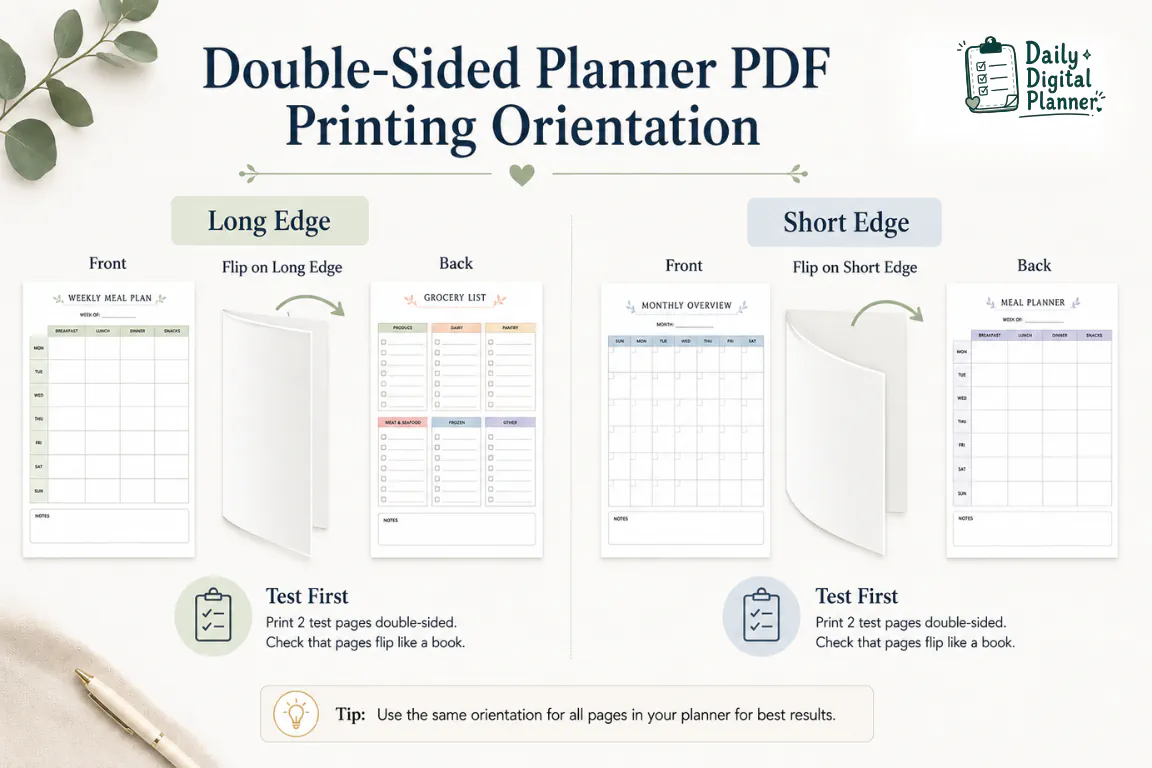
Double-sided planner pages should be tested with one front-and-back print before printing a full duplex batch.
Duplex printing can use long-edge flip or short-edge flip. The correct choice depends on the planner page orientation and the way your printer handles two-sided pages.
Use this simple approach:
- Mark one sheet lightly as “front” before the test if needed.
- Print two pages with duplex turned on.
- Check whether the back page is upright.
- If the back page is upside down, switch the long-edge or short-edge flip option.
- Print the batch only after the test sheet flips correctly.
How to Print a Fillable PDF Planner After Typing
A fillable PDF planner can be printed after typing when the file includes fillable fields and your typed text is saved and visible in print preview.
Use this workflow:
- Open the fillable planner in a compatible PDF reader.
- Type into the available fillable fields.
- Save a copy after typing.
- Reopen or preview the saved copy.
- Confirm that the typed text appears in print preview.
- Print one test page before printing more pages.
If the typed text disappears, do not keep printing batches. Save the file again, try another compatible PDF reader, and check whether the product was actually sold as fillable. For the broader format, see fillable PDF planner.
Printable Planner PDF Printing Problems and Fixes
Printable planner PDF printing problems usually come from page size mismatch, scale settings, printer margins, duplex flip settings, or unsupported fillable fields.
Use this troubleshooting table before changing printer hardware or installing anything new:
| Problem | Likely Cause | First Fix | When to Check the Product Page |
|---|---|---|---|
| Page prints too small | Fit to Page, wrong paper size, or extra scaling | Try Actual Size / 100% Scale and confirm the paper size | Check whether the product is US Letter, A4, or another size |
| Edges are cut off | Printer margins or wrong paper size | Try Fit to Printable Area and print one test page | Check whether the design needs a specific page size |
| Page prints sideways | Wrong orientation | Switch portrait or landscape and preview again | Check product screenshots for orientation |
| Double-sided pages are upside down | Wrong duplex flip setting | Test long-edge vs short-edge flip on one sheet | Check whether the file is designed for duplex printing |
| Typed fillable text does not print | Fields were not saved, previewed, or supported by the reader | Save a copy, preview the typed text, and print one test page | Confirm the product includes fillable fields |
| Printer will not print the PDF | App, connection, or printer-specific issue | Try a saved copy in another PDF reader and test one page | Check file type and contact support if the purchased file seems damaged |
This table is for planner PDF setup, not printer repair. If the printer cannot print any file, the issue is probably outside the planner PDF itself.
Planner Page Prints Too Small
A planner page usually prints too small when the PDF is being scaled down or the wrong paper size is selected.
First, check the paper size. If the PDF is US Letter, select US Letter paper. If the PDF is A4, select A4 paper. Then try Actual Size / 100% Scale and print one test page.
If the page still looks too small, check whether the PDF was designed for a smaller insert size. Do not enlarge a planner page unless you understand that the margins, text size, and layout may change.
Planner Page Edges Are Cut Off
Planner page edges are usually cut off when the PDF design extends beyond the printer’s printable area or the wrong paper size is selected.
First, confirm the paper size. Then try Fit to Printable Area and print one test page. The page may become slightly smaller, but the planner boxes and borders should stay more visible.
If only a decorative border is cropped and the writing areas remain usable, the page may still be fine. If task boxes, dates, or labels are missing, adjust the scale before printing more pages.
Double-Sided Planner Pages Print Upside Down
Double-sided planner pages print upside down when the duplex flip setting does not match the page orientation.
Try switching between long-edge flip and short-edge flip, then print one two-page test again. Landscape planner pages and portrait planner pages can behave differently, so do not assume last week’s setting will work for a different planner layout.
Typed Fillable Fields Do Not Print
Typed fillable fields may not print when the PDF was not saved, the fields are not visible in preview, or the PDF reader does not handle the fields correctly.
Save a copy after typing, reopen the saved file, and check print preview before printing. If the typed text still does not appear, use the product page to confirm that the file is actually fillable. If it is a printable-only PDF, it is designed for handwriting after printing.
What to Check Before Buying a Printable Planner PDF
Shoppers should verify file type, page size, orientation, screenshots, printable support, fillable support, price, and download access before buying a printable planner PDF.
Use this buyer checklist:
- File type: the planner should clearly state PDF or another included format.
- Included pages: product details should show which planner pages or templates are included.
- Screenshots: product images should show the actual layout style.
- Page size: check US Letter, A4, or another listed size.
- Orientation: check portrait or landscape.
- Printable support: confirm that the planner is meant to print.
- Fillable support: confirm fillable fields only if typing matters.
- Current price: use the live product page price, not old screenshots.
- Download access: understand how the digital file is delivered.
- Terms of use: check whether the file is for personal use, commercial use, or another license.
If you are still deciding which paper-first format to use, compare current printable planner PDFs before choosing a specific product.
Related Printable Planner Guides and Products
Related printable planner links are supplementary next steps after the printing workflow is clear.
If you need a product path, start with planner categories that match the pages you want to print:
- Browse daily planner PDFs when you want one page for today’s tasks, schedule, priorities, or focus block.
- Browse weekly planner PDFs when you want recurring weekly pages, review space, or a seven-day planning layout.
- Review printable planner PDFs when you want the broader paper-first planner format before choosing a product.
- Compare digital planner vs printable planner if you are still deciding whether to plan on paper, on a device, or across both workflows.