Blog
How to Use a Fillable PDF Planner in Adobe Acrobat Reader
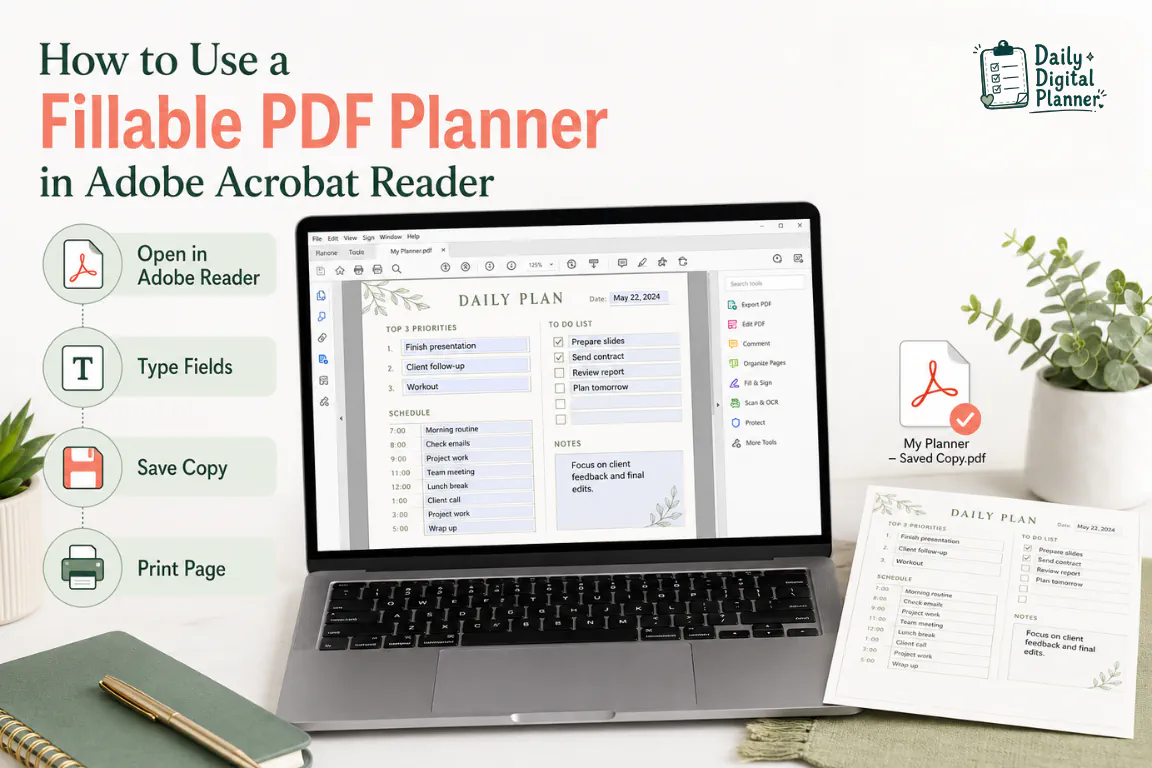
A fillable PDF planner works in Adobe Acrobat Reader only when the PDF already includes supported fillable fields. Download the planner file, open it in Adobe Acrobat Reader instead of a browser preview, type into the available fields, save a working copy, and check the saved file before printing.
Daily Digital Planner creates downloadable PDF planner templates, so this guide focuses on using a purchased or downloaded planner file correctly. It does not explain how to create fillable fields, design a planner in Canva, or edit a PDF layout in Adobe Acrobat Pro.
If you are still choosing the right format, start with fillable PDF planners and check each product description for included file types before buying.
How Do You Use a Fillable PDF Planner in Adobe Acrobat Reader?
You use a fillable PDF planner in Adobe Acrobat Reader by opening the downloaded fillable PDF file, clicking into supported fields, typing your planner entries, saving a working copy, reopening that copy, and printing only after the saved entries still appear.
The important condition is that the planner must already be fillable. Adobe’s form-filling guidance explains that interactive PDF forms contain fields you can select or fill in, while flat forms do not have interactive fields and may need Fill & Sign instead. For planner use, that means a weekly planner, work planner, habit tracker, or meal planner must include built-in form fields before Adobe Reader can treat it as a true fillable planner.
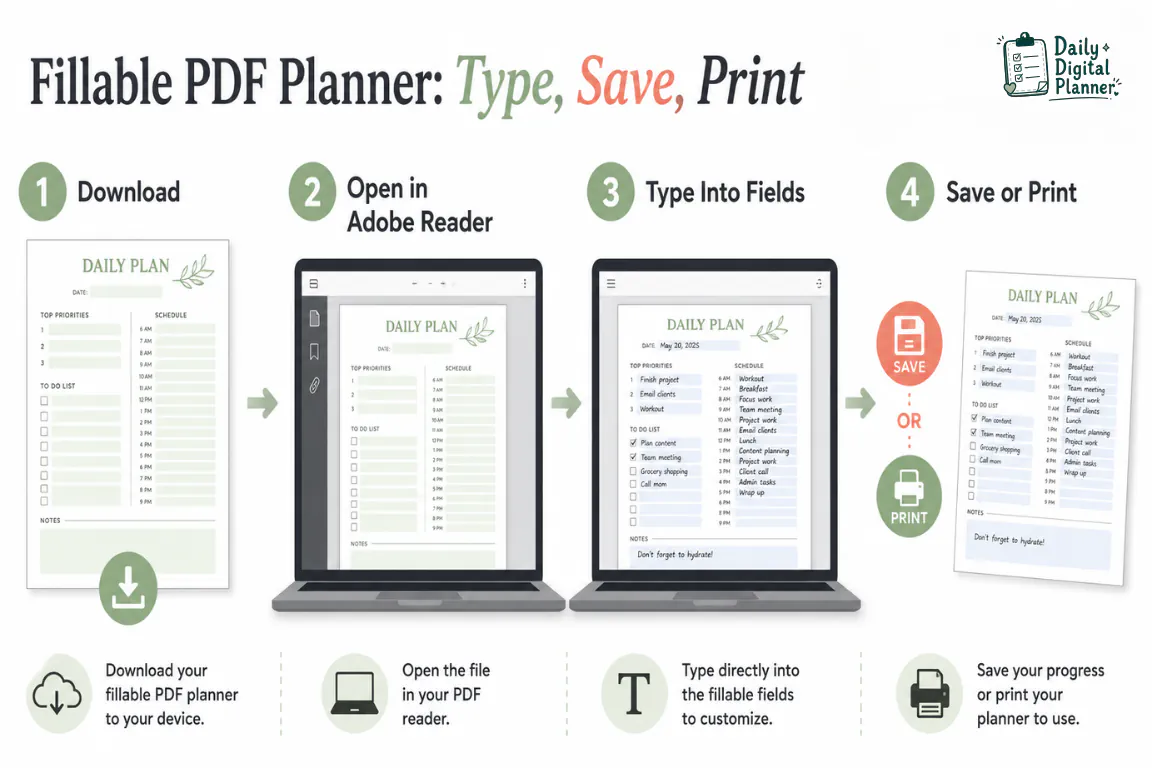
Use this quick workflow:
- Download the planner PDF to your device.
- Open the saved file in Adobe Acrobat Reader.
- Click into a visible field or highlighted typing area.
- Type your schedule, task, note, meal, priority, or checklist entry.
- Save the file as a new working copy.
- Close and reopen the saved copy to confirm your entries stayed saved.
- Print selected planner pages if the typed entries appear in print preview.
This workflow is simple, but the order matters. Browser previews, unsaved files, flat PDFs, and wrong file versions are the most common reasons a fillable planner feels like it is not working.
What Should You Check Before Opening a Fillable PDF Planner?
You should check whether the planner file is actually fillable, which version you downloaded, and whether you have a blank copy saved before typing into it.
A downloadable planner product can include more than one file version. One file may be printable-only for handwriting. Another file may be fillable for typing before printing. Some products may include US Letter and A4 sizes, blank and fillable versions, or multiple color options.
Check these details before you start typing:
| Check | What to Look For | Why It Matters |
|---|---|---|
| File type | PDF file | Adobe Acrobat Reader is built for PDF files. |
| File version | Fillable, blank, printable, or instructions file | Only the fillable version supports typing into planner fields. |
| Page size | US Letter, A4, or another listed size | Page size affects printing after you fill the planner. |
| Product description | Included templates, screenshots, and file notes | The product page should explain what files are included. |
| Reader app | Adobe Acrobat Reader | A browser preview can behave differently from Reader. |
| Blank master copy | Original downloaded file | A blank copy lets you reuse the planner later. |
If a product includes both blank and fillable versions, choose the fillable version when you want to type. If a product includes only a flat printable PDF, Adobe Reader can open and print it, but it cannot turn the planner boxes into real fillable fields for ordinary typing. If you are still comparing the file formats, use the fillable PDF planner vs printable planner guide before choosing a product.
Is the Planner Actually Fillable?
A planner is actually fillable when the PDF includes interactive form fields or supported typing areas that can be selected in Adobe Acrobat Reader.
Adobe’s form guidance for Reader separates interactive fillable forms from flat forms. Interactive forms contain selectable fields. Flat forms are visual pages without built-in fields, even if the page has boxes, lines, or blank spaces that look like places to type.
For a planner buyer, the practical test is simple:
- Click into a date box, note field, schedule block, checklist, or meal line.
- Look for a text cursor, highlighted field area, checkbox behavior, or typing area.
- Use Tab to move to the next field if the file supports field navigation.
- If nothing responds, confirm that you opened the fillable version of the file.
Some fillable planner files may show blue highlighted areas in the PDF reader. Those highlights usually show where fields exist. The highlight is a guide for typing; it is not the same as the planner design itself.
Should You Keep a Blank Copy Before Typing?
You should keep a blank copy before typing because a fillable PDF planner is reusable only if the original download stays clean.
Save the untouched file in a folder such as Planner Downloads or Daily Digital Planner. Then create a separate working copy for each week, project, client, class, meal plan, or routine.
Useful file names include:
weekly-planner-june-1-working-copy.pdfwork-day-planner-client-project.pdfmeal-plan-week-24-filled.pdfhabit-tracker-june-filled.pdf
This habit prevents one small mistake from overwriting the clean planner. It also makes lifetime downloads and reusable planner pages easier to manage.
How Do You Open a Fillable PDF Planner in Adobe Acrobat Reader?
You open a fillable PDF planner in Adobe Acrobat Reader by downloading the file to your device first, then choosing Adobe Acrobat Reader as the app that opens the saved PDF.
Opening the planner from an email preview, browser tab, cloud preview, or checkout screen can be convenient, but it is not the safest workflow when you need typed fields to save correctly. Adobe Reader gives you a more predictable PDF environment for form fields, saving, print preview, and troubleshooting.
Use this setup:
- Download the planner PDF after purchase.
- Find the file in Downloads or your chosen planner folder.
- Right-click or control-click the file.
- Choose Open With.
- Select Adobe Acrobat Reader.
- Save a working copy before typing deeply into the planner.
On Windows, Adobe’s default PDF viewer guidance explains how to set Acrobat or Acrobat Reader as the default PDF program. On macOS, Adobe also explains how to choose Acrobat or Acrobat Reader with Open With and make that choice the default for PDF files.
Should You Download the PDF Before Opening It?
You should download the PDF before opening it when you plan to type, save, reuse, or print a fillable planner.
A downloaded file gives Adobe Acrobat Reader a normal local PDF file to work with. A browser preview can show the page visually, but the save behavior, field behavior, and print behavior may not match Reader.
For Daily Digital Planner products, the safer order is:
- Buy or access the product.
- Download the included PDF files.
- Save the original files in a planner folder.
- Open the fillable PDF in Adobe Acrobat Reader.
- Save a working copy before entering detailed planner data.
If you need the purchase path first, use the guide on how to buy and download planner files before starting the Adobe Reader workflow.
How Do You Avoid Browser Preview Problems?
You avoid browser preview problems by opening the saved planner file directly in Adobe Acrobat Reader instead of typing into the PDF inside Chrome, Edge, Safari, or another browser viewer.
Browser PDF viewers can be useful for quick viewing, but they are not the best baseline for a fillable PDF planner workflow. A browser may open the file automatically after download, which makes it feel like the planner is ready to use even when Reader would be the better app.
Use this quick fix:
- Download the file instead of typing in the browser tab.
- Open the downloaded file from your device folder.
- Use Open With > Adobe Acrobat Reader.
- If PDF files keep opening in the browser, change the default PDF app to Adobe Acrobat Reader.
- Save a working copy, close it, and reopen it to confirm typed entries remain.
This is not about making the workflow fancy. It is about keeping your typed planner entries from disappearing after you thought you saved them.
How Do You Type Into Fillable PDF Planner Fields?
You type into fillable PDF planner fields by selecting a supported text field, checkbox, or planner input area in Adobe Acrobat Reader and entering your planner information directly into that field.
Adobe’s form-filling guidance says interactive forms contain fields that can be selected or filled in. In a planner, those fields may appear inside daily schedule blocks, weekly priorities, checklists, project notes, meal planning lines, or habit tracker rows.
Use this typing workflow:
- Click inside a planner field.
- Type the planner entry.
- Press Tab to move to the next field if field navigation is supported.
- Click a checkbox or selection field if the planner includes one.
- Save your working copy after a few entries.
- Reopen the saved copy after your first save test.
Keep entries short enough to fit the field. If a planner field is designed for a brief task or time block, a long paragraph may overflow visually or become hard to read after printing.
What Is the Difference Between Fillable Fields and Fill & Sign Text?
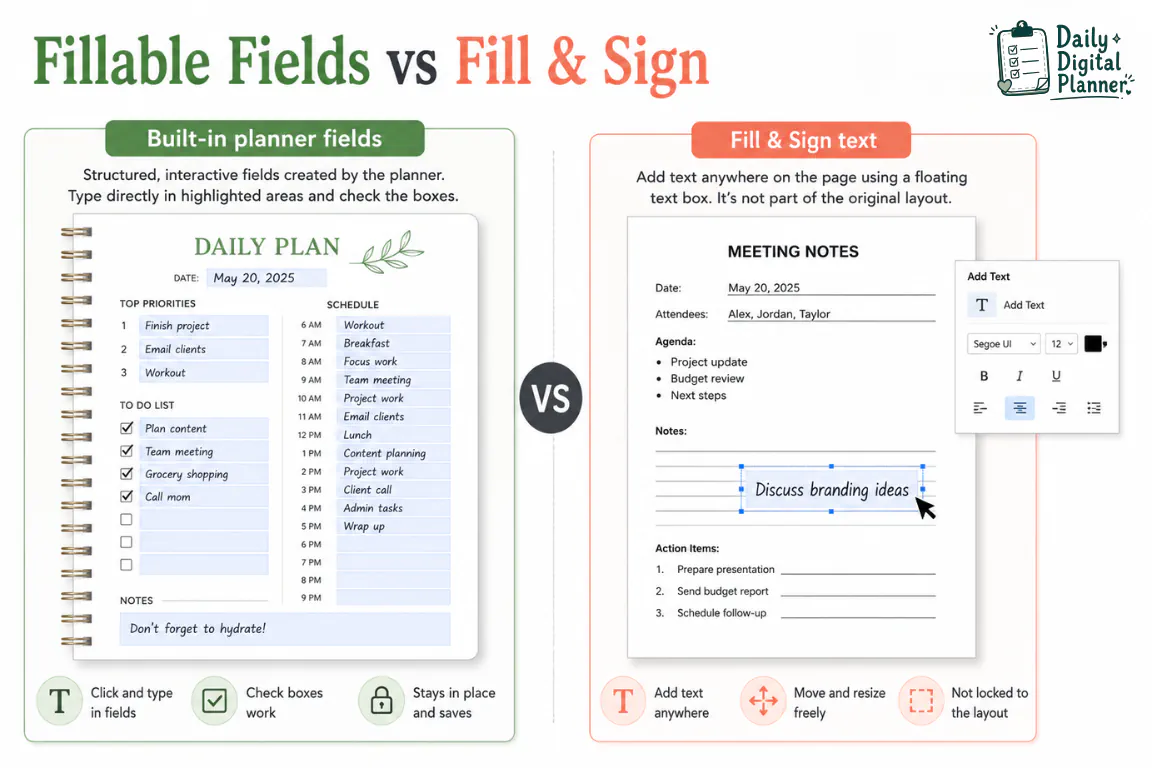
Fillable fields are built into the PDF planner file, while Fill & Sign text is manually placed on top of a PDF page.
This difference matters because a planner with built-in fields usually gives you a cleaner typing workflow. You click into the field, type the entry, and move through the planned areas. Adobe’s Fill & Sign guidance is useful when a PDF is flat or when you need to add text manually, but it is not the same as editing the planner template or creating real form fields.
| Feature | Fillable PDF Fields | Fill & Sign Text |
|---|---|---|
| How it works | Fields are built into the PDF | Text is placed manually on the page |
| Best use | Typing into planned boxes, lines, and checklists | Adding text to a flat form or signing a page |
| Planner experience | More structured | More manual |
| Field navigation | May support Tab or field order | Usually placed one item at a time |
| Layout editing | Does not redesign the planner | Does not redesign the planner |
If your product includes a fillable PDF version, use the built-in fields first. Use Fill & Sign only when you are working with a flat PDF or need to place a small piece of text outside a built-in field.
Can You Use Checkboxes, Notes, and Planner Sections?
You can use checkboxes, notes, and planner sections when the fillable PDF planner includes those fields or supported input areas.
A work planner may include fields for priorities, meetings, deadlines, and task notes. A home planner may include fields for chores, errands, family schedules, and reminders. A meal planner may include fields for breakfasts, lunches, dinners, snacks, and grocery notes. A habit tracker may include checkboxes or repeated daily fields.
Use each field according to its planner purpose:
- Date fields: type the planning date, week, or month.
- Priority fields: type one task or short outcome per line.
- Schedule blocks: type meetings, routines, or time blocks.
- Notes fields: type reminders, context, or follow-up details.
- Checkboxes: mark completed tasks when the PDF supports checkbox interaction.
- Meal sections: type meals, prep notes, or grocery reminders.
If a checkbox does not respond, the page may be a printable-only version, a flat PDF, or a field that needs another app behavior. Confirm the file version before assuming the planner is broken.
How Do You Save a Fillable PDF Planner After Typing?
You save a fillable PDF planner after typing by using Save As or an equivalent save-copy action, naming the file as a working copy, and reopening the saved PDF to verify the typed entries.
Adobe’s saving guidance for Acrobat and Reader explains PDF save and Save As workflows. For planner use, the safe habit is to save a copy early instead of waiting until the entire planner is filled.
Use this save workflow:
- Type a few test entries.
- Choose Save As or save the PDF to your device.
- Rename the file as a working copy.
- Close the file.
- Reopen the saved copy in Adobe Acrobat Reader.
- Confirm that the typed fields still appear.
- Continue filling the planner after the save test passes.
This takes less than a minute and prevents a very annoying problem: filling a planner page beautifully, closing the file, and realizing the entries did not save.
Should You Save a Working Copy?
You should save a working copy because a fillable PDF planner is easier to reuse when the blank master stays untouched.
The blank master is the clean original download. The working copy is the version you type into for a specific week, project, class, client, routine, meal plan, or habit cycle.
Use a naming pattern that explains what the file contains:
| Planner Use | Working Copy Name |
|---|---|
| Weekly schedule | weekly-planner-june-1-working-copy.pdf |
| Client project | work-day-planner-client-project.pdf |
| Meal planning | meal-plan-week-24-filled.pdf |
| Home routine | home-routine-planner-june.pdf |
| Habit tracking | habit-tracker-june-filled.pdf |
The file name is not an SEO detail for the user. It is a practical recovery system. If you save many planner copies, clear file names keep the right week, project, or routine easy to find.
How Do You Check That Typed Planner Entries Stayed Saved?
You check that typed planner entries stayed saved by closing the PDF, reopening the saved working copy in Adobe Acrobat Reader, and confirming the typed fields still appear before you continue.
This check is especially useful the first time you use a new fillable planner file. It confirms that the app, file permissions, and save location are working together.
Use this test:
- Type
testor one real planner entry into a field. - Save the file as a working copy.
- Close the PDF.
- Reopen the working copy from your device folder.
- Confirm the entry still appears.
- Delete or replace the test entry if needed.
If the entry disappears, stop before filling the whole planner. Confirm that you opened the file in Adobe Acrobat Reader, that you saved a copy to your device, and that the planner version is truly fillable.
How Do You Print a Fillable PDF Planner After Filling It Out?
You print a fillable PDF planner after filling it out by saving the typed planner, reopening the saved copy in Adobe Acrobat Reader, checking print preview, and printing only the pages you need.
Printing should come after saving, not before. The saved file is your proof that the typed planner entries exist outside the temporary editing session.
Use this print workflow:
- Save the typed planner as a working copy.
- Close and reopen the saved file in Adobe Acrobat Reader.
- Open the print dialog.
- Check that typed entries appear in print preview.
- Choose selected pages if you only need part of the planner.
- Match paper size and orientation to the planner file.
- Print one test page.
- Print the remaining pages after the test page looks correct.
Adobe’s form guidance includes print options for forms and typed entries. For planner use, the practical check is visual: if the typed fields are visible in print preview, you can test one page before printing a larger batch.
What Should You Check If Typed Fields Do Not Print?
You should check print preview, the app used for printing, form-field visibility, and whether the file was saved correctly if typed fields do not print.
Start with the simplest causes:
- Print from Adobe Acrobat Reader, not a browser preview.
- Reopen the saved working copy before printing.
- Confirm the typed entries are visible on screen.
- Confirm the typed entries are visible in print preview.
- Print one test page before printing the full planner.
- Check whether the planner file is a fillable PDF or a flat printable PDF.
If the page prints without your typed entries, do not keep printing. Return to the saved file, confirm the fields are visible, and try printing again from Adobe Acrobat Reader.
What If the Fillable PDF Planner Does Not Work in Adobe Reader?
If the fillable PDF planner does not work in Adobe Reader, first confirm that the file is the fillable version, the fields are interactive, the file opened in Adobe Acrobat Reader, and the saved working copy keeps entries after reopening.
Most problems fall into a few practical categories. Use this table before changing advanced settings or assuming the file is unusable.
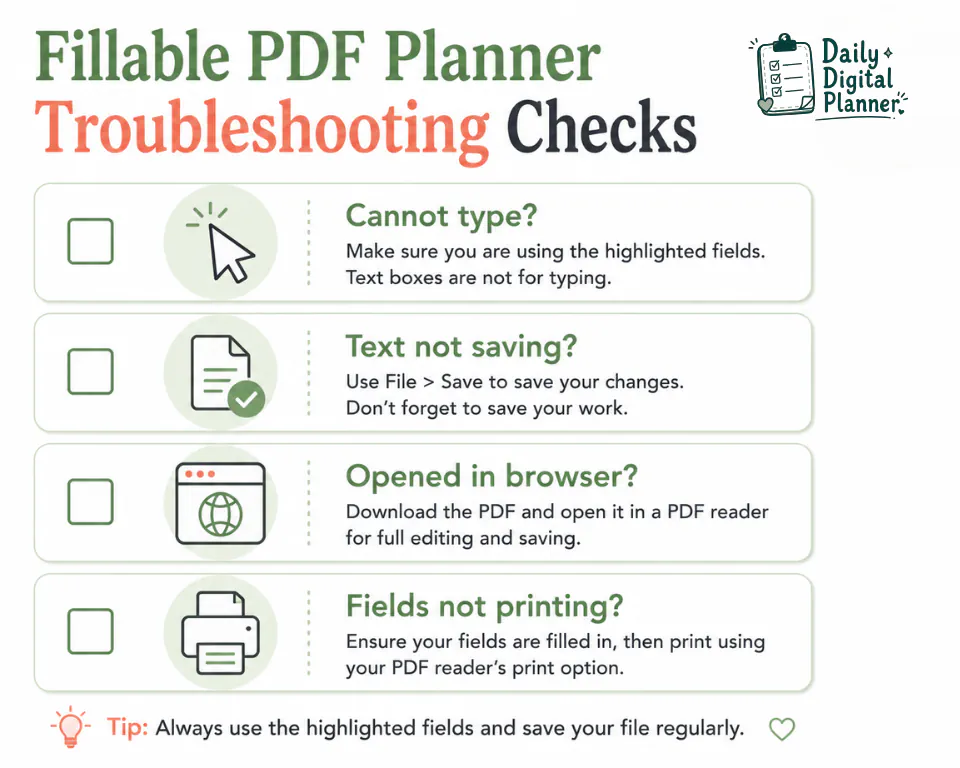
| Problem | Likely Cause | First Fix |
|---|---|---|
| You cannot click into fields | The PDF may not include fillable fields, or it opened in a limited viewer. | Confirm the file version and open it in Adobe Acrobat Reader. |
| Typed text disappears | The file may not have been saved as a working copy, or the viewer did not preserve entries. | Use Save As, reopen the saved copy, and check entries. |
| Fields do not print | Print settings or field rendering may be the issue. | Check print preview and print from Adobe Acrobat Reader. |
| The PDF opens in the browser | Browser preview may be the default PDF viewer. | Download the file and open it with Adobe Acrobat Reader. |
| Fields look missing | Some fields may not highlight until clicked, or the file may be a flat PDF. | Click into expected field areas and verify the product file type. |
| The file says editing is restricted | The PDF may have security settings or usage rights restrictions. | Check document properties or contact the file creator if form filling is not allowed. |
Adobe’s troubleshooting guidance for PDF forms recommends checking whether fields highlight and whether form filling is allowed in the document security settings. For planner use, check the product version first, then the app, then save behavior.
Why Can You Not Type Into the PDF?
You cannot type into the PDF when the planner is a flat printable PDF, the wrong file version is open, the PDF viewer does not support the fields correctly, or the file has restrictions that prevent form filling.
Check the file name and product details first. If the product includes multiple files, make sure you opened the fillable PDF version, not the blank printable version.
Then check the app. If the PDF is open in a browser, save it to your device and open it in Adobe Acrobat Reader. If Adobe Reader still does not show interactive areas, the file may be flat or restricted.
Why Are Fields Missing, Blank, or Not Saving?
Fields may be missing, blank, or not saving when the PDF is opened in the wrong viewer, the entries were not saved to a working copy, or the file does not include the expected interactive fields.
Use this order:
- Open the downloaded file in Adobe Acrobat Reader.
- Click directly into the expected field area.
- Type a short test entry.
- Save as a working copy.
- Close and reopen that copy.
- Confirm the entry stayed visible.
If the field works after this test, the problem was likely the viewing or saving workflow. If it still does not work, check the product description and included files again.
When Should You Use the Troubleshooting Guide?
You should use a deeper troubleshooting guide when the planner still will not type, save, or print after you confirm the file version, app, save copy, and print preview.
The current article covers the first checks because most issues happen at the workflow level. A separate troubleshooting article should cover more detailed cases such as field restrictions, app-specific behavior, device differences, browser settings, and print field visibility.
Until that guide is published, avoid guessing. Start with the file version, Adobe Acrobat Reader, a working copy, and a reopen test.
Which Daily Digital Planner Products Can Use This Workflow?
Daily Digital Planner products can use this workflow when the product includes a fillable PDF version with supported fields.
The key phrase is "when the product includes a fillable PDF version." A printable-only planner is still useful for handwriting and home printing, but it does not automatically become a typeable planner in Adobe Reader.
Before buying or using a file, check the product page for:
- File type.
- Included templates.
- Blank and fillable versions.
- Page sizes such as US Letter or A4.
- Screenshots or previews.
- Instructions for fillable use.
- Printing notes.
- Download access details.
If you want planner pages you can type into before printing, start with fillable PDF planner templates and check the product description for included file versions. If you need help getting the files after purchase, use the guide on how to buy and download planner files.
This workflow is a support bridge, not a product guarantee. Always check the individual product details before assuming a specific planner is fillable.
Fillable PDF Planner in Adobe Reader FAQ
The fillable PDF planner FAQ below answers the remaining Adobe Reader questions that usually appear after a user understands the basic type, save, and print workflow.
Can I use Adobe Acrobat Reader for a fillable PDF planner?
Yes, you can use Adobe Acrobat Reader for a fillable PDF planner if the planner PDF includes supported fillable fields.
Adobe Reader is a practical baseline for opening, filling, saving, and printing PDF forms. The planner file still needs built-in fields or supported typing areas for the workflow to work cleanly.
Do I need Adobe Acrobat Pro to type into a fillable planner?
No, you usually do not need Adobe Acrobat Pro to type into existing fillable planner fields.
Acrobat Pro is mainly relevant when someone needs to create, edit, or prepare PDF form fields. A buyer using an already-fillable planner usually needs Adobe Acrobat Reader, the correct file version, and a proper save workflow.
Why can't I type into my PDF planner?
You may not be able to type into your PDF planner because the file is a flat printable PDF, the fillable version is not open, the browser preview is limiting the workflow, or the PDF has restrictions.
Open the downloaded file in Adobe Acrobat Reader first. Then click into the expected field area and test one short entry before filling the full planner.
Should I open a fillable PDF planner in my browser?
You should not rely on a browser preview when you need to type, save, reuse, and print a fillable PDF planner.
Download the PDF and open it in Adobe Acrobat Reader. Browser previews can be useful for viewing a file, but Reader is the safer baseline for form fields and saved planner entries.
How do I save my filled planner?
You save your filled planner by using Save As or a save-copy action, giving the file a clear working-copy name, and reopening it to confirm the typed entries stayed saved.
Keep the blank original separate. Use the working copy for the week, project, meal plan, class, or routine you are filling.
Can I print a fillable PDF planner after typing?
Yes, you can print a fillable PDF planner after typing if the typed entries appear in the saved file and in print preview.
Save the filled planner first, reopen it in Adobe Acrobat Reader, check print preview, and print one test page before printing more pages.
Is Fill & Sign the same as fillable planner fields?
No, Fill & Sign is not the same as fillable planner fields.
Fillable planner fields are built into the PDF file. Fill & Sign places text, checkmarks, or signatures manually on top of a PDF page. Use built-in fields first when your planner includes them.
What is the safest workflow for a reusable fillable PDF planner?
The safest workflow is to keep the blank master file, create a working copy, type into the working copy in Adobe Acrobat Reader, save it, reopen it, and print only after checking the entries.
This workflow protects the original download and gives you a repeatable system for weekly pages, workday pages, meal plans, habits, notes, and home routines.