
Blog
Best Apps for Filling and Annotating PDF Planners

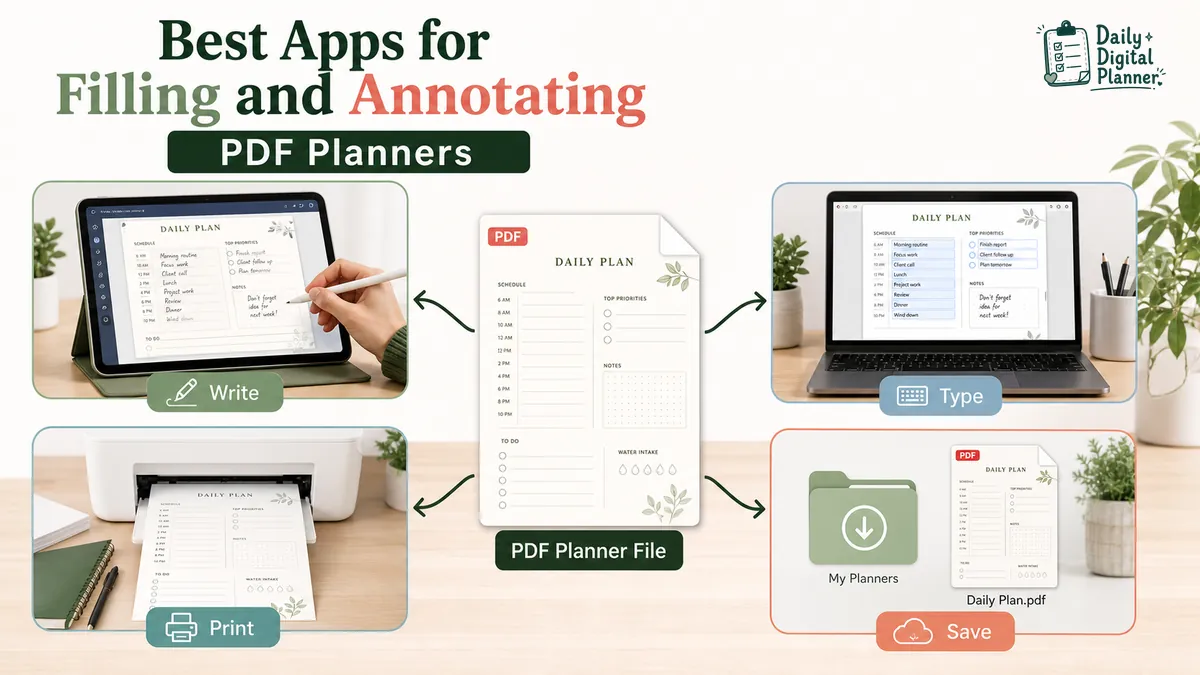
A PDF planner works best in the app that supports what you want to do with the file: write on it, type into fillable fields, read it, print it, save a working copy, or organize the downloaded pages.
Daily Digital Planner sells downloadable PDF planner templates, so this guide focuses on app compatibility for PDF files. It is not a ranking of calendar apps or to-do apps. If you are still choosing the planner itself, start with digital planner PDF templates before choosing the app.
Think of the workflow in three parts: the digital planner is the planning product, the PDF planner is the file format, and the app is the environment where you use that file. The guide on what a digital planner is explains the broad category; this page stays narrower and focuses on PDF planner app fit.
What Apps Work With PDF Planners?
A PDF planner works with an app when the app can open the PDF file and support the action you need, such as writing, typing into fields, printing, or saving.
That sounds simple, but it clears up a lot of confusion. A planner app is not always a PDF planner app. A task manager may help you manage reminders, but it may not open a purchased PDF planner file the way a PDF reader, PDF editor, or annotation app can.
Use the task first:
- Write or draw on planner pages: use a PDF annotation app or note-taking app that can import and mark up PDFs.
- Type into built-in fields: use a PDF reader or editor that supports fillable PDF fields.
- Read or print planner pages: use a PDF reader, browser PDF viewer, or printer workflow that preserves the page size.
- Save and organize copies: use a PDF app, file manager, or cloud folder that makes it clear where the edited file is stored.
If an app can open a PDF but cannot save annotations, preserve fillable fields, or print at the right scale, it may still be the wrong app for your planner workflow.
Before comparing app names, check the features that matter for the planner you want to use:
| Feature | Why It Matters |
|---|---|
| PDF import | The app must be able to open the planner file, not only create notes or tasks. |
| Handwriting and stylus tools | Needed if you want to write on planner pages like paper. |
| Fillable field support | Needed if the planner includes built-in typeable fields. |
| Hyperlink and tab support | Needed if the planner uses internal navigation tabs or linked pages. |
| Export or save copy | Needed so your filled or annotated planner can be backed up or printed. |
| Sync and backup | Useful when you plan on more than one device. |
| Device support | The best choice may differ on iPad, Android, Windows, Mac, or a phone. |
Is a PDF Planner an App or a File?
A PDF planner is the file; the app is the tool used to open, write on, type into, print, save, or organize that file.
This is the main distinction to keep in mind before buying or troubleshooting. A downloadable PDF planner can be used in different PDF-friendly apps. An app-specific file, such as a proprietary note-taking format, may need that app or a compatible import/export path.
If you want the file-format explanation first, read the guide on what a PDF planner is. A PDF planner is not the same as a GoodNotes file. GoodNotes is one possible app for using a PDF planner, but the planner itself is still the PDF file unless the seller provides a separate app-specific format.
| Item | What It Is | What It Means for Planner Use |
|---|---|---|
| PDF planner file | A downloadable .pdf planner template | Can be opened in compatible PDF readers, editors, and annotation apps |
| PDF annotation app | An app for handwriting, highlighting, drawing, or marking up PDFs | Useful when you want to write on planner pages with a stylus or typed note tools |
| PDF reader or editor | An app for opening, filling, saving, signing, printing, or exporting PDFs | Useful for fillable fields, print setup, and saved working copies |
| App-specific file | A file made for a specific app or platform | May not work everywhere unless exported or converted |
The product file type matters more than the app name. If the product says PDF, look for PDF support. If the product says it requires a specific app file, check that requirement before buying.
Which App Should You Use for Writing, Typing, Reading, or Printing?
The best PDF planner app depends on whether you want to write by hand, type into fillable fields, read and print pages, or keep copies organized.
Instead of choosing the app with the longest feature list, choose the one that matches the job.
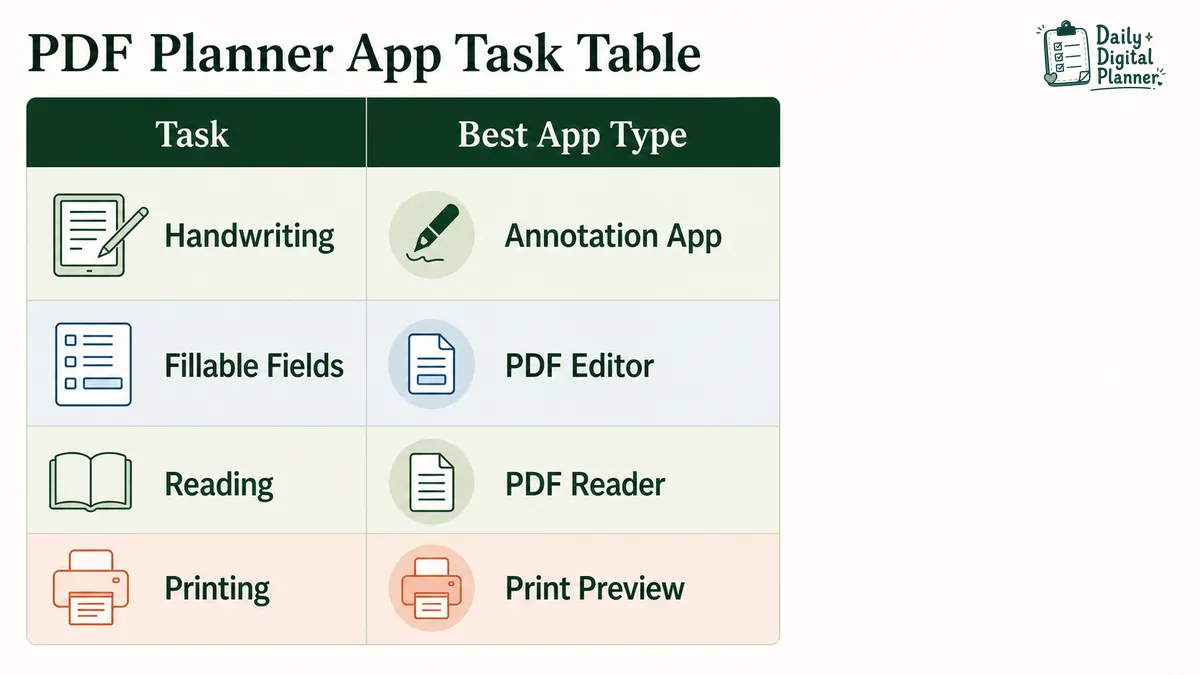
| Task | Best App Type to Look For | Common Examples | What to Check Before Using It |
|---|---|---|---|
| Handwrite, highlight, or mark up pages | PDF annotation app or note-taking app with PDF import | GoodNotes, Notability, Xodo, other PDF markup apps | PDF import, pen tools, export, saved copy behavior |
| Type into built-in planner fields | PDF reader or editor with fillable field support | Adobe Acrobat Reader or Acrobat, Xodo, other PDF form tools | Fillable field support, checkbox behavior, save copy, print preview |
| Read or print the planner | PDF reader, browser PDF viewer, or system print dialog | Preview, Acrobat Reader, browser PDF viewer, device print workflow | Page size, orientation, scale, selected pages, test print |
| Save and organize planner files | PDF app, cloud storage, or file manager | Files, iCloud, Google Drive, Dropbox, app library, local folders | Where the edited copy is saved and whether sync changes the file |
If typing into planner fields is the main reason you want a PDF, compare fillable PDF planners before choosing the app. If you already have a fillable planner and want the basic setup steps, use the Adobe Acrobat Reader fillable PDF planner guide.
Apps for Handwriting and Annotation
Apps for handwriting and annotation are best when the planner page is meant to be written on, highlighted, marked up, or used with a stylus.
This is the common tablet-planning workflow. You import the PDF planner into an app, choose a pen or text tool, and write directly over the planner page. It works well for daily pages, weekly overviews, habit trackers, project notes, lesson notes, meeting notes, and any planner page that feels better with handwritten input.
GoodNotes, Notability, Xodo, and similar tools are examples people often compare for this kind of use. The important check is not the brand name by itself. Confirm that the current app version can import PDFs, preserve your annotations, export or back up the finished file, and work on your device.
Apps for Fillable Text Fields
Apps for fillable text fields are best when the PDF planner includes built-in text boxes, checkboxes, or form fields.
This is different from writing on top of a blank PDF page. A fillable PDF planner has fields built into the file. A compatible PDF reader or editor lets you click into those fields, type your schedule or notes, save a working copy, and print after checking the saved file.
Adobe Acrobat Reader, Acrobat, Xodo, and other PDF form tools may be relevant here, depending on your device and the current app version. If a field does not save, does not print, or disappears after reopening the file, the issue may be the file version, the app, browser preview behavior, or the save workflow. The fillable PDF planner troubleshooting guide covers those checks.
Apps for Reading, Printing, and Saving Copies
A basic PDF reader may be enough if you only need to open, print, or save the planner without handwriting or field editing.
For a printable PDF planner, the app does not need to be fancy. It needs to show the correct pages, preserve page size, and send the file to the printer with the right scale and orientation.
Check these basics:
- Can you open the PDF from a saved file, not only an email or browser preview?
- Can you choose selected pages instead of printing the full file?
- Can you check US Letter, A4, portrait, landscape, and scale settings?
- Can you save a clean original and a separate working copy?
- Can you find the file again after download?
If printing is the main task, use the guide to print a printable planner PDF at home before printing a full planner set.
Which PDF Planner Apps Work Best on Different Devices?
The best PDF planner app for your device depends on whether that device is mainly for handwriting, typing, printing, or file storage.
Keep this device view practical:
| Device | Typical PDF Planner Use | App Type to Check |
|---|---|---|
| iPad | Handwriting, annotation, imported planner pages, stylus planning | Note-taking or PDF annotation app with PDF import and export |
| Android tablet | Handwriting, reading, annotation, and mobile PDF use | PDF annotation app or Android PDF reader/editor |
| Windows laptop or desktop | Typing into fields, printing, file management, saved copies | PDF reader or editor with form-field support |
| Mac | Reading, printing, file organization, annotation, typed PDF use | PDF reader, Preview-style workflow, or note-taking app if needed |
| Phone | Quick reference, light annotation, checking download files | PDF reader or cloud file app; not ideal for large planner pages |
Do not assume an iPad tutorial applies to every device. If you plan to buy a planner for Android, Windows, or Mac, check that the app supports the exact PDF feature you need: annotation, fields, tabs, printing, export, or sync.
Which Common PDF Planner Apps Should You Compare?
For PDF planners, compare apps by PDF import, annotation tools, fillable field support, device support, export, and saving behavior.
This article is not saying one app is best for every person. App features, pricing, storage rules, subscriptions, and device support can change. Check the current app documentation before depending on a specific feature.
| App or Tool Type | Best for PDF Planner Use | Check First |
|---|---|---|
| GoodNotes | Tablet handwriting, PDF annotation, organizing imported planner pages | PDF import, export, device support, whether your exact workflow needs fillable fields |
| Notability | Notes, handwriting, imported documents, and PDF markup workflows | Device support, export behavior, sync, and current feature limits |
| Adobe Acrobat Reader or Acrobat | Reading PDFs, filling supported fields, signing, saving, and printing | Fillable field support, saved copy behavior, print preview, free vs paid feature boundaries |
| Xodo-style PDF tools | General PDF editing, filling, annotating, and cross-device PDF handling | Platform support, export, whether the needed feature is free or paid |
| Basic PDF reader or browser viewer | Quick reading and simple printing | Whether it saves edits, preserves fields, and prints at the correct scale |
The safest way to compare apps is to test a duplicate PDF, enter a small sample, save it, close it, reopen it, and check whether your work is still there. That one-minute test is more useful than assuming a planner works because an app can open a PDF.
GoodNotes for PDF Planners
GoodNotes is a common choice for PDF planner users who want a handwriting and annotation workspace, especially when the planner is used like a notebook.
Use this route when your main action is writing, highlighting, adding notes, or organizing planner pages inside a note-taking app. Do not assume GoodNotes is required for every PDF planner. A normal PDF planner can often be opened in other compatible PDF apps.
Notability and Other Note-Taking Apps
Notability and similar note-taking apps may work when they can import and annotate PDFs.
They make sense when you want planner pages to sit beside handwritten notes, class notes, meeting notes, or study materials. Before using one as your main planner app, check how it handles PDF import, export, backup, and device syncing. A planner that looks fine inside the app should still be easy to save or export when you need a copy.
Adobe Acrobat Reader and Xodo for PDF Files
Adobe Acrobat Reader and Xodo-style PDF tools are more relevant when you need to fill fields, sign forms, read files, print pages, or manage PDF copies.
For a fillable PDF planner, these tools may fit better than a note-taking app because the planner behaves more like a form. For a printable planner, they may also be enough because the main need is opening the PDF and printing it at the correct size.
The practical split is this: annotation apps are better for writing on the page, while PDF readers and editors are often better for form fields, saving, and print checks.
Do Hyperlinked PDF Planners Work in Every App?
No, hyperlinked PDF planner tabs and internal links do not work the same way in every app.
Some PDF planners include clickable tabs, index pages, monthly navigation, or linked sections. Those links depend on both the file and the app. A PDF reader may open the file but still handle links, tabs, annotation mode, or page navigation differently from another app.
If planner navigation matters, test these before committing to the app:
- Tap or click several planner tabs.
- Check whether links still work after importing the PDF.
- Test links in both reading mode and annotation mode if the app separates them.
- Save or export a copy and confirm the navigation still behaves correctly.
- Check whether the app has known limits for internal PDF links.
This is especially important for users who expect a digital planner to feel like a linked notebook instead of a flat printable file.
Can You Use a PDF Planner Without GoodNotes?
Yes, you can use a PDF planner without GoodNotes if the planner is delivered as a PDF and another app can open and work with that PDF.
GoodNotes is one possible workspace, not the definition of a PDF planner. A PDF planner is still a PDF file. If another app supports your needed action, that app may be enough.
You can usually choose another app when:
- You only want to read or print the planner.
- You want to type into fillable fields using a PDF reader or editor.
- You want to annotate the PDF in a different note-taking or markup app.
The caution is file type. A .pdf file and an app-specific file are not the same thing. If a seller provides only a proprietary app file, that app may be required. If the seller provides a standard PDF, check for PDF import, annotation, fillable fields, export, and printing in the app you plan to use.
What Should You Check Before Buying a PDF Planner for an App?
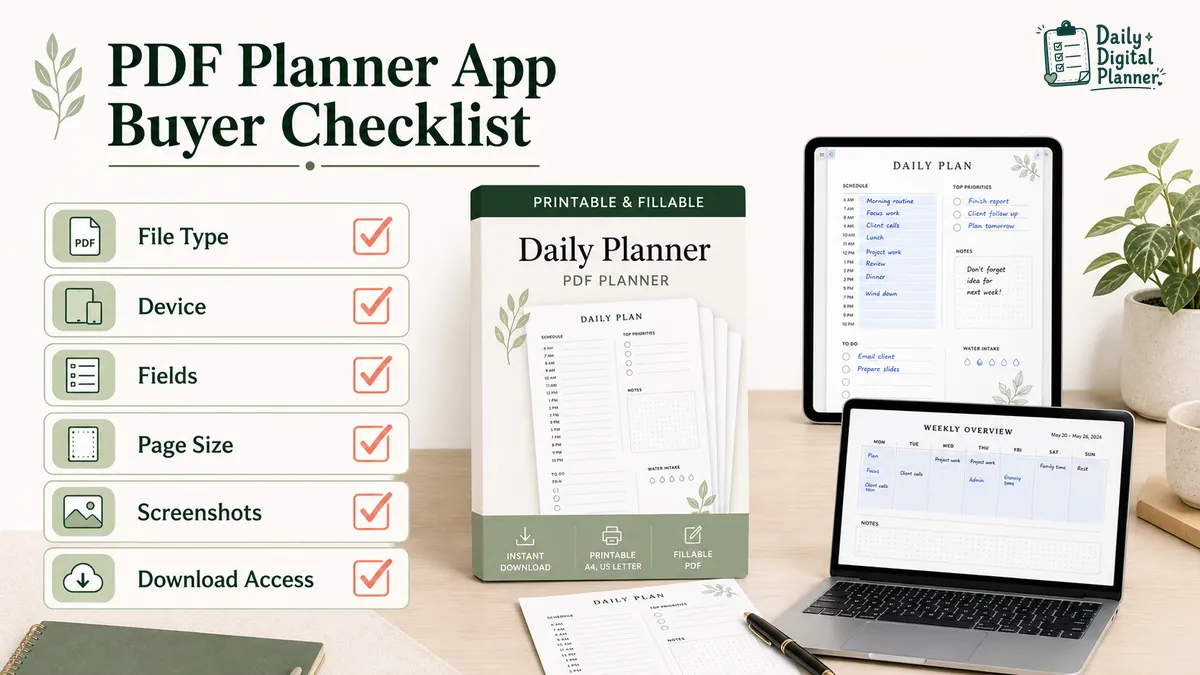
Before buying a PDF planner for a specific app, check the product page for file type, device fit, page size, fillable fields, screenshots, instructions, and download access.
Use this checklist before purchase:
- File type: confirm whether the product includes PDF files, app-specific files, or both.
- Device: check whether you plan to use an iPad, Android tablet, phone, Windows laptop, Mac, or printed pages.
- Device operating system: check the current app support for iPadOS, Android, Windows, macOS, iOS, or browser use.
- Main action: decide whether you need handwriting, typing, printing, saving, or all of them.
- Stylus support: check pen, highlighter, eraser, palm rejection, and handwriting tools if writing by hand matters.
- Page size and orientation: check US Letter, A4, portrait, landscape, or any included sizes.
- Fillable fields: confirm whether the product is actually fillable if typing matters.
- Hyperlinks or tabs: check whether the planner includes clickable navigation, and whether your app preserves it.
- Screenshots and included templates: look for real product previews, page examples, and included file notes.
- Instructions: check whether the seller explains how to download, open, print, or use the files.
- Download access: make sure you understand how the digital files are delivered after purchase.
Daily Digital Planner products are downloadable files. After purchase, customers can use the purchase email and the account Downloads area; the guide on how Daily Digital Planner downloads work explains that path.
What If a PDF Planner Does Not Work in Your App?
If a PDF planner does not work in your app, first confirm whether the file is a blank PDF, a fillable PDF, or a hyperlinked PDF, then test it in a compatible PDF reader.
Do not start by assuming the planner file is broken. Many issues come from opening the file in a browser preview, using the wrong file version, typing into a flat PDF, or editing the original download without saving a working copy.
Use this order:
- Re-download the planner or save a clean copy from your original download.
- Open the file in a trusted PDF reader, not only a browser preview.
- Confirm whether the file is blank, fillable, hyperlinked, printable, or app-specific.
- If you need typing, click a field and check whether a cursor or field highlight appears.
- Save a working copy after a few test entries.
- Close and reopen the saved copy to confirm the entries stayed saved.
- Check print preview before printing many pages.
- Update or switch apps if the app cannot support the feature you need.
- Contact the seller if the file itself appears missing, corrupted, or different from the product description.
If the issue is typing, saving, fields not appearing, or filled entries not printing, use the fillable PDF planner troubleshooting guide. That page handles the common failure points more directly.
Where Should You Go Next?
Your next page should match the planner task you are trying to solve.
| If You Need To… | Best Next Step |
|---|---|
| Browse planner files before choosing an app | Digital planner PDF templates |
| Type into planner fields | Fillable PDF planners |
| Learn the file format | What a PDF planner is |
| Use Adobe Acrobat Reader for a fillable file | Adobe Acrobat Reader fillable PDF planner guide |
| Print planner pages at home | Print a printable planner PDF at home |
| Fix fillable field problems | Fillable PDF planner troubleshooting guide |
| Understand download access after purchase | How Daily Digital Planner downloads work |
FAQ
Do PDF Planner Apps Work on Android?
PDF planner apps can work on Android when the app supports PDF import and the planner feature you need.
Check the exact Android app before buying a planner for that workflow. Some apps focus on reading and printing. Others support annotation or form filling. Do not assume an iPad tutorial applies to Android without checking the app.
Can I Use a PDF Planner on a Laptop or Desktop Computer?
Yes, you can use a PDF planner on a laptop or desktop computer when the computer has a PDF reader or editor that supports the task you need.
A laptop is often better for typing into fillable fields, managing downloaded files, saving copies, and printing. It is usually less natural for handwriting unless you use a touchscreen, drawing tablet, or annotation tool built for that setup.
Can I Type Into Any PDF Planner App?
No, you cannot type into every PDF planner app in the same way.
You can type cleanly when the PDF has fillable fields and the app supports those fields, or when the app lets you place text manually on top of the page. Those are different workflows. Built-in fields are usually better for structured planner entries. Manual text placement is more like annotation.
Is GoodNotes the Best App for Every PDF Planner?
No, GoodNotes is not the best app for every PDF planner.
It can be useful for handwriting and annotation workflows, but a fillable PDF planner may fit better in a PDF reader or editor. A printable planner may only need a normal PDF reader and a careful print setup.
Does a PDF Planner Keep Changes Automatically?
Not always. Some apps autosave inside their own library, while others require you to save, export, or create a copy.
Before using a planner heavily, type or write a small test entry, save the file, close it, reopen it, and confirm the change is still there. It is a boring test, but it prevents lost planner notes later.