
Blog
How to Use a PDF Digital Planner in GoodNotes

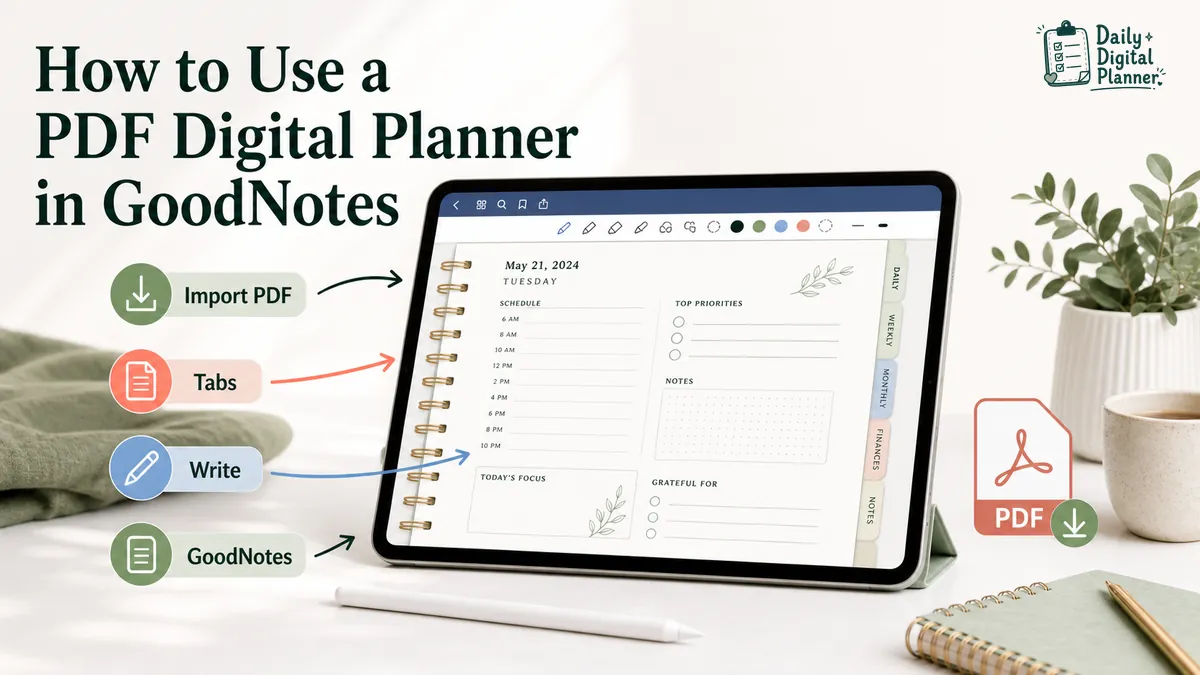
To use a PDF digital planner in GoodNotes, import the downloaded PDF, open it as a planner document, use tabs or hyperlinks to move around, switch modes when you need to navigate or write, and add handwriting or typed notes on the pages.
This guide is for people who already have, or are about to buy, a PDF planner and want to use it in GoodNotes without guessing their way through the setup. Daily Digital Planner sells downloadable PDF planner templates, so the focus here is the PDF planner workflow: download, import, navigate, write, save, and troubleshoot.
This is not a GoodNotes review, a free planner roundup, or a tutorial on making planners in Canva. If you are still choosing the planner itself, start with digital planner PDF templates before setting up an app workflow.
What Do You Need Before Using a PDF Planner in GoodNotes?
Before using a PDF planner in GoodNotes, you need the downloaded PDF planner file, the GoodNotes app, a compatible device, and a place where you can find the file again.
The file matters more than the app name at this stage. GoodNotes can import PDF files, but it cannot import a planner you have not downloaded or saved somewhere accessible. If you bought a planner from Daily Digital Planner, confirm your download access after purchase before opening GoodNotes.
Use this quick setup checklist:
| Setup Item | What to Check | Why It Matters |
|---|---|---|
| PDF planner file | The downloaded .pdf file is saved on your device or cloud storage. | GoodNotes needs a file to import. |
| GoodNotes app | The app is installed and signed in if your setup requires it. | The planner needs an app environment after download. |
| Compatible device | Your device can run the GoodNotes version you plan to use. | iPad, iPhone, Mac, Android, Windows, and Web workflows can differ. |
| File location | You know whether the PDF is in Downloads, Files, iCloud, Google Drive, Dropbox, or another folder. | Import is easier when you can find the file quickly. |
| Optional stylus | Apple Pencil or another supported stylus is charged if you plan to handwrite. | A stylus helps with handwriting, but it is not required for typing or reading. |
Keep one clean copy of the original PDF before you start experimenting. A clean original gives you a safe fallback if you duplicate pages, test tools, or accidentally mark up the wrong copy.
How Does a PDF Digital Planner Work Inside GoodNotes?
A PDF digital planner works inside GoodNotes as an imported PDF file that you can navigate, mark up, and organize in the app.
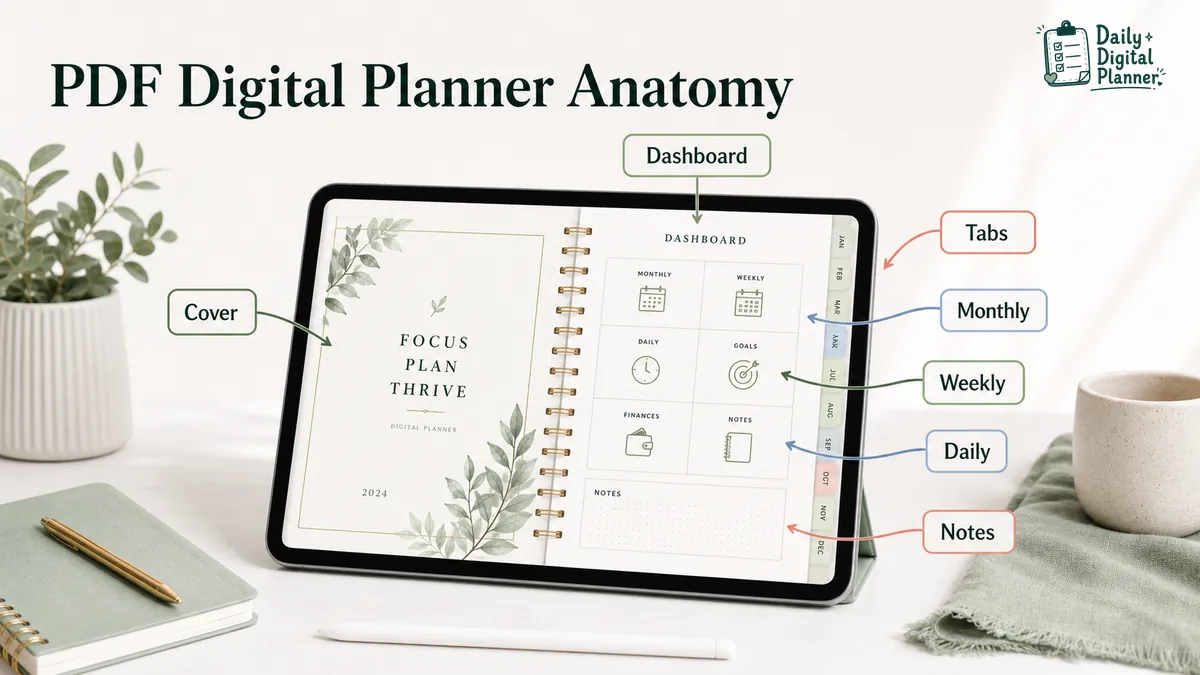
The planner is the file. GoodNotes is the workspace. That difference explains most setup issues. A PDF planner may include planner pages, tabs, dashboards, monthly views, weekly layouts, daily pages, and notes pages. GoodNotes gives you the environment for opening the PDF, moving around the document, and adding notes on top of the pages.
If the file format is still unclear, the guide on what a PDF planner is explains how PDF planners differ from printable-only files, fillable files, and app-specific files. If you are still deciding whether GoodNotes is the right app, the PDF planner apps guide compares the main app tasks first.
A typical PDF digital planner includes these parts:
- Cover: the first page or visual opening of the planner.
- Dashboard: a main navigation page, index, or overview page.
- Tabs: visual labels that may connect to linked pages if the PDF includes hyperlinks.
- Monthly pages: calendar or overview pages for a month.
- Weekly pages: pages for weekly planning, reviews, tasks, or schedules.
- Daily pages: pages for time blocks, priorities, notes, and to-do lists.
- Notes pages: blank, lined, dotted, or specialized planning pages.
A planner tab is the visual label; the hyperlink is the PDF link behind it. A tab can look clickable, but it only jumps to another page if the PDF includes the link and GoodNotes follows that link in the current mode.
How Do You Import a PDF Planner Into GoodNotes?
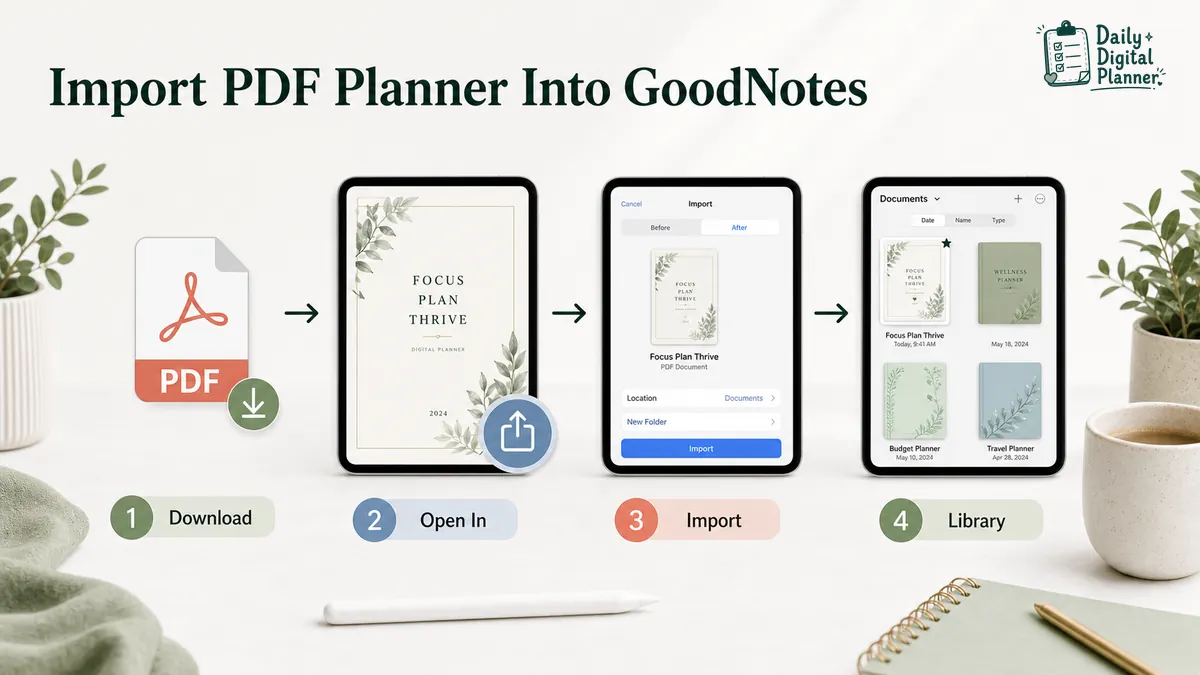
To import a PDF planner into GoodNotes, open GoodNotes, choose an import path, select the downloaded PDF file, and add it as a new document or into an existing document.
GoodNotes support lists PDF as a supported import format in its Import files into GoodNotes documentation. It also describes several import paths, including importing from inside the app, using an external app or share/open-in action, and using drag and drop on iOS. The exact button names may change by platform or app version, so treat the steps below as the stable workflow rather than a permanent UI map.
Use this import workflow:
- Download the PDF planner file to your device or cloud storage.
- Open GoodNotes.
- Choose the import option from inside GoodNotes, or open the PDF file from Files/cloud storage and send it to GoodNotes.
- Select the downloaded PDF planner.
- Add the planner as a new document if you want it to appear as its own planner.
- Add it into an existing document only if you intentionally want the planner pages inside another notebook.
- Open the imported planner and check the first few pages before writing in it.
- Tap a planner tab or index link if the planner includes linked navigation.
Importing as a new document is usually easier for beginners because the planner stays separate in the GoodNotes library. Adding pages into an existing document can be useful later, but it is easier to lose track of where the planner went.
How Do Planner Tabs and Hyperlinks Work in GoodNotes?
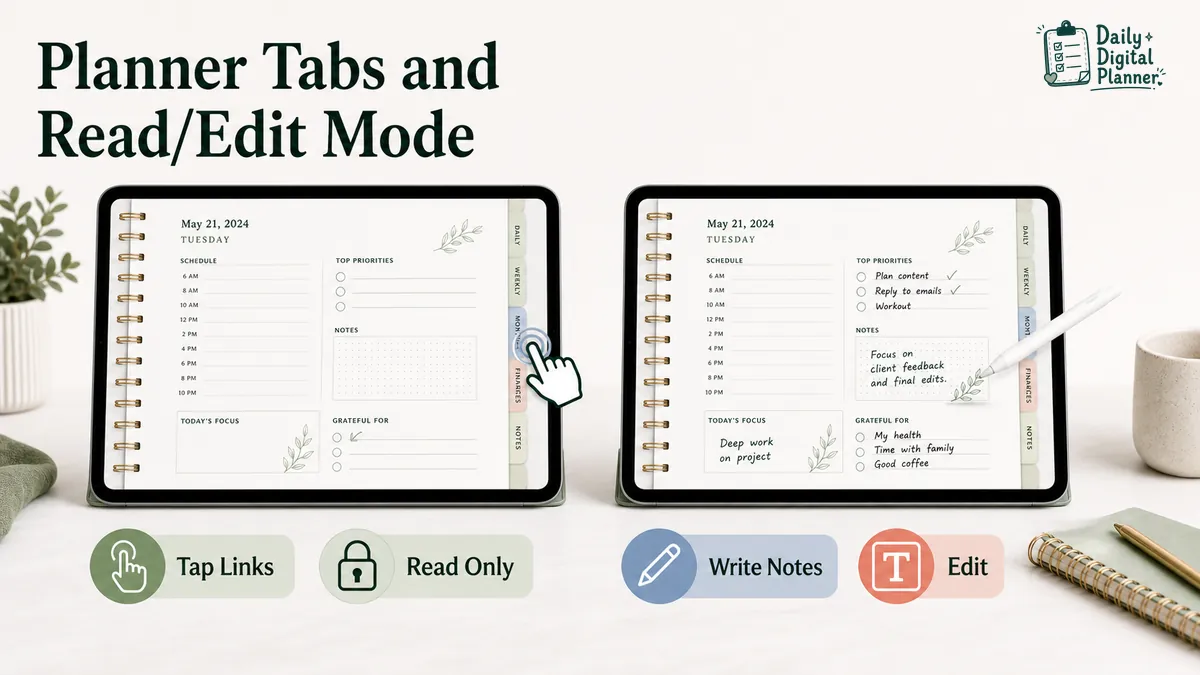
Planner tabs and hyperlinks are clickable PDF links that move you to another page in the planner, such as a monthly overview, weekly spread, daily page, dashboard, or notes section.
GoodNotes support separates navigating existing PDF hyperlinks from creating new links inside notes. That distinction matters. A purchased PDF planner may already contain internal links. You do not need to create those links yourself unless you are designing or modifying a planner, which is outside the scope of this guide.
Here is the simple way to think about planner navigation:
| Planner Part | What It Usually Does | What to Check |
|---|---|---|
| Dashboard | Links to major planner sections. | Tap section labels or icons after import. |
| Monthly tab | Jumps to a month page or monthly overview. | Test at least two months. |
| Weekly link | Moves from a monthly page to a weekly page. | Check whether the planner includes weekly links. |
| Daily link | Moves to a daily page if the planner is designed that way. | Confirm whether daily pages are linked or manually navigated. |
| Notes tab | Opens notes, blank pages, or extra planning pages. | Check whether notes pages are linked or grouped at the end. |
If a tab does not work, do not immediately assume the file is broken. The app mode, platform, imported file version, or the way you are tapping the link can affect the result.
How Do You Switch Between Navigation and Writing in GoodNotes?
In GoodNotes, navigation and editing use different states, so the same planner page can behave differently when you are tapping links versus writing on it.
GoodNotes support describes Read Only mode as the mode for scrolling without making unnecessary changes. It also describes Edit mode as the mode where the toolbar is shown and you can use tools to edit notes. For PDF hyperlinks, GoodNotes support says iOS users can tap the link, while Android, Windows, and Web users should enter Read Only mode before tapping to follow the link. It also notes that in Edit mode, long-pressing a link can open a link option.
Use this table when planner tabs feel confusing:
| When You Want To | Use This State or Action | What Changes |
|---|---|---|
| Navigate tabs or links on iOS | Tap the PDF link when the link is active. | The planner should jump to the linked page if the PDF includes that link. |
| Navigate links on Android, Windows, or Web | Enter Read Only mode, then tap the link. | The app prioritizes navigation over editing. |
| Write, highlight, or add text | Use Edit mode. | The toolbar appears and you can use writing or annotation tools. |
| Open a link while editing | Try the platform-supported long-press link option if available. | This may let you open a link without leaving the editing workflow. |
| Scroll without changing the page | Use Read Only mode. | The toolbar is hidden and accidental edits are less likely. |
This mode difference explains a common beginner problem: you may be able to write but not tap planner tabs, or you may be able to tap planner tabs but not write. The planner is not always the issue. The page may simply be in the wrong state for the action you are trying to take.
How Do You Write, Type, and Annotate a Planner Page?
Once the planner is imported, you can use GoodNotes tools to handwrite, highlight, add typed text, or mark up the planner page.
Use the writing method that fits the page:
- Pen tool: use it for handwriting daily tasks, schedules, notes, and reminders.
- Highlighter: use it for marking priority tasks, dates, or headings.
- Text tool: use it when you want typed notes instead of handwriting.
- Image or sticker tools: use them for light decoration, icons, reference images, or visual markers.
- Eraser or selection tools: use them to clean up handwriting or move annotations if the app supports that action.
Typing in GoodNotes is not the same thing as using built-in fillable PDF fields. GoodNotes annotations sit on top of the PDF planner page. A true fillable PDF planner has form fields built into the file, and that workflow often fits better in a PDF reader or editor.
If built-in typeable fields are the main feature you need, compare fillable PDF planners before choosing a GoodNotes-first workflow.
How Can You Customize a PDF Planner Without Breaking the File?
Simple customization usually means adding content on top of the planner page or duplicating/importing pages, not rebuilding the original planner PDF.
Keep the first round of customization modest. A planner is easier to use when the original structure stays intact. If you add too many pages, move too many sections, or try to rebuild links, it becomes harder to know whether a problem came from the file, the app, or the customization.
Safe beginner actions include:
- Duplicate a page before testing a new layout.
- Add typed text or handwriting on top of the existing planner page.
- Add a small sticker, icon, or image only when it helps scanning.
- Keep the original downloaded PDF in a separate folder.
- Export or back up the planner before making a big change.
Avoid these actions until you understand how the app handles them:
- Rebuilding planner hyperlinks.
- Editing the PDF structure itself.
- Replacing the original download with a heavily changed copy.
- Mixing multiple planner files into one document without a reason.
- Assuming a Canva planner tutorial applies to a finished PDF planner you bought.
Customization should make the planner easier to use, not harder to troubleshoot.
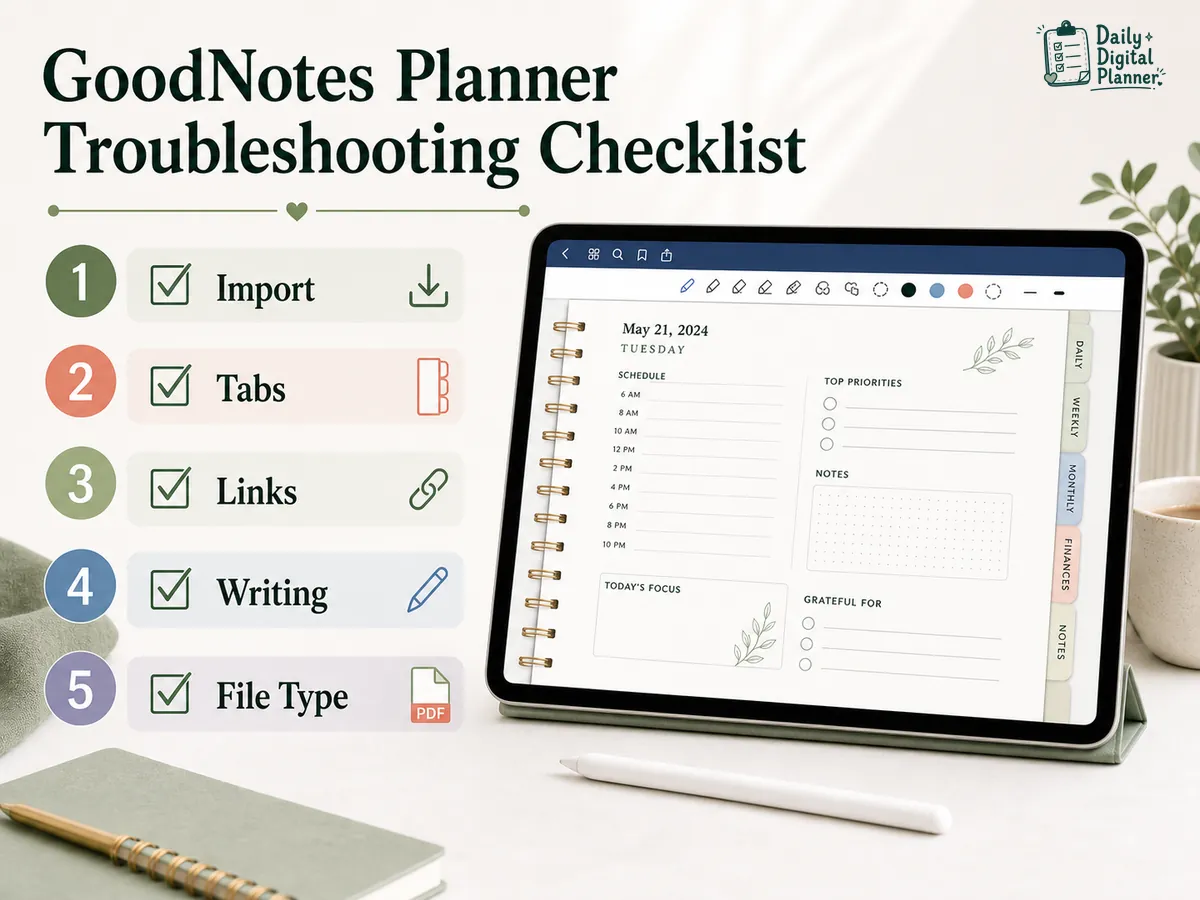
What Should You Do If a GoodNotes Planner Is Not Working?
If a GoodNotes planner is not working, start by matching the problem to the exact symptom: import, links, writing, page order, file type, or platform behavior.
This symptom-first approach is faster than changing random settings. It also keeps a PDF planner issue separate from a fillable-field issue or a download issue.
| Symptom | Likely Cause | What to Try |
|---|---|---|
| Planner will not import. | The file is not downloaded, the file is too large, the file type is wrong, or the file is still inside a browser/cloud preview. | Download the PDF first, confirm it is a .pdf, then import from GoodNotes or use the device share/open-in workflow. |
| Tabs or hyperlinks do not open. | The app is in the wrong mode, the PDF does not include links, or the platform handles links differently. | Test the link in the recommended navigation state for your platform and try more than one tab. |
| You can write but cannot tap links. | The page is in an editing or annotation workflow. | Switch to the navigation/read-only workflow or use the platform-supported long-press link action if available. |
| You can tap links but cannot write. | The page is in a viewing or read-only workflow. | Switch back to Edit mode before using pen, highlighter, text, or image tools. |
| The planner appears in the wrong place. | It may have been imported into an existing document instead of as a new document. | Check the GoodNotes library and the document you imported into. Reimport as a new document if needed. |
| Typed entries do not behave like fields. | The planner may be a normal PDF annotation workflow, not a fillable PDF form. | Use text boxes for annotations, or choose a fillable PDF version and the right PDF reader workflow. |
| The planner works on one device but not another. | App features and platform behavior may differ. | Check the current GoodNotes support notes for your device and test a duplicate copy before relying on it. |
For built-in fillable fields, the Adobe Acrobat Reader fillable PDF planner guide is the better next step. For choosing between multiple apps, use the PDF planner app options guide.
Is a GoodNotes Planner Different From a Fillable PDF Planner?
A GoodNotes planner workflow is an annotation workflow, while a fillable PDF planner uses built-in fields that can be typed into with a compatible PDF reader.
This difference matters when you want typed planning. In GoodNotes, typed text is usually added as an annotation or text box on top of the planner page. In a fillable PDF planner, the text fields are part of the PDF file itself.
| Planner Workflow | How It Handles Input | Best Fit |
|---|---|---|
| GoodNotes PDF planner | You import the PDF and add handwriting, highlights, text boxes, stickers, or images on top of the page. | Tablet planning, handwriting, visual planning, annotation. |
| Fillable PDF planner | You open a fillable PDF and type into built-in form fields. | Typed schedules, typed notes, printable filled copies, structured field input. |
| Printable PDF planner | You print the PDF and write by hand on paper. | Paper planning, binders, desk use, low-tech routines. |
GoodNotes annotation adds content on top of a PDF; fillable PDF fields are built into the file. If you want true fields instead of annotations, compare fillable PDF planners or use the guide on how to type into a fillable PDF planner in Adobe Acrobat Reader.
Where Should You Go Next?
The next page depends on whether you are choosing a planner, choosing an app, using fillable fields, or trying to download your file.
- If you still need the planner itself, browse digital planner PDF templates before choosing your setup workflow.
- If you are deciding between GoodNotes and other tools, compare PDF planner apps by task: writing, typing, printing, saving, or organizing.
- If you need built-in typeable fields, review fillable PDF planners before assuming a note-taking app is enough.
- If you bought a planner and cannot find the file, check the download access after purchase path first.
FAQ About Using a PDF Planner in GoodNotes
These GoodNotes PDF planner questions cover the setup details that usually create confusion after the planner has already been imported.
Can GoodNotes open PDF planners?
Yes, GoodNotes can import PDF files, and a PDF planner can be used in GoodNotes when the file imports correctly and the app supports the action you need.
The important condition is the file type. A standard PDF planner is different from a proprietary app file. Check whether the product includes a .pdf file before assuming it will work in different PDF apps.
Why are my GoodNotes planner hyperlinks not working?
GoodNotes planner hyperlinks may not work because the page is in the wrong mode, the platform handles PDF links differently, or the PDF planner does not include working links.
Test more than one tab, try the recommended navigation state for your platform, and confirm that the planner version you imported is the linked PDF version.
Can I type into a PDF planner in GoodNotes?
Yes, you can add typed text on a PDF planner page in GoodNotes when the app’s text tools support that workflow, but that is not the same as typing into built-in fillable PDF fields.
If you need fields that behave like form inputs, use a fillable PDF planner and a PDF reader or editor that supports those fields.
Do I need GoodNotes to use a PDF digital planner?
No, you do not need GoodNotes to use every PDF digital planner. GoodNotes is one possible app for importing and annotating a PDF planner.
If you only need to print, type into fillable fields, or read the PDF, another compatible PDF app may fit better.
Should I import a PDF planner as a new document or into an existing document?
Most beginners should import a PDF planner as a new document because it keeps the planner easy to find in the GoodNotes library.
Importing into an existing document can work, but it is better when you intentionally want the planner pages inside another notebook.