
Blog
How to Download and Open a Digital Planner PDF After Purchase

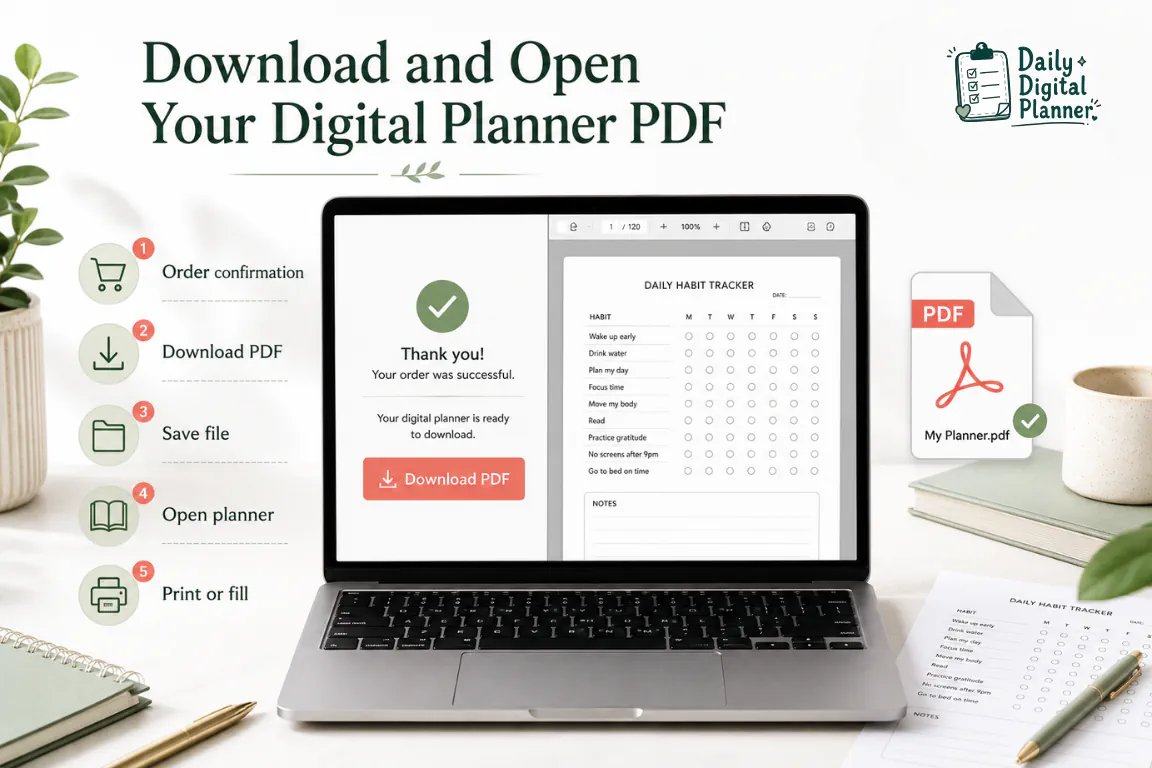
To download and open a digital planner PDF after purchase, use the download link in your purchase email or the Downloads section on the website, save the planner file to your device, and open the saved PDF in a PDF reader or compatible app.
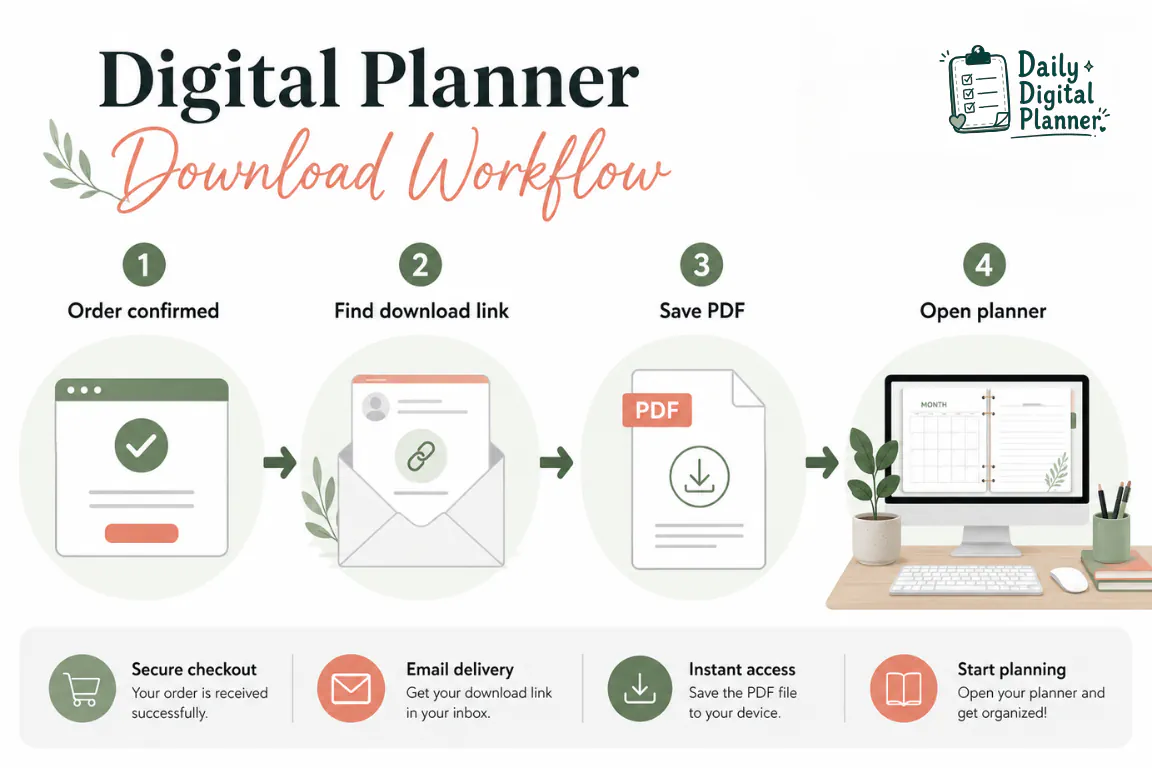
Daily Digital Planner sells downloadable PDF planner products through WordPress and WooCommerce. After payment is completed, WooCommerce sends a purchase email with download links, and the website account area includes a Downloads section where customers can find their available downloadable files.
The planner you use after checkout is a digital file rather than a mailed physical planner unless a specific product page says otherwise. The safest workflow is to download the planner file first, keep a clean original copy, and then choose whether you want to print it, type into it, or troubleshoot it.
This guide covers the after-purchase download and opening workflow. If you still need the checkout path first, use the support page on how to buy and download planner files before following the steps below.
How Do You Download a Digital Planner PDF After Purchase?
You download a digital planner PDF after purchase by using the download link in the WooCommerce purchase email or the Downloads section on the website, then saving the PDF or ZIP file to your device.
For Daily Digital Planner, the two main access paths are the email link sent after payment and the Downloads section in the customer’s website account area. The important action is the same in both paths: download the planner file locally, save it in a planner folder, and avoid working only from a browser preview or email preview.
Use this download sequence:
- Complete checkout and confirm that the order is finished.
- Open the WooCommerce purchase email sent after payment.
- Click the planner download link in the email.
- If you prefer to download from the website, log in and open the Downloads section.
- Save the PDF or ZIP package to your computer, tablet, or phone.
- Move the file into a folder such as
Planner DownloadsorDaily Digital Planner. - Rename the file only after you know which planner version it is.
The download step is complete only when the file exists on your device. A purchase email, order receipt, account screen, or preview is not the same as a saved planner PDF.
Where Do You Find the Download Link or Planner File?
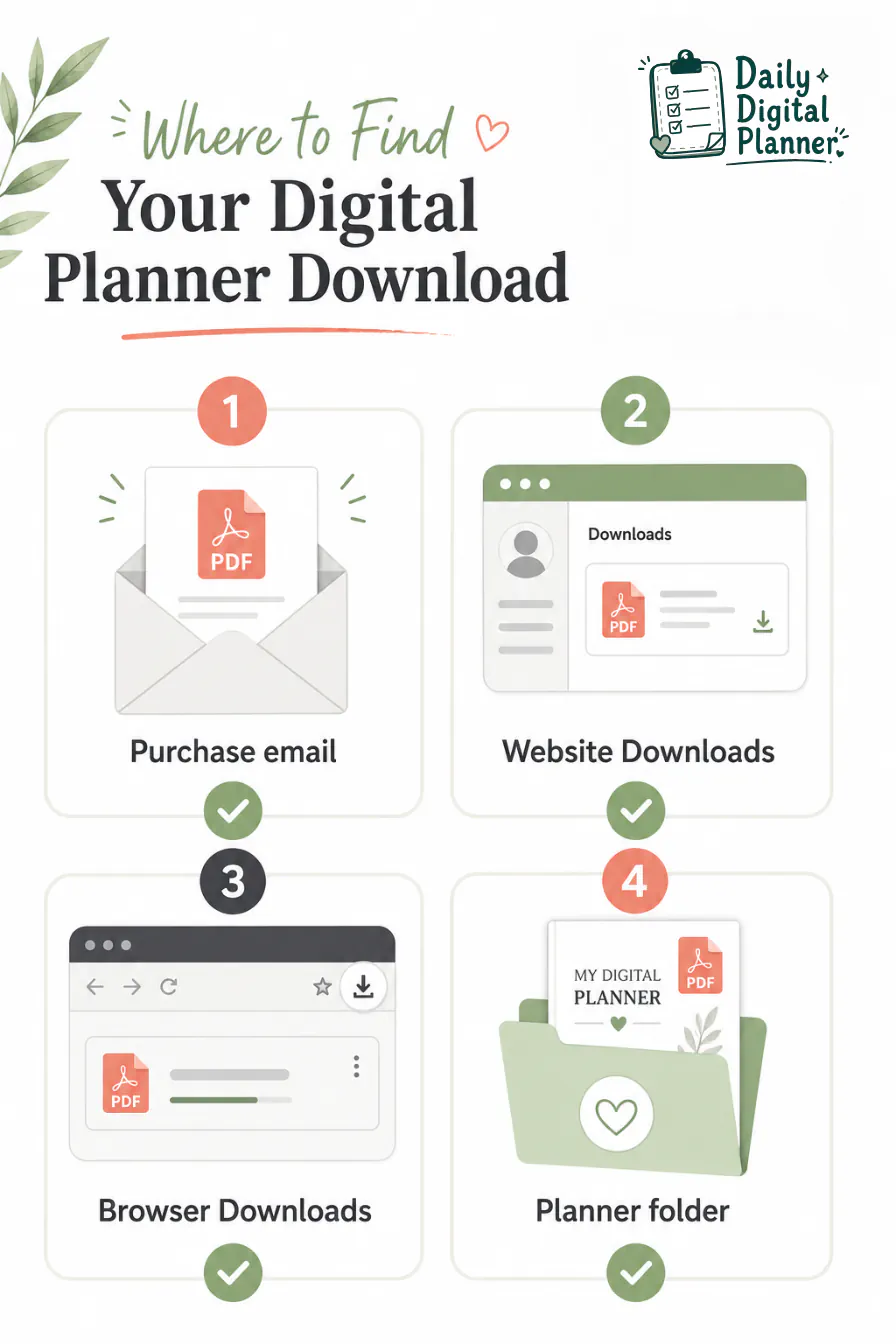
The download link or planner file is found in the purchase email, the website Downloads section, or the device’s Downloads folder after the link is clicked.
Search in two places: Daily Digital Planner’s WooCommerce download access and the place where your device saves the file. The website and email help you find the link. The browser or device folder helps you find the actual downloaded PDF or ZIP package after you click that link.
| Location | What to Check | What It Means | Next Action |
|---|---|---|---|
| WooCommerce purchase email | Search your inbox for Daily Digital Planner, order, download, or planner terms. | The email sent after payment includes download access for the purchased planner files. | Open the link and save the PDF or ZIP file. |
| Website Downloads section | Log in to the website account area and open Downloads. | The Downloads section lists the downloadable files available for the customer. | Download each needed planner file from the website. |
| Purchase or order confirmation page | Look for any download button, product file area, or order-complete message. | The order page can help confirm the purchase and access path. | Use the available link or go to the Downloads section. |
| Spam, junk, or promotions folder | Check filtered email folders if the purchase email is missing. | Email filters can move automated order emails out of the inbox. | Move the email to your inbox and use the download link. |
| Browser Downloads folder | Open the browser downloads list after clicking a link. | The file may already be downloaded even if it did not open automatically. | Show the file in folder, then move it into your planner folder. |
| Device file manager | Check Downloads, Files, Finder, or File Explorer. | Your device may save the PDF or ZIP package outside the browser view. | Open the saved file with a PDF reader or extract the ZIP first. |
If you cannot find the file in any of these locations, do not buy again immediately. Check the purchase email, website Downloads section, browser downloads, and missing-download checklist before contacting support.
What File Should You Download and Save First?
Save the actual planner PDF or included ZIP package first, then check whether the download contains printable, fillable, size, or instruction files.
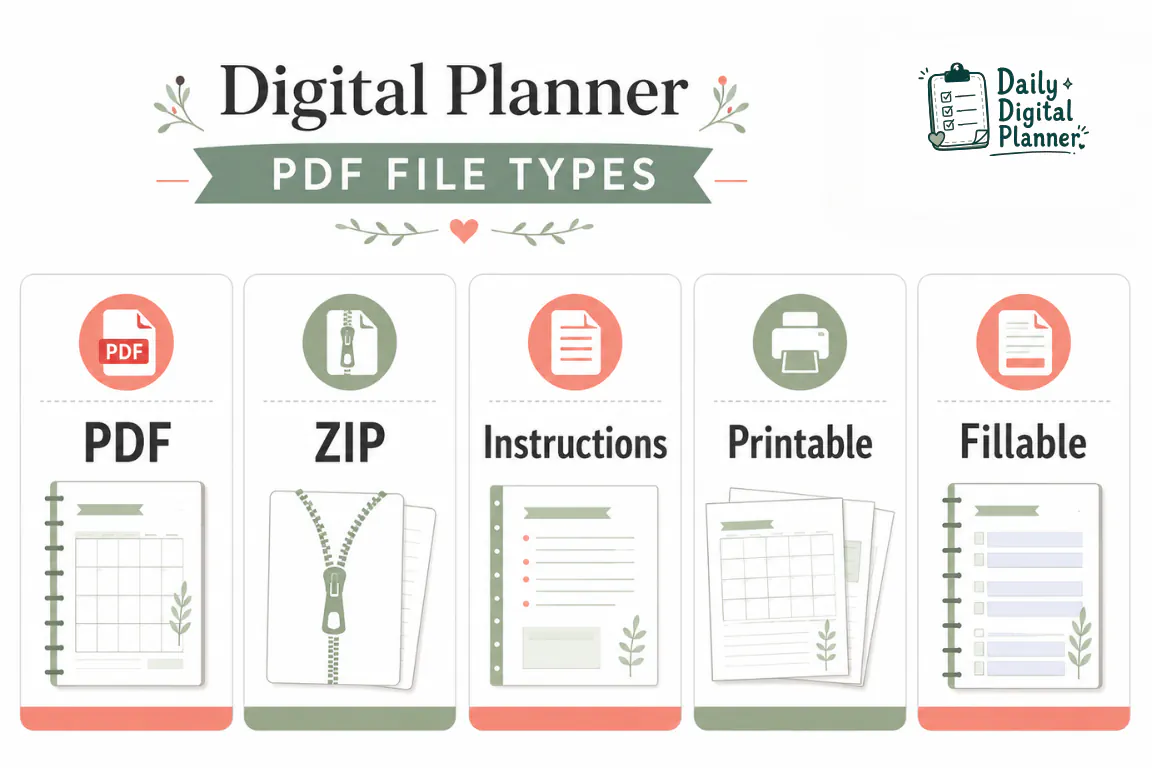
A digital planner product can include more than one file or version. Some products may include a printable PDF, a fillable PDF, a US Letter version, an A4 version, instructions, or a ZIP package that contains several files. Check the specific product and download package before assuming every planner includes every version.
If you are unsure what kind of planner file you downloaded, the guide to the PDF planner format explains how PDF planners can work as printable, fillable, and digital-use files.
| File / Item | What It Means | What to Do | Next Guide |
|---|---|---|---|
| PDF planner file | The main planner file that opens in a PDF reader. | Save it to your planner folder and open the saved file. | PDF planner format |
| ZIP package | A compressed folder that may contain multiple PDF files or instructions. | Extract or unzip it first, then open the planner PDF inside. | Use your device’s unzip/extract option. |
| Instructions or readme file | A support file that explains what is included or how to use the download. | Read it before choosing a planner version. | Return to this guide after confirming the file. |
| US Letter or A4 file | A planner version sized for a specific paper format. | Choose the page size that matches your printer or binder setup. | Print a printable planner PDF at home |
| Printable version | A planner PDF intended mainly for printing and handwriting. | Open it, check the page size, and print a test page. | Print a printable planner PDF at home |
| Fillable version | A planner PDF that may include fields for typing before saving or printing. | Open it in Adobe Acrobat Reader for the most predictable fillable workflow. | Use a fillable PDF planner in Adobe Acrobat Reader |
| Receipt or purchase email | Proof of purchase and a source for download access. | Keep it for support, but save the actual PDF or ZIP package separately. | How to buy and download planner files |
The correct first file is the file you can reuse. A receipt proves the purchase, an instruction file explains the package, and the planner PDF is the file you open, print, type into, or import later.
How Do You Open the Digital Planner PDF?
Open the saved digital planner PDF from your device folder with a PDF reader or compatible planner app after the file has downloaded completely.
The safest opening workflow starts from the saved file, not from the checkout screen or email preview. A browser preview can show the PDF, but a saved file gives you a more reliable path for printing, saving copies, and using fillable fields.
Use this opening sequence:
- Find the saved planner file in Downloads, Files, Finder, or File Explorer.
- Confirm the file extension is
.pdf, or extract the ZIP package if the download is a.zipfile. - Double-click the PDF or choose Open With.
- Use a PDF reader for normal viewing and printing.
- Use Adobe Acrobat Reader when fillable fields, typed entries, or saved form data matter.
- Avoid typing important planner entries inside an email preview or browser preview if saving matters.
For fillable files, the next workflow is more specific. Once the file is downloaded, use the guide to use a fillable PDF planner in Adobe Acrobat Reader so typed fields, saved copies, and print preview behave more predictably.
If your goal is to import the planner into a note-taking app, treat that as a separate app workflow. First download and save the PDF. Then import the saved file into the compatible app you use.
How Should You Save a Clean Copy of the Planner PDF?
Save a clean original planner PDF and create separate working copies before typing into, printing, or reusing planner pages.
A clean original is the untouched file you keep after purchase. A working copy is the file you use for a week, project, client, meal plan, class, routine, or test print. This habit protects the original planner from accidental overwriting and makes reusable planner pages easier to manage.
Use a simple folder structure:
Daily Digital Planner/Original DownloadsDaily Digital Planner/Working CopiesDaily Digital Planner/Printed PagesDaily Digital Planner/Archive
Useful working-copy names include:
daily-planner-original.pdfweekly-planner-june-working-copy.pdfmeal-planner-week-24.pdfwork-planner-client-project.pdf
The file name should describe the planner use, not only the download date. A file named weekly-planner-june-working-copy.pdf is easier to recognize than a file named download-3.pdf.
For fillable planners, save a working copy before entering a full week of tasks, appointments, meals, habits, or notes. If the planner opens but typed fields, saving, or print preview do not work correctly, the troubleshooting guide for when a fillable PDF planner is not working covers those file-use problems.
What Should You Do After the Planner PDF Opens?
After the planner PDF opens, choose the next workflow based on whether you want to print it, type into fillable fields, troubleshoot a file problem, or understand the format.
Opening the file is the bridge between purchase access and real planner use. The next action should match the file condition and the way you plan to use the planner.
| User Goal | File Condition | Next Action | Related Guide |
|---|---|---|---|
| Print a planner at home | The file is a printable PDF or printable version. | Check page size, printer scale, preview, and print a test page. | Print a printable planner PDF at home |
| Type into planner fields | The file is a fillable PDF with supported fields. | Open the saved file in Adobe Acrobat Reader and save a working copy. | Use a fillable PDF planner in Adobe Acrobat Reader |
| Fix fields, saving, or print-preview issues | The PDF opens, but typing or saving does not behave correctly. | Confirm the fillable version, PDF reader, saved copy, and print-preview settings. | Fillable PDF planner is not working |
| Understand the file format | You are unsure whether the planner is printable, fillable, or app-ready. | Learn how PDF planners work across paper and digital workflows. | PDF planner format |
| Browse planner products before buying | You landed here before purchase. | Review planner categories, product screenshots, and included file notes. | Digital planner PDF templates or planner PDF products |
The planner does not need every workflow at once. A printable planner can be downloaded, opened, and printed. A fillable PDF planner needs a PDF reader workflow. A product bundle may need a few minutes of file sorting before you choose the right version.
What If the Download Email or File Is Missing?
If the download email or file is missing, check payment/order completion, spam or promotions folders, the website Downloads section, browser download history, and contact support if the purchase still cannot be accessed.
Daily Digital Planner’s WooCommerce flow sends download links by email after payment and also provides a Downloads section on the website. The practical goal is to confirm that the purchase was completed, find the email or website download entry, and identify whether the file already downloaded to the device.
Use this checklist before contacting support:
- Confirm that the payment and order were completed.
- Check spam, junk, and promotions folders for the purchase email.
- Search your email for
Daily Digital Planner,order,download,planner, or the product name. - Log into the website and check the Downloads section for available files.
- Check the browser downloads list for a PDF or ZIP file.
- Check Downloads, Files, Finder, or File Explorer on the device.
- Avoid buying again before checking order access and support options.
- Keep the order email, order number, purchase email address, and product name ready if support is needed.
If you still need the purchase path, return to how to buy and download planner files. If the file opens but does not type, save, or print correctly, use the fillable PDF troubleshooting guide instead of repeating the download steps.
Digital Planner PDF Download FAQ
Can I download a digital planner PDF on my phone?
Yes, you can download a digital planner PDF on your phone if the purchase email link or website Downloads section opens correctly on that device.
A phone may save the file into the Files app, browser downloads area, or a cloud folder. A desktop or laptop can still be easier when you need to unzip a package, organize multiple planner versions, or print pages.
Do I get a physical planner in the mail?
No, a downloadable digital planner PDF is a digital file rather than a physical planner mailed to you unless a product page specifically says it includes a shipped item.
Daily Digital Planner’s PDF planner workflow is built around downloading, saving, opening, printing, or typing into planner files after purchase.
What if the file downloads as a ZIP?
A ZIP file should be extracted before you open the planner PDF inside it.
After extraction, look for the actual PDF planner file, printable version, fillable version, size option, or instructions file included in that package. Do not try to print or type into the ZIP file itself.
Should I open the planner PDF in my browser?
A browser can preview a planner PDF, but a saved PDF opened in a PDF reader is safer for printing, saving copies, and using fillable fields.
Use the browser preview only for quick viewing. Use the saved file when the planner will be printed, typed into, reused, or archived.
Is downloading the PDF the same as importing it into GoodNotes?
No, downloading the PDF is the file access step, while importing into GoodNotes or another note-taking app is a separate app workflow.
Download and save the PDF first. After that, use the import option inside the compatible app you want to use.
Can I print the planner after downloading it?
Yes, you can print the planner after downloading it if the product includes a printable PDF version and your printer settings match the page size.
For page size, scale, preview, and test-print steps, use the guide to print a printable planner PDF at home.
Can I type into the planner after downloading it?
You can type into the planner after downloading it only if the PDF includes fillable fields or supported typing areas.
Open the saved fillable version in Adobe Acrobat Reader and follow the guide to use a fillable PDF planner in Adobe Acrobat Reader before entering a full week or project.
What should I do before contacting support?
Before contacting support, check the completed order, purchase email, spam folders, website Downloads section, browser downloads, and device file manager.
If support is needed, include the purchase email address, order number if available, product name, and what you already checked. That gives support enough context to identify the purchase and file access issue.