
Blog
Landscape vs Portrait Planner PDFs for Printing and Digital Use

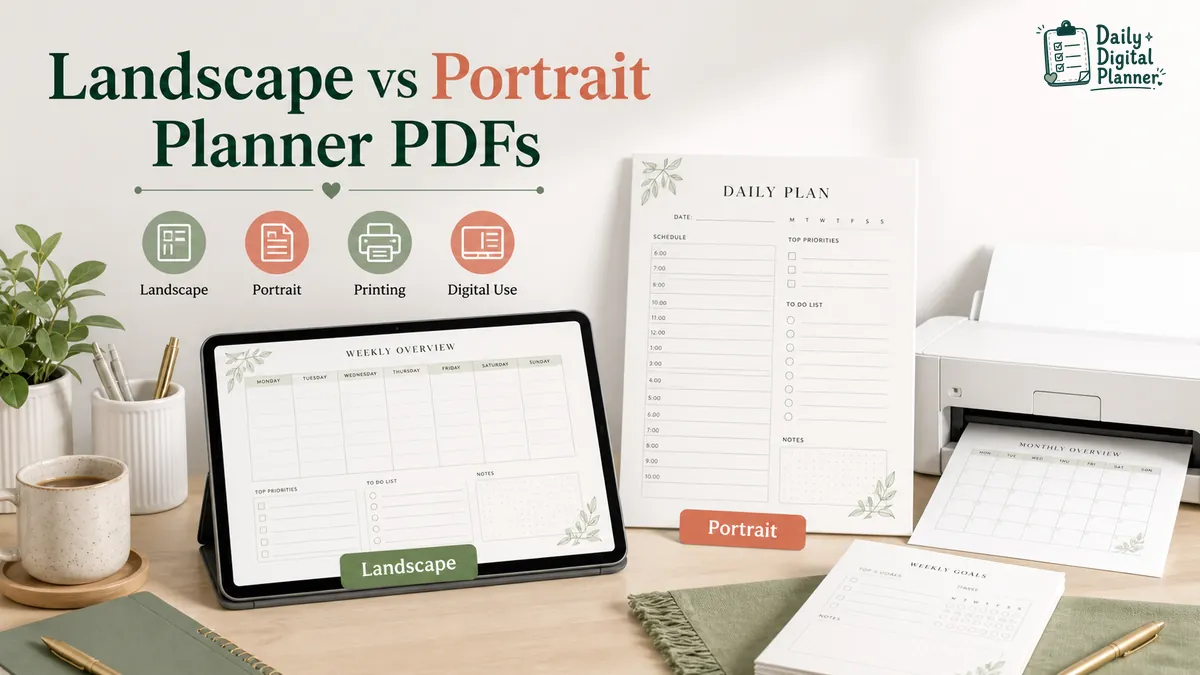
Choose a landscape planner PDF if you want a wide page for columns, schedules, desk planning, or tablet viewing. Choose a portrait planner PDF if you want a tall page for vertical lists, binder use, upright printing, or a standard worksheet feel.
For most printable planner PDFs, the safest choice is not the orientation that looks best in a preview. It is the orientation that matches how you will write, print, store, and reuse the planner. Product screenshots, page size, and file details should confirm that before you buy or print.
Quick Answer: Should You Choose a Landscape or Portrait Planner PDF?
You should choose a landscape planner PDF for wide planning space and a portrait planner PDF for vertical planning flow.
- Landscape planner PDFs fit wide schedules, task columns, project boards, dashboards, side-by-side notes, and desk use.
- Portrait planner PDFs fit daily lists, upright schedules, binder pages, clipboards, and pages that feel closer to standard printed worksheets.
- Product screenshots matter more than the orientation name. Check the file type, page size, orientation, and preview images before printing or buying.
Landscape and portrait are not quality levels. They are page directions. A good landscape planner can feel awkward in a binder, and a good portrait planner can feel cramped if you need several columns on one page.
What Is a Landscape Planner PDF?
A landscape planner PDF uses a wide horizontal page orientation.
Landscape pages are wider than they are tall. In planner terms, that extra width can make room for horizontal schedules, work blocks, meal columns, project sections, or notes beside a task list.
The word "landscape" in this article means page orientation. It does not mean garden planning, landscape design, or a Canva landscape plan. The page is still a planner PDF. The difference is that the PDF page opens and prints as a wide layout.
Landscape planner PDFs often make sense when the page has several sections that need to sit beside each other. A weekly overview, meal plan, project board, or workday organizer can be easier to scan when the page has more left-to-right space.
What Is a Portrait Planner PDF?
A portrait planner PDF uses a tall vertical page orientation.
Portrait pages are taller than they are wide. In planner terms, that shape works well for daily checklists, vertical schedules, habit rows, notes pages, and pages that need to sit neatly in a binder or folder.
Portrait planner PDFs can feel more familiar because most printed documents use portrait orientation. If you print planner pages at home, portrait pages are usually easier to store with other standard papers. They also fit many clipboards and binders without the page turning sideways.
Portrait is not automatically simpler than landscape. It just gives the planner page a vertical flow instead of a wide workspace.
What Is the Difference Between Landscape and Portrait Planner Pages?
Landscape planner pages differ from portrait planner pages by page direction, writing space, storage fit, screen viewing, and print behavior.
Orientation is one part of planner layout. If you are still deciding between daily, weekly, monthly, work, home, or bundle layouts, use the guide on how to choose the right digital planner layout before treating orientation as the only decision.
| Attribute | Landscape planner PDF | Portrait planner PDF | What to check |
|---|---|---|---|
| Page direction | Wide and horizontal | Tall and vertical | Product screenshots and PDF preview |
| Writing space | More side-by-side space | More top-to-bottom space | Whether you write in columns or lists |
| Schedules | Good for wide daily or weekly views | Good for vertical time blocks | How the time slots are arranged |
| Notes | Good for notes beside tasks | Good for long note lists | Whether notes need width or length |
| Binder/storage | Can feel sideways in some binders | Usually easier for upright binders | How you will store printed pages |
| Screen viewing | Good for landscape tablet or laptop viewing | Good for portrait tablet or phone viewing | Your usual device position |
| Printing | Needs correct print preview and orientation | Needs correct print preview and page size | Test one page before printing many |
| Product proof | Must show the wide layout clearly | Must show the tall layout clearly | Screenshots, page size, and included files |
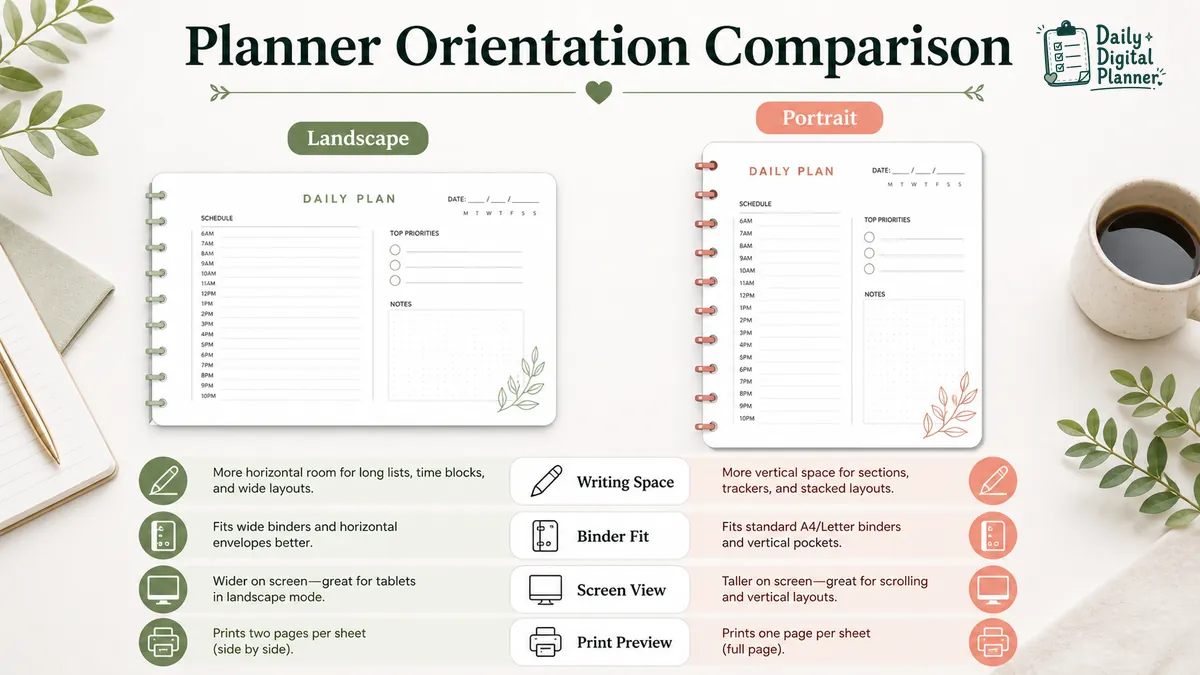
The table matters because orientation affects the page after purchase. A PDF can look fine in a product image but feel wrong once you print it, punch holes, or try to write inside small boxes.
Page Direction and Writing Space
Landscape orientation gives planner pages more horizontal writing space, while portrait orientation gives planner pages more vertical writing space.
Landscape works better when the page needs columns. A work planner might use one column for tasks, one for meetings, one for priorities, and one for notes. A meal planner might show the week across the page. A project planner might need task status, owner, deadline, and notes in one row.
Portrait works better when the page needs a long vertical flow. A daily planner might start with top priorities, then a schedule, then notes. A habit tracker might stack days, checkboxes, or routines in a tall list.
Desk, Binder, and Clipboard Use
Portrait planner pages often fit binders and clipboards more naturally, while landscape pages often work better as desk sheets or wide planning pages.
If you plan to print pages and keep them in a binder, portrait orientation is usually easier to handle because the page sits upright. Landscape pages can still work in a binder, but the writing direction may feel sideways depending on how the page is punched and turned.
If you plan to leave a page open on a desk, landscape orientation can be easier to scan. The wider shape gives you a dashboard feel, especially for work blocks, weekly planning, or a combined task-and-notes page.
Tablet or Screen Viewing
Screen viewing matters when you use the same planner PDF digitally before or instead of printing it.
A landscape planner PDF can feel comfortable on a tablet or laptop in horizontal view. A portrait planner PDF can feel better when you hold a tablet upright or want a page shape closer to a printed sheet. If you are still choosing the broader format, the digital planner PDF templates page explains how printable and fillable PDF planners fit the larger digital planner path.
Keep this section in proportion. App preference should not take over the whole orientation decision unless you mainly use the planner inside an annotation app.
When Is a Landscape Planner Better?
A landscape planner is better when the planner page needs width, columns, or a dashboard-style view.
Landscape planner PDFs work best when:
- Wide schedules need to show more of the day or week across the page.
- Task columns need room for priorities, notes, deadlines, or status.
- Project pages need side-by-side fields instead of stacked fields.
- Meal planning pages need days, grocery notes, or prep notes in one view.
- Work dashboards need meetings, tasks, focus blocks, and notes on one page.
- Tablet viewing feels better in horizontal mode.
Landscape is often a practical choice for work planning because work pages may need several information types at once. The page can hold a schedule, task list, notes area, and priority box without making every section feel narrow.
Landscape can also help users who like to keep one page visible on a desk. The page becomes more like a workspace than a list.
When Is a Portrait Planner Better?
A portrait planner is better when the planner page needs vertical flow, binder fit, or a familiar printed-page shape.
Portrait planner PDFs work best when:
- Daily lists need to run from top to bottom.
- Schedules use vertical time blocks.
- Habit or routine pages need stacked rows.
- Binder storage matters after printing.
- Clipboard use matters.
- You want pages that feel close to standard worksheets or documents.
Portrait is a strong choice for simple daily planning. A tall page gives enough room for priorities, schedule blocks, checklists, and notes without forcing the reader to move across the page too much.
Portrait can also be easier for pages that will be printed often. It tends to match the way most home printer previews and paper handling feel by default, although you should still check the PDF preview before printing a full set.
Can One Planner PDF Include Both Landscape and Portrait Pages?
A planner PDF can include both landscape and portrait pages only when the product files or screenshots clearly show both orientations.
Do not assume a planner includes both versions because the topic, design, or product category seems flexible. A PDF is a fixed-layout file unless the seller provides separate files, separate page versions, or a mixed-orientation document.
Before you buy, check:
- Product title and description for orientation terms.
- Gallery images for wide and tall page examples.
- Included files or version list.
- Page size details.
- Printable and fillable support.
- Instructions for opening, saving, and printing.
- Download access details.
If the product does not clearly show both orientations, choose the version that matches your real use. Rotating a PDF in a viewer or printer dialog may not create the same result as a planner designed for that orientation.
How Does Orientation Affect Printing a Planner PDF?
Orientation affects print preview, scaling, margins, duplex flip, and whether the planner page prints sideways or shrinks.
Before printing a full planner, open the PDF and check one page in print preview. Match the page orientation to the PDF design, then print a single test page. If you need the full home-printing workflow, use the guide on how to print a printable planner PDF at home.
Check these settings before printing:
- Page orientation: choose portrait for upright pages and landscape for wide pages.
- Page size: match the PDF size to the paper size when the product gives a size.
- Scale: use the setting recommended by the product or print preview.
- Margins: check whether any planner lines or boxes sit too close to the edge.
- Duplex: test two-sided printing before printing a large batch.
- Test page: print one page first, then adjust.
Page size and orientation should be checked together. If you are deciding between common paper sizes, the US Letter vs A4 planner size guide covers that size decision separately.
What Should You Check Before Buying a Landscape or Portrait Planner?
You should check product screenshots, file type, page size, orientation, printable support, fillable support, instructions, price, and download access before buying a landscape or portrait planner.
| Product detail | Why it matters for orientation |
|---|---|
| Product screenshots | Screenshots show whether the page is actually wide or tall. |
| File type | PDF files keep a fixed layout, so orientation should be clear before purchase. |
| Page size | Page size affects printing and how much space the orientation gives you. |
| Orientation | The product should show portrait, landscape, or both if both are included. |
| Printable support | Printable files should show enough margin, line clarity, and page setup detail. |
| Fillable support | Fillable PDFs should show whether fields fit the chosen page shape. |
| Instructions | Instructions reduce guessing after download. |
| Price | Price should be checked on the live product page, not from an old screenshot. |
| Download access | Digital planner PDFs are downloaded after purchase, not physically shipped. |
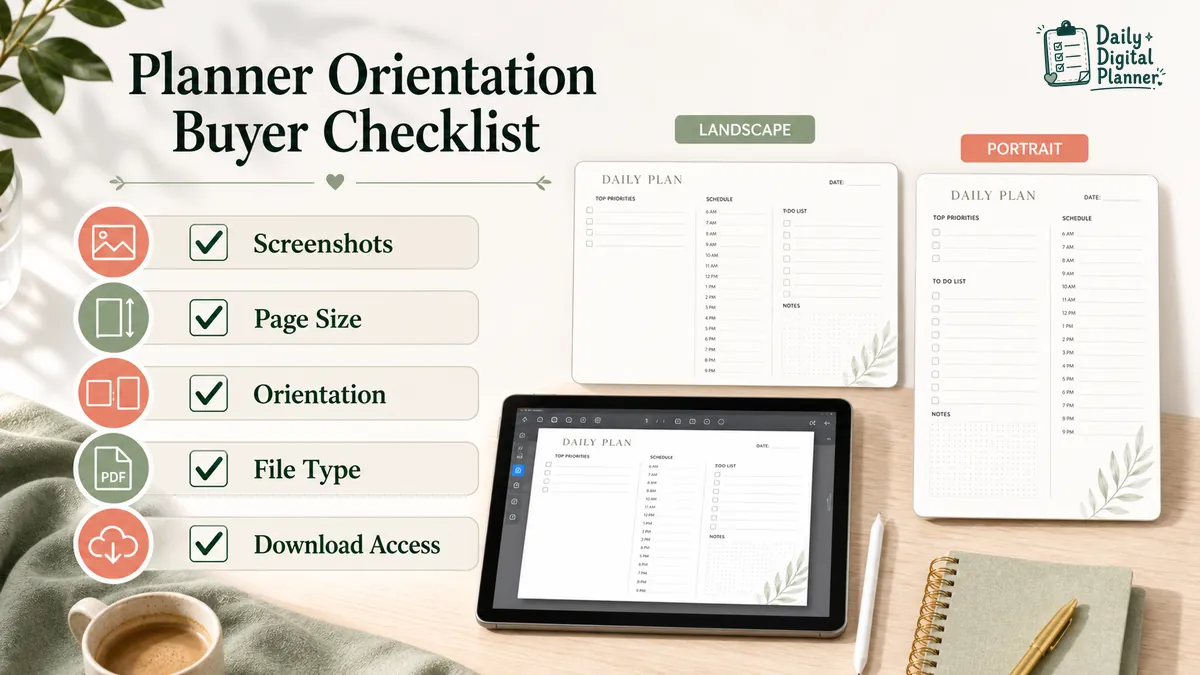
The checklist is not busywork. It is the proof layer for a downloadable planner product. A good product page should make the planner orientation clear before you reach checkout.
How Daily Digital Planner Users Should Choose Orientation
Daily Digital Planner users should start with the planning job, then check page size, orientation, screenshots, and download details on the product page.
Use landscape if the planner needs a wide workspace for work tasks, projects, weekly overviews, meal plans, or dashboard-style planning. Use portrait if the planner needs a vertical checklist, daily schedule, binder-friendly page, or upright printed worksheet.
If you want to type into the PDF before printing, check whether the product is actually fillable. The fillable PDF planners page explains the format more directly. If you only need to browse available planner PDF products, start with the planner PDF products after you know which orientation fits your workflow.
The practical rule is simple: choose by use first, then verify the product file. Orientation should support the planner routine, not become a separate design preference that ignores how the page will be used.
FAQ About Landscape and Portrait Planner PDFs
Is landscape or portrait better for a digital planner?
Landscape is better for a digital planner when you want wide screen space, while portrait is better when you want an upright page shape.
The better choice depends on how you hold the device, whether you use the planner digitally or print it, and how the planner page is arranged. Check the screenshots before buying because the same orientation can feel different across daily, weekly, work, and home layouts.
Is landscape or portrait better for printing planner pages?
Portrait is often easier for upright printing and binder storage, while landscape is better when the printed page needs more horizontal space.
Neither orientation is automatically better for printing. The PDF design, paper size, margins, and print preview decide whether the page will print cleanly.
Can I print a portrait PDF in landscape mode?
You can try printing a portrait PDF in landscape mode, but it is usually not a true substitute for a landscape planner design.
Changing the printer orientation can rotate, shrink, crop, or reposition the page. Preview the page and print one test copy before printing a full planner.
Can a planner PDF have both portrait and landscape pages?
Yes, a planner PDF can have both portrait and landscape pages if the product files include both orientations.
Check the product description, screenshots, and included files before assuming both are included. If the product only shows one orientation, treat that as the version you are buying.
Are landscape planner PDFs good for daily planning?
Landscape planner PDFs are good for daily planning when the daily page needs columns, time blocks, side-by-side notes, or a desk dashboard.
If your daily routine is mostly a vertical checklist, a portrait daily planner may feel cleaner. Choose the shape that matches how you write on the page.
Are portrait planner PDFs better for binders?
Portrait planner PDFs are usually easier for binders because the page stays upright with standard paper handling.
Landscape pages can still work in a binder, especially for weekly or dashboard-style pages. Check how the page will be punched, turned, and read after printing.