
Blog
How Does a Pomodoro Planner Work for Focus Sessions?

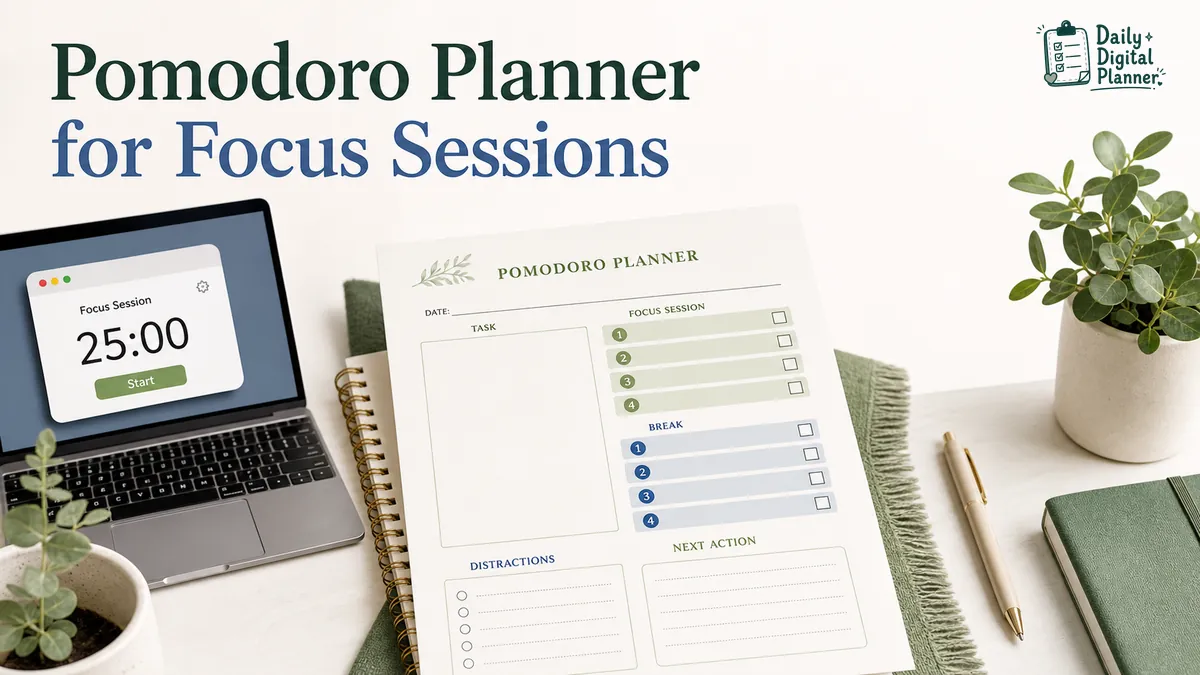
A Pomodoro planner works by turning a task list into timed focus sessions. You choose one task, work for a set interval, take a short break, record what happened, and repeat the cycle until the task is finished, moved, or rescheduled.
This guide is about Pomodoro planner templates, printable PDFs, and fillable PDF planner pages. It is not a ranking of Pomodoro timer apps. A timer can count down the interval, but the planner page gives the session a purpose before the timer starts and a review point after it ends.
If Pomodoro sessions are part of a larger workday, place them inside a work planner that also handles tasks, meetings, projects, deadlines, and focus blocks. The work planner gives the day structure. The Pomodoro planner turns one part of that day into a focused work cycle.
How Does a Pomodoro Planner Work?
A Pomodoro planner works by pairing one chosen task with timed focus intervals, short breaks, and a simple session log. The page keeps the task, timer cycle, break, interruption notes, and next action in one place.
The planner matters before the timer starts. If you begin a focus session with a vague task like "work on business stuff," the timer can run correctly while the work still stays unclear. A Pomodoro planner asks for a specific task first, such as "reply to five customer messages," "draft product description," or "review one report section."
The basic workflow is simple:
- Pick one task for the next focus session.
- Set the timer for the chosen focus interval.
- Work on that task without switching to a different task.
- Take a break when the interval ends.
- Mark the session as completed, paused, or unfinished.
- Record distractions, blockers, or ideas that came up.
- Decide whether to repeat, finish, move, or reschedule the task.
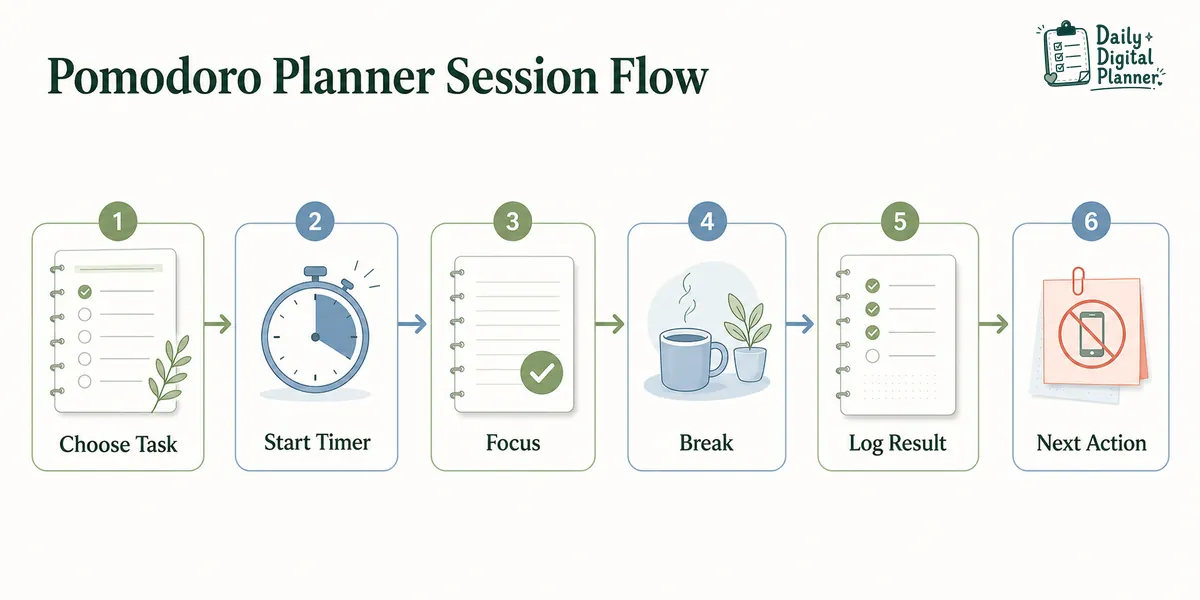
The session log is the part a timer app does not handle by itself. It shows whether the task was realistic, whether interruptions happened, and whether the next session should continue the same task or move to something else.
Task choice also matters. If the task list is messy, use a priority planner template before starting Pomodoro sessions. A priority page helps you choose the right task; a Pomodoro planner helps you work through that chosen task in timed intervals.
What Is a Pomodoro Planner Template?
A Pomodoro planner template is a planner page that gives users fixed spaces for tasks, timed sessions, breaks, session counts, distractions, and review notes. It turns the Pomodoro method into a written worksheet or tracker.
A timer tells you when an interval starts and ends. A Pomodoro planner template tells you what the interval is for. That difference is small on paper, but it changes how the session works. The template captures context before the session and records the result after the break.
Common Pomodoro planner template fields include:
- Task: the specific work item for the session.
- Session number: the first, second, third, or later interval for that task or block.
- Start time or work block: the place where the focus session fits in the day.
- Focus interval: the planned length of the session.
- Break: the short pause after a completed interval.
- Completed checkbox: a quick way to mark whether the session happened.
- Distraction log: a place for interruptions, ideas, and unrelated tasks.
- Blocker note: the missing information or obstacle that stopped progress.
- Next action: the decision after the session ends.
- Review note: a short end-of-block summary.
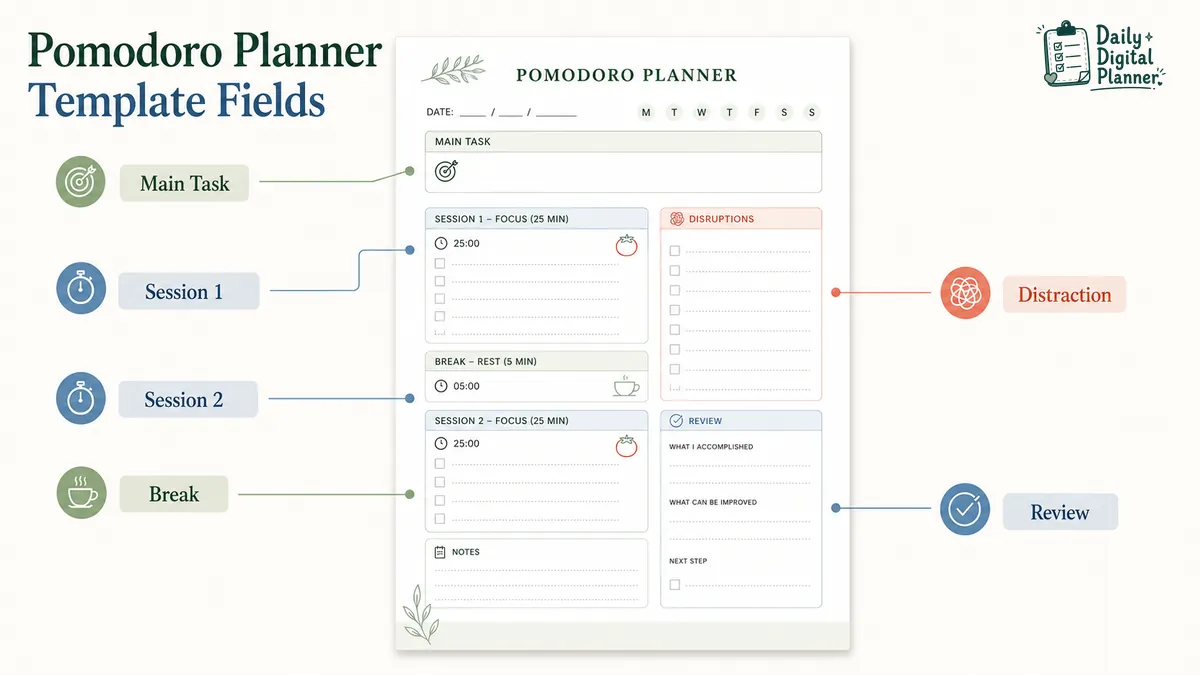
A printable Pomodoro planner is useful when you want a paper tracker on your desk or in a binder. A fillable Pomodoro planner PDF is useful when you want to type tasks, save a copy, edit the file, or print a clean page after filling it out.
SERP results for Pomodoro planner terms often mix app pages, worksheets, trackers, printable templates, and marketplace listings. This article stays on the planner-template side of the topic: the page you use to plan, track, and review focus sessions.
What Should You Write on a Pomodoro Planner Page?
A Pomodoro planner page should include the task, the session count, the timer interval, break notes, distractions, and what happens after the session. The goal is to make each focus interval traceable, not to create a long diary.
Start with a task that can fit inside one or a few sessions. "Work on website" is too broad. "Update product image alt text for three listings" is clearer. If the task needs several intervals, the planner can show that through repeated session boxes or checkmarks.
Use the planner fields this way:
- Main task: write one task that deserves the next focus interval.
- Session number: mark whether this is session 1, 2, 3, or another interval.
- Focus interval: write the timer length you plan to use.
- Work block: note the larger time block if the session sits inside one.
- Break: record whether the break happened or what kind of break you took.
- Completed checkbox: mark the session as done only if the interval was actually completed.
- Distraction log: write down interruptions without switching tasks immediately.
- Blocker: note the file, decision, person, or detail that stopped the work.
- Next action: choose continue, finish, move, delegate, or reschedule.
- Review summary: write one short line about what the sessions produced.
Concrete examples keep the page useful. A professional might write "review quarterly report section" as the task, log two completed sessions, and write "send comments to manager" as the next action. A student might write "summarize chapter 4," finish one session, and note "practice questions tomorrow." A small business owner might write "batch customer replies," complete one session, and move bookkeeping to a later block.
The distraction log should stay short. It is not a second task list. Use it to catch ideas and interruptions so the current session can keep its shape.
How Long Should Pomodoro Focus Sessions and Breaks Be?
Pomodoro planners commonly use 25-minute focus sessions with short breaks, but the planner can support adjusted intervals when a task, product, or user workflow needs a different rhythm. The interval should be clear enough that the session has a start, an end, and a review point.
Many Pomodoro workflows use a 25-minute focus session followed by a short break. That pattern is common, but it should not be treated as the only possible structure for every person or every task. A difficult task may need a shorter first session just to get started. A project task may fit better inside a longer work block with planned review notes.
The planner page is useful because it records what the interval produced. A timer can tell you that 25 minutes ended. The planner can tell you whether the report section was drafted, whether the interruption was captured, and whether the next interval should continue or switch.
| Interval Choice | Best For | Planner Note |
|---|---|---|
| 25-minute focus session | Standard Pomodoro-style work | Track one session at a time |
| Shorter session | Starting hard tasks or low-energy work | Use a smaller task and fewer session goals |
| Longer work block | Project work or deeper focus | Add break notes and a review line |
| Repeated sessions | Tasks that need several intervals | Track each completed session separately |
The safest rule is to choose a focus interval you can actually review. If the interval is too vague, the planner cannot show what happened. If the interval is too long for the task, the session may turn into a general work block instead of a Pomodoro cycle.
How Is a Pomodoro Planner Different From a Timer App?
A timer app counts down the interval, while a Pomodoro planner records the task, session result, distractions, and next action. The timer controls time; the planner controls context.
Timer apps are useful. They make it easy to start, pause, and end intervals. Many search results for Pomodoro terms point toward apps and online timers because the countdown is the most visible part of the method.
A planner template solves a different problem. It helps you decide what the interval is for, what happened during the session, and what should happen next. That is why a timer app and a Pomodoro planner can be used together without doing the same job.
| Tool | Main Job | What It Does Not Do By Itself |
|---|---|---|
| Timer app | Counts down a focus interval and break | Choose the task, log distractions, or review results |
| Pomodoro planner | Records task choice, session result, and next action | Run the countdown unless you add a timer |
| Pomodoro worksheet | Gives a structured page for repeated sessions | Replace task judgment or daily planning |
| Pomodoro tracker | Tracks completed intervals over time | Decide whether the task should continue, move, or stop |
Use a timer for the countdown. Use the planner page for the work decision. That separation keeps the method practical: the timer helps you stay inside the interval, and the planner helps you understand what the interval did.
How Do Pomodoro Sessions Fit Inside Time Blocking or Work Blocks?
Pomodoro sessions fit inside larger work blocks by dividing a scheduled focus period into smaller timed intervals. Time blocking sets aside the space; Pomodoro sessions decide how that space gets used.
For example, a work block from 9:00 to 10:30 might be reserved for writing a proposal. Inside that block, you could use two or three Pomodoro sessions with breaks between them. The time block protects the calendar space. The Pomodoro planner tracks each interval inside that protected space.
The difference is easier to see by comparison:
| Planning Method | Main Question | Planner Use |
|---|---|---|
| Time blocking | When will this work happen? | Schedule a larger block on the day |
| Pomodoro planning | What task will this interval handle? | Track focus sessions, breaks, and results |
| Deep work planning | Which larger focus period needs protection? | Reduce meetings, interruptions, or task switching |
| Work planning | What needs to happen across the workday? | Combine tasks, meetings, projects, and focus blocks |
A Pomodoro planner does not replace the bigger plan for the day. It works inside it. For the broader day structure, use a work planner before choosing the smaller Pomodoro sessions inside the block.
This distinction also keeps the template from becoming crowded. The daily work planner can hold meetings, project deadlines, and top priorities. The Pomodoro planner can stay focused on the repeated session cycle: task, interval, break, result, and next action.
When Should You Use a Printable or Fillable Pomodoro Planner PDF?
Use a printable Pomodoro planner PDF when you want a desk tracker, and use a fillable PDF when you want to type tasks, save the file, or print a clean copy. The right format depends on where the planner page fits in your routine.
A printable Pomodoro planner is useful when you want paper next to your laptop, notebook, or study materials. You can mark checkboxes by hand, write short distraction notes, and keep the page visible during the session. This works well for desk planning, binder systems, classroom work, and offline focus blocks.
A fillable PDF planner is useful when you prefer to type into planner fields before printing or saving the file. For example, you might type tomorrow’s focus tasks on your computer, save the PDF, then print a clean page for the morning. If you need the basic workflow, this guide explains how to use a fillable PDF planner in Adobe Acrobat Reader.
| Format | Best For | Practical Note |
|---|---|---|
| Printable Pomodoro planner PDF | Handwriting, desk tracking, binder pages | Print the page and mark sessions by hand |
| Fillable Pomodoro planner PDF | Typing tasks, saving copies, clean printing | Fill the fields before printing or saving |
| Printable and fillable PDF | Users who switch between typing and paper | Check that the product supports fillable fields |
Daily Digital Planner is built around downloadable planner files, so PDF format matters. If you are still choosing the broader format, compare the fillable PDF planner and printable planner PDF pages before choosing a specific Pomodoro template.
If printing is the main concern, use the guide on how to print a printable planner PDF before changing paper size, scaling, or printer settings.
What Should You Check Before Choosing a Pomodoro Planner Template?
Check the file type, interval fields, session log, distraction area, page size, screenshots, instructions, and download access before choosing a Pomodoro planner template. A good-looking planner page still needs the right fields for the way you work.
Use this checklist before buying or downloading a Pomodoro planner PDF:
- PDF file type: confirm that the product is a PDF if you need a printable or fillable planner.
- Printable or fillable fields: check whether the page is print-only, fillable, or both.
- Session count fields: make sure the template can track multiple focus sessions.
- Focus interval field: look for a place to write the session length or timer setting.
- Break field: check whether the page includes break notes or break checkboxes.
- Distraction log: choose a template with space for interruptions if task-switching is a problem.
- Task and next-action fields: make sure the planner captures both the starting task and the decision after the session.
- Page size: confirm the size if the product page lists it and you need a specific paper format.
- Screenshots: look for clear product images that show the actual planner layout.
- Instructions: check whether the product explains how to download, print, or use the file.
- Download access: make sure the purchase flow gives you access to the planner files after checkout.
The most important field is the next action. Without it, the planner may show completed intervals but not the decision that follows them. A strong Pomodoro planner should make it easy to answer: continue, finish, move, or reschedule?
Which Daily Digital Planner Pomodoro Templates Fit This Use Case?
Daily Digital Planner has Pomodoro-focused PDF templates that fit different focus-session workflows, from simple interval logs to business productivity worksheets and professional deep-work pages. This section is here to connect the method to real planner options, not to replace the guide.
Start with the broader productivity planner PDFs category if you want to compare Pomodoro planners with priority planners, focus trackers, and other work-support pages.
| Planner Type | Best For | Product Bridge |
|---|---|---|
| Pomodoro time blocking focus tracker | Work blocks and productivity worksheets | Pomodoro Planner Time Blocking Focus Tracker |
| Minimalist Pomodoro interval log | Study/work sessions and fillable daily logging | Pomodoro Planner Minimalist Study Work Interval Log |
| Professional Pomodoro deep-work worksheet | Structured productivity sessions | Pomodoro Planner Professional Deep Work Worksheet |
| Meeting-free day planner | Larger deep-work day planning | Meeting-Free Day Planner |
| Distraction log | Tracking interruptions during focus work | Distraction Log Printable |
Choose the template that matches the planning problem. Use a simple Pomodoro interval log when you only need repeated focus sessions. Use a time-blocking focus tracker when the session needs to sit inside a scheduled block. Use a distraction log when interruptions are the main thing breaking the work.
Pomodoro Planner FAQ
Is a Pomodoro planner the same as a timer?
No. A Pomodoro planner is not the same as a timer because the timer counts down, while the planner records task choice, session result, distraction notes, and next action.
A timer can still be part of the workflow. Use the timer to manage the interval and the planner page to manage the task.
Can I use a Pomodoro planner without an app?
Yes. You can use a Pomodoro planner without an app if you have any timer that can mark the focus interval and break.
The planner does not need to be digital to work. A printed page beside a kitchen timer, phone timer, or browser timer can still track the session.
What should I track in a Pomodoro planner?
Track the task, interval, break, completed session, distraction, blocker, and next action in a Pomodoro planner. Those fields explain what happened before, during, and after the focus session.
The next action is especially useful. It tells you whether to continue the same task, mark it finished, move it into another block, or reschedule it.
Is Pomodoro the same as time blocking?
No. Pomodoro is not the same as time blocking because time blocking schedules larger parts of the day, while Pomodoro divides focus work into repeated timed sessions.
The two methods can work together. A time block can hold one project, and the Pomodoro planner can track the smaller intervals inside that block.
Can a Pomodoro planner be printable or fillable?
Yes. A Pomodoro planner can be a printable PDF, a fillable PDF, or both if the product supports those formats.
Use printable pages when you want handwriting and quick checkmarks. Use fillable PDF pages when you want typed tasks, saved copies, or a clean page before printing.
Should every task use Pomodoro sessions?
No. Every task should not use Pomodoro sessions because some tasks are too short, too interrupt-driven, or too meeting-based for repeated focus intervals.
Pomodoro planning fits best when the task needs focused work, a clear start, a clear stop, and a review point. Tiny admin tasks may work better as a batch. Meetings usually belong in the broader work planner, not inside a Pomodoro session log.