
Blog
Why Your Fillable PDF Planner Is Not Working and How to Fix It

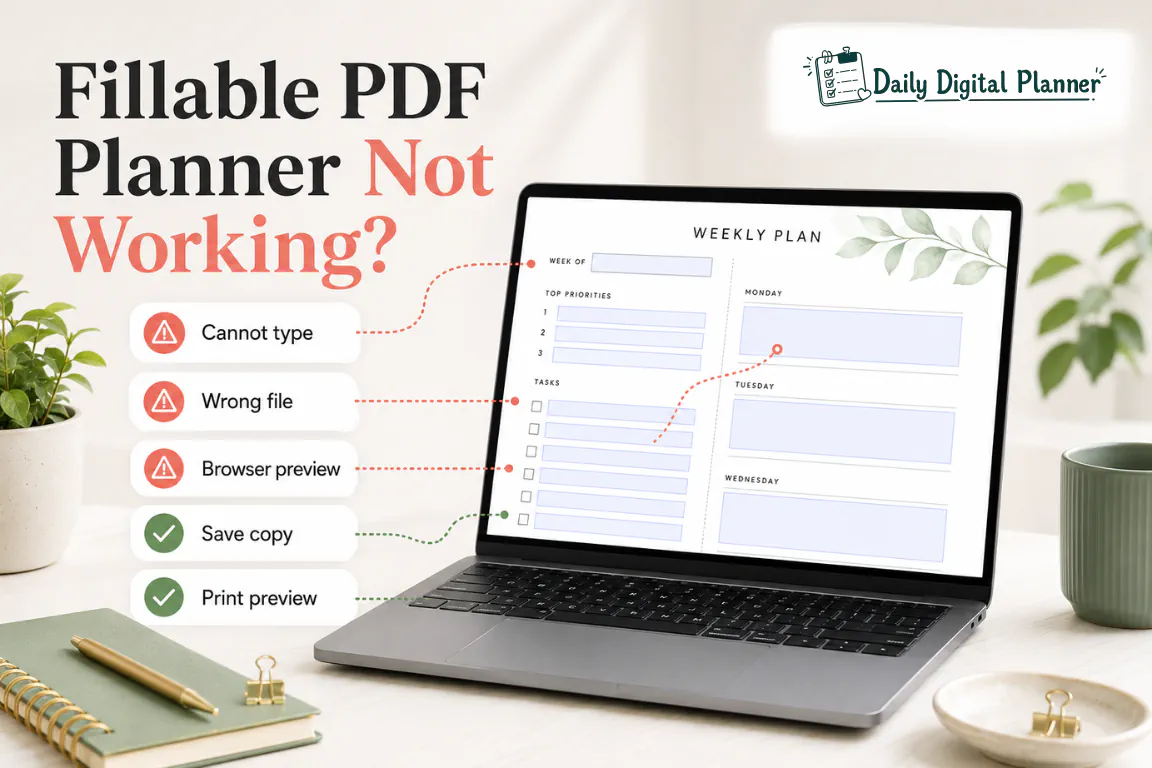
A fillable PDF planner usually stops working because the wrong file version is open, the PDF is flat instead of fillable, the file is open in a browser preview, the fields are restricted, the entries were not saved, or the print preview does not show the typed fields.
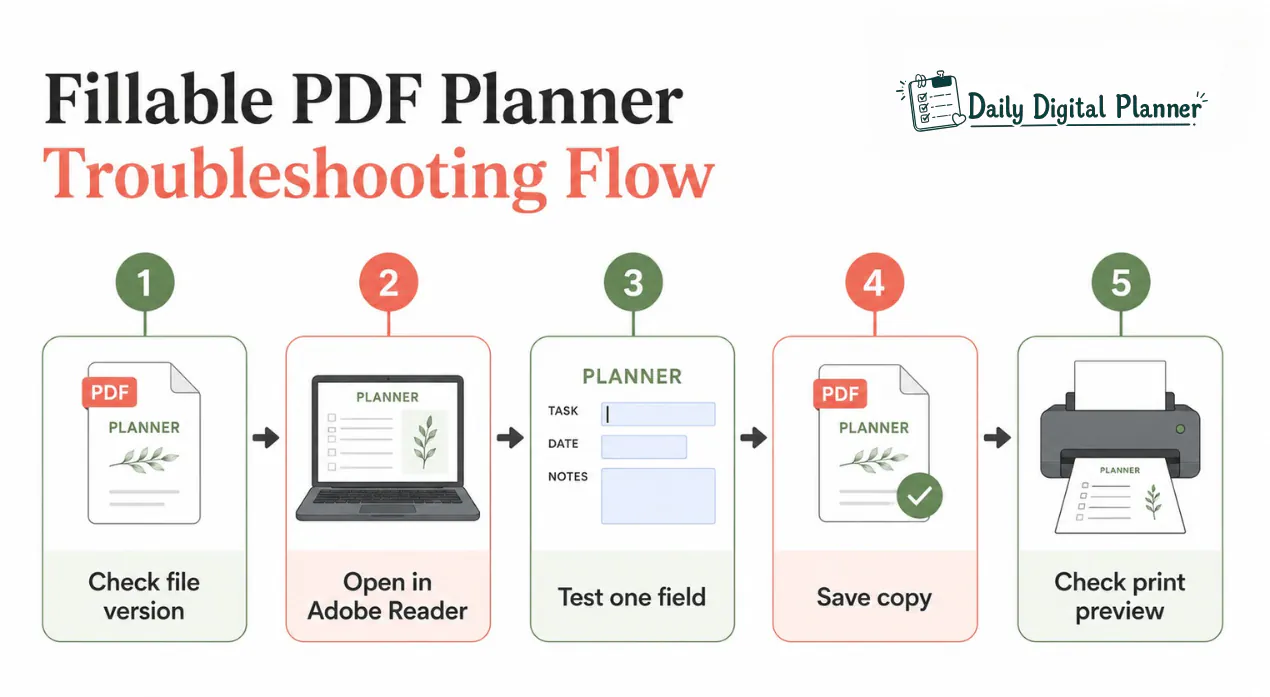
The safest first fix is to download the planner file, open the fillable version in Adobe Acrobat Reader, type one test entry, save a working copy, close it, reopen it, and check print preview before printing a full planner.
Daily Digital Planner creates downloadable PDF planner templates, so this guide focuses on using a purchased or downloaded planner file correctly. If you are still choosing the format, start with fillable PDF planners and check each product description for included file types before buying.
This article does not teach how to create fillable PDF forms, redesign a planner, remove PDF security, or use Acrobat Pro’s form-creation tools. It is a troubleshooting guide for people who want to type into, save, and print a fillable planner they already downloaded.
Why Is Your Fillable PDF Planner Not Working?
Most fillable PDF planner issues come from the wrong file version, a flat PDF, browser preview, app limitations, restricted fields, save failure, or print preview mismatch.
Use the table below as the first diagnosis layer before changing advanced settings. A fillable planner problem is easier to fix when the symptom, likely cause, and first safe action are separated.
| Problem | Likely Cause | First Fix | When to Stop |
|---|---|---|---|
| You cannot type into the planner | The blank printable file is open, the page is flat, or the viewer does not support the field | Open the file marked fillable in Adobe Acrobat Reader and click inside a real field | Stop if no file in the download package is described as fillable |
| Fields are not highlighted | Field highlighting is turned off, the viewer hides fields, or the file has no interactive fields | Click inside likely input areas and test Tab navigation in Reader | Stop if no field responds anywhere in Reader |
| Typed text disappears | The browser or app did not preserve field data, or the file was not saved as a working copy | Type one test entry, Save As a new file, close, and reopen it | Stop if the file cannot save entries under allowed permissions |
| Filled fields print blank | The saved file or print preview does not show the typed entries | Reopen the saved copy in Reader and check print preview before printing | Stop printing batches if the fields are blank in preview |
| PDF opens in a browser | Chrome, Edge, Safari, email, or cloud preview opens the file automatically | Download the file, then use Open With > Adobe Acrobat Reader | Stop using the browser tab for fillable-field work |
| Checkboxes do not work | The checkbox is a printed design element, not a form field, or the wrong file is open | Try the fillable version and click directly on the checkbox field | Stop if checkboxes are decorative boxes in a flat PDF |
| Product includes blank and fillable versions | The printable-only version is open by mistake | Find the fillable file in the downloaded package or instructions | Stop if the product description does not include fillable support |
This diagnosis is deliberately practical. Most planner users do not need a PDF editor first. They need to confirm the file, the viewer, the field, the save step, and the print preview in the right order.
Is the Planner File Actually Fillable?
A planner file is actually fillable only when the PDF includes interactive form fields that can be selected, typed into, checked, or filled.
Adobe’s Reader form guidance separates interactive PDF forms from flat forms. Interactive forms include selectable fields. Flat forms are visual pages without built-in fields, even when the page has boxes, lines, or blank areas that look like places to type.
For planner use, that difference matters more than the file extension. Both a flat printable planner and a fillable planner can be PDF files, but only the fillable version has built-in PDF form fields.
| File Type | What It Means | What to Do |
|---|---|---|
| Fillable PDF planner | The planner includes built-in text fields, checkboxes, or supported input areas | Open it in Adobe Acrobat Reader and type into the supported fields |
| Flat printable PDF | The planner page is a visual design for handwriting or printing | Print it and write by hand, or use a manual text tool if you only need occasional text |
| Fill & Sign text | Text is manually placed on top of a flat PDF page | Use it as a workaround, not as proof that the planner has built-in fields |
| Creator/editing workflow | A form creator adds or edits PDF form fields | This is outside normal Reader use and should not be needed for a purchased fillable planner |
Adobe’s Fill & Sign guidance can help place text on some flat PDFs, but Fill & Sign is not the same as a planner with built-in fillable fields. A true fillable planner lets you click into planned fields such as schedule blocks, task rows, note areas, meal lines, or checkboxes.
If you are comparing expectations before buying or downloading, the fillable PDF planner vs printable planner guide explains why typing and handwriting workflows are different. If you are unsure what kind of file a PDF planner can be, the PDF planner format guide explains printable, fillable, and digital PDF planner use cases.
Are You Opening the PDF in Adobe Acrobat Reader or a Browser?
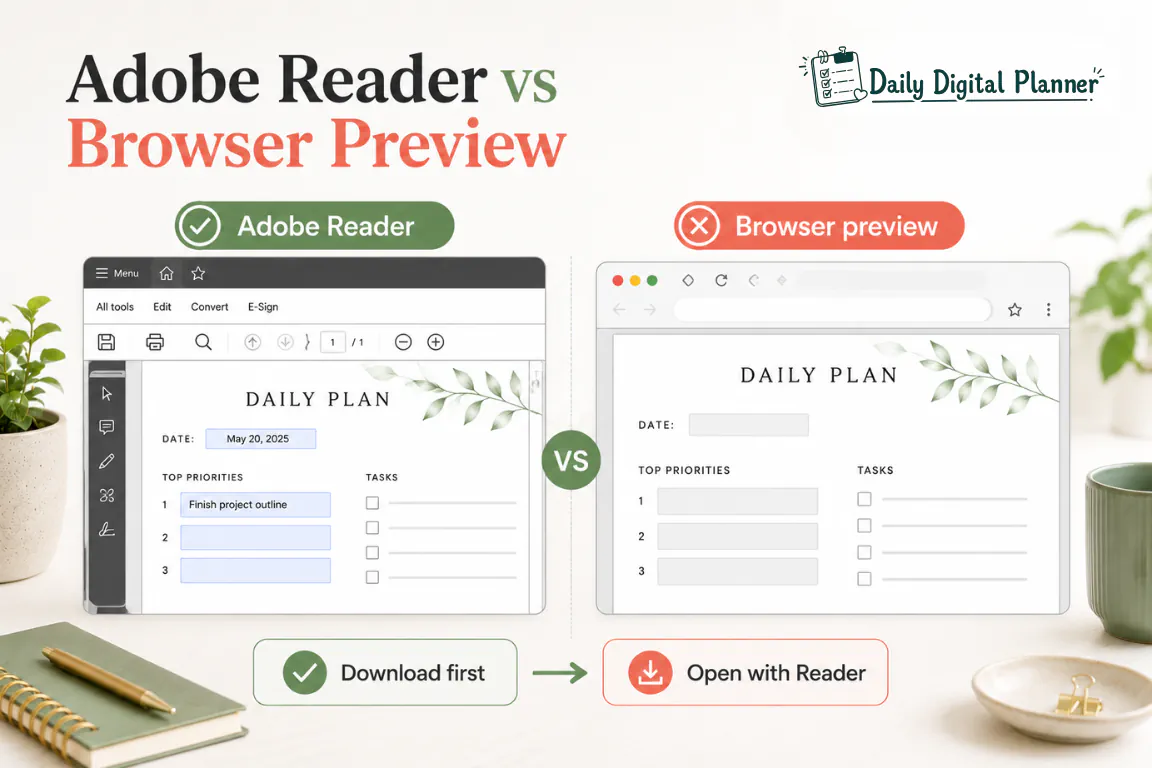
Open the downloaded planner file in Adobe Acrobat Reader when fields, saving, or printing matter.
A browser preview is useful for quick viewing, but Chrome, Edge, Safari, email previews, checkout previews, and cloud previews can behave differently from a dedicated PDF reader. The browser may show the page correctly while still causing confusion with field visibility, saving, or printing.
Use this workflow before assuming the PDF is broken:
- Download the planner PDF to your device.
- Find the file in Downloads or your planner folder.
- Right-click or control-click the file.
- Choose Open With.
- Choose Adobe Acrobat Reader.
- Save a working copy before filling detailed planner entries.
Adobe’s guidance on changing the default PDF viewer is useful when PDF files keep opening in a browser or another app. The goal is not to force every PDF into one app forever. The goal is to create a stable baseline while you troubleshoot fillable fields.
Once the file and app are correct, use the full guide on how to use a fillable PDF planner in Adobe Acrobat Reader for the normal type, save, and print workflow.
Why Can't You Type Into the Fillable PDF Planner?
You usually cannot type because the file is not the fillable version, the page has no interactive field in that spot, the viewer is limited, or the PDF filling permission is restricted.
Start with the visible planner file before changing advanced settings. A planner page can include lines, boxes, schedules, and checklists that look like typing areas, but those design elements are not always PDF form fields.
Check these signals in order:
- File version: check whether the file name, product page, or instructions identify the file as fillable.
- Open app: check whether the PDF is open in Adobe Acrobat Reader instead of a browser preview.
- Field location: click inside a planned input area, not just anywhere on the page.
- Cursor signal: look for a text cursor, selected field, highlighted area, checkbox response, or Tab movement.
- Blank version: confirm that you did not open a printable-only or blank handwriting version.
- Permission state: check document restrictions only as a cautious diagnostic step.
Adobe’s unable-to-fill form guidance explains that some forms may not be interactive or may have restrictions. That does not mean a user should remove protections or bypass restrictions. It means the file may need the correct version, the correct viewer, or support from the file creator.
If one field works and another does not, the planner may include fillable fields only in specific areas. Use the field that responds as the proof point, then test nearby planner sections such as dates, schedules, notes, checkboxes, or meal lines.
Why Are Fillable Fields Missing or Not Showing?
Fields may look missing when the file is flat, the viewer hides field highlighting, or saved field data is not rendering in that app.
Field visibility can be confusing because a PDF field is not the same as a printed box in the planner design. The visual box is part of the planner page. The fillable field is an interactive layer that must be built into the PDF.
Use this diagnosis list:
- Highlighted fields: blue or colored field highlights may show where typing is supported, depending on the PDF app and settings.
- Hidden highlights: some viewers do not display field highlighting the same way, even when fields exist.
- Flat pages: a printable-only page can show planner boxes without any interactive field layer.
- Wrong file: a product package may include both blank printable and fillable files, so the wrong version can make fields look missing.
- Saved field data: typed entries should be tested by saving, closing, reopening, and previewing the same saved file.
- Checkbox fields: a checkbox must respond when clicked; a printed square on a flat PDF is only a visual box.
The practical test is simple: open the fillable version in Adobe Acrobat Reader, click inside likely planner fields, type one short test entry, save, close, and reopen. If no field responds anywhere in Reader, the file is probably flat, restricted, or not the fillable version.
Why Is Typed Text Disappearing or Not Saving?
Typed text usually disappears when the file was not saved correctly, the browser or app did not preserve field data, or the saved copy was not reopened and checked.
Saving is not only the last step. Saving is part of the test. A fillable PDF planner is useful only if the typed fields remain visible after the file is closed and reopened.
Use this save test:
- Open the fillable version in Adobe Acrobat Reader.
- Type one short test entry in a clear field.
- Save as a working copy with a new file name.
- Close the file.
- Reopen the saved copy from your device folder.
- Confirm the entry still appears.
Adobe’s saving PDFs guidance is useful for understanding normal PDF save behavior and save-copy workflows. For planner use, the important habit is to keep a clean original and save separate working copies for a week, project, client, class, meal plan, or routine.
Useful working-copy names include:
weekly-planner-june-working-copy.pdfwork-day-planner-client-notes.pdfmeal-planner-week-24-filled.pdfhabit-tracker-june-filled.pdf
If you cannot find the correct downloaded file, use the guide on how to download your planner PDF after purchase before troubleshooting the save behavior. The downloaded package is where you check whether you received a blank version, a fillable version, page-size variants, or an instructions file.
Why Are Filled Planner Fields Not Printing?
Filled planner fields may print blank when the entries are not visible in the saved file or print preview before printing.
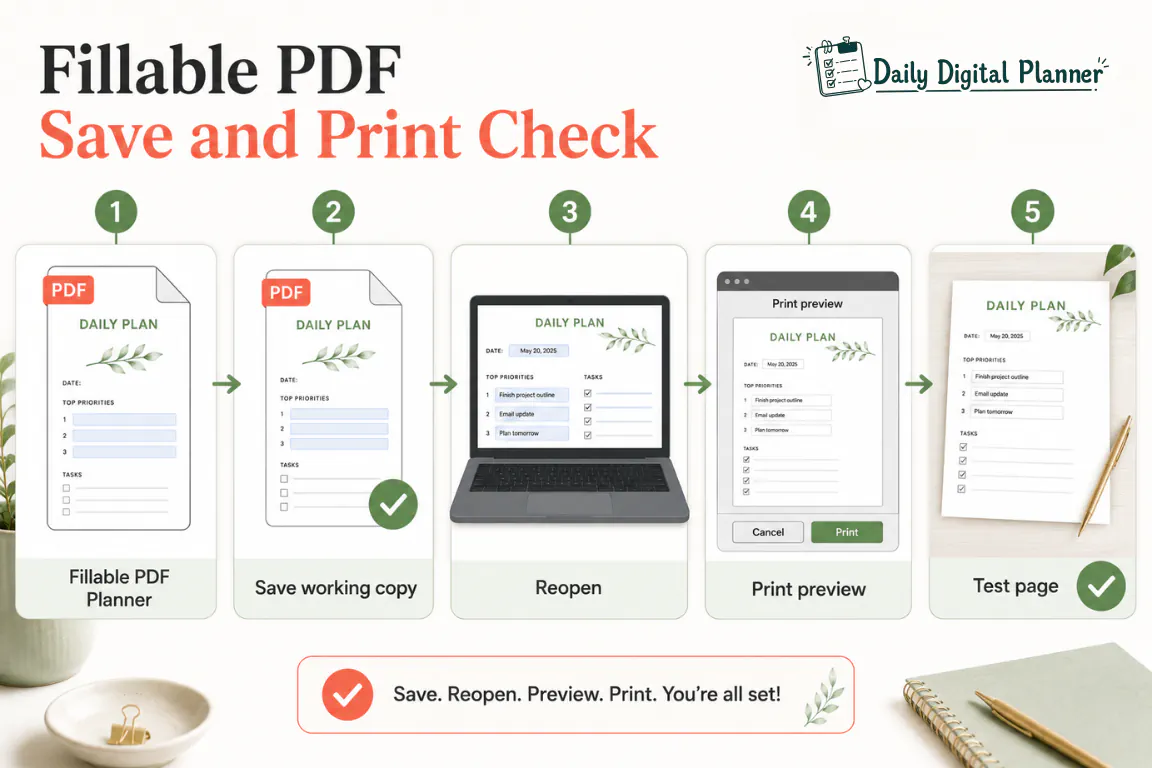
Print preview is the checkpoint between "the planner looks filled on screen" and "the planner will print with typed entries." Do not print a full planner batch until the saved copy and preview both show the filled fields.
Use this print checklist:
- Save the filled working copy.
- Close the file.
- Reopen the saved copy in Adobe Acrobat Reader.
- Confirm the typed fields are still visible.
- Open print preview.
- Print one test page.
- If fields are blank in preview, return to the file-version, app, and save-copy checks.
If the typed fields appear in the saved file and preview, then the remaining print choices are normal planner print choices: paper size, scale, margins, page range, color, and test page. The full guide on how to print a printable planner PDF at home covers those print settings in more detail.
What Should You Check on Mac, Preview, or Mobile Apps?
Mac Preview and mobile PDF apps can work for some PDFs, but Adobe Acrobat Reader is the safer baseline when troubleshooting fillable planner fields.
Apple’s Preview user guide explains that Preview can fill out and sign some PDF forms. That is useful, but it does not mean every planner PDF will behave the same way in Preview, a browser, a phone app, and Adobe Reader.
Use these platform checks:
- Mac Preview: if Preview does not allow direct typing into the planner field, open the same downloaded file in Adobe Acrobat Reader.
- Mobile apps: if fields behave strangely on a phone or tablet, test the file on desktop Reader before deciding the planner is broken.
- Cloud previews: if the planner opens inside a cloud drive preview, download the file to the device before filling it.
- Browser tabs: if the PDF opens automatically in a browser, use Open With to choose Reader for the saved file.
- Printing from mobile: if filled fields print blank from a mobile app, test the saved PDF and print preview on desktop first.
This is not an app-ranking rule. It is a troubleshooting baseline. When one app behaves inconsistently, testing the same file in Adobe Acrobat Reader helps separate file problems from viewer problems.
When Is the PDF Planner Not Fixable by the User?
The issue is not user-fixable when the product is printable-only, the file is restricted, the fillable version is missing, or the PDF was not designed with interactive fields.
Stop troubleshooting and check the product details, download files, or support path when one of these conditions is true:
- Product description does not mention fillable fields.
- Download folder includes only blank or printable files.
- Adobe security settings show that form filling is not allowed.
- No field responds anywhere in Adobe Acrobat Reader.
- The user is trying to create new fields instead of using existing fields.
- The file was exported from another app without interactive PDF form fields.
- The only available typing method is manual Fill & Sign text on top of a flat page.
This boundary protects the workflow. A purchased fillable planner should be used through the fields included in the file. A printable-only planner should be printed or used with manual text placement. A restricted file should not be bypassed.
If the product should include a fillable version, return to the downloaded package and instructions first. The how to buy and download planner files page explains where purchase and download access fit into the Daily Digital Planner workflow. If you are still deciding which product format you need, the fillable PDF planners page is the better starting point.
Fillable PDF Planner Troubleshooting FAQ
The fillable PDF planner troubleshooting FAQ below covers the edge cases that usually remain after the file, app, field, save, and print checks are clear.
Can I make a flat PDF planner fillable in Adobe Reader?
No, Adobe Reader cannot turn a flat PDF planner into a true fillable planner with built-in form fields.
Reader can open, view, fill supported fields, save, and print PDFs, but creating new PDF form fields is a creator workflow. If the planner is flat, you can print it, write by hand, or use a manual text tool such as Fill & Sign for limited text placement.
Why does my fillable PDF work in Adobe Reader but not in Chrome?
A fillable PDF can work in Adobe Reader but not in Chrome because the browser preview may handle fields, saving, or print behavior differently.
Download the file, open the saved PDF in Adobe Acrobat Reader, type one test entry, save a working copy, and reopen that copy. Use the browser only for quick viewing if it does not preserve the planner fields reliably.
Why do my typed planner entries disappear after saving?
Typed planner entries usually disappear because the file was filled in a browser or app that did not preserve the field data, or because the saved working copy was not reopened and checked.
Use the one-entry save test before filling a full weekly, daily, meal, work, or habit planner page. Type one short entry, Save As a new file, close it, reopen it, and confirm the entry remains visible.
Why do fillable fields print blank?
Fillable fields usually print blank when the typed entries are not visible in the saved file or print preview before printing.
Reopen the saved working copy in Adobe Acrobat Reader and check print preview. If the entries are blank in preview, do not print the full planner. Return to the file version, app, and save-copy checks first.
Do I need Adobe Acrobat Pro to use a fillable PDF planner?
No, you do not need Adobe Acrobat Pro to use a fillable PDF planner when the planner already includes supported fillable fields.
Adobe Acrobat Reader is the normal baseline for opening, typing into, saving, and printing supported fillable fields. Acrobat Pro is relevant for creating or editing form fields, which is not the normal buyer workflow for a downloaded planner.
Can Mac Preview fill a planner PDF?
Mac Preview can fill some PDF forms, but Adobe Acrobat Reader is the safer baseline when a fillable planner field will not type, save, show, or print correctly.
If a planner does not behave correctly in Preview, download the file and test the same fillable version in Adobe Acrobat Reader. This separates a viewer issue from a file issue.
What should I check before contacting support?
Check the product description, downloaded file names, fillable version, Adobe Reader behavior, saved working copy, and print preview before contacting support.
Those checks show whether the issue is a wrong file, a flat PDF, a viewer problem, a save problem, a print preview problem, or a product-file issue. They also make support easier because you can describe the exact step where the planner stops working.
Final Check
A fillable PDF planner should be diagnosed in this order: file version, interactive fields, Adobe Acrobat Reader, one-field typing test, saved working copy, reopened file, print preview, and one test page.
If the planner passes those checks, continue using the working copy. If it fails those checks, the issue is usually the wrong version, a flat PDF, a limited viewer, a save problem, a print-preview problem, or a file that was not built with fillable fields.