
Blog
ADHD-Friendly Digital Planner Layouts for Low-Friction Planning

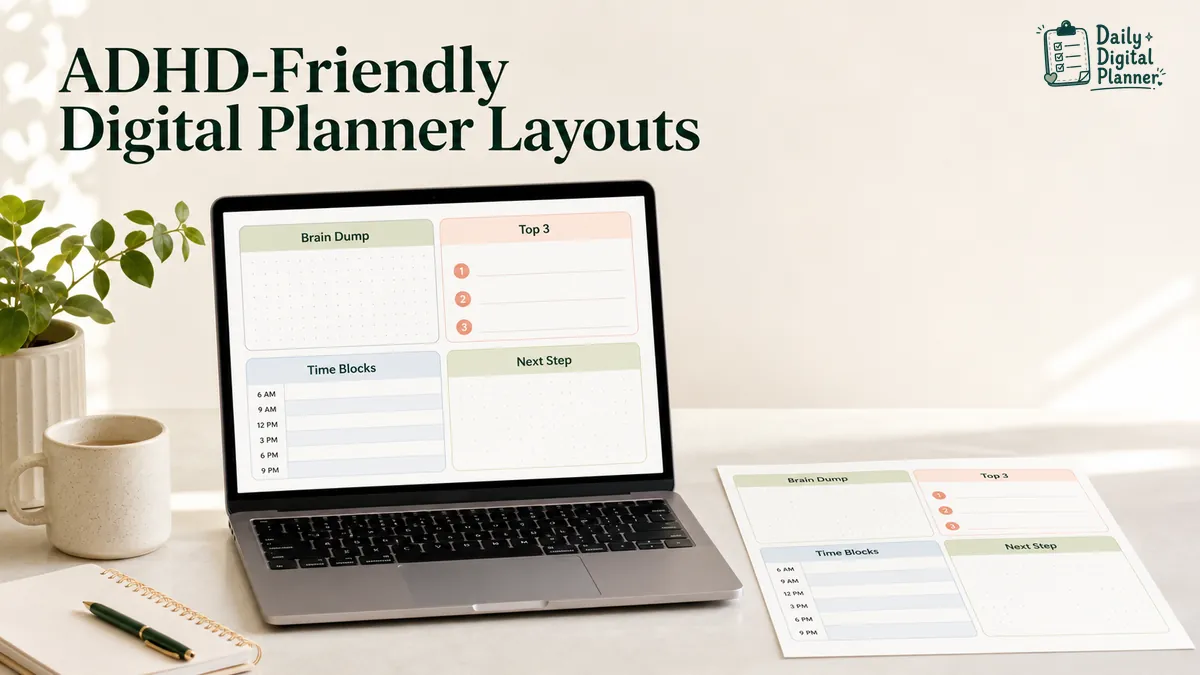
An ADHD-friendly digital planner layout reduces planning friction by keeping capture, priorities, time, and the next action visible on a page that is easy to restart.
No single page design works for every person or every week. A useful layout solves the point where planning usually breaks down. That may be capturing thoughts before they disappear, choosing from a long task list, seeing how much time is available, or returning to the planner after it has been ignored for several days.
This guide focuses on printable and fillable PDF layouts rather than diagnosis, treatment, or app rankings. If you are still comparing page orientation, planning horizon, and template types, start with the broader guide to choose a digital planner layout.
What Makes a Digital Planner Layout ADHD-Friendly?
An ADHD-friendly digital planner layout reduces the number of decisions required to capture, choose, see, and resume a task.
The phrase low friction is practical here. It describes what happens between opening the planner and doing something useful with it. A page creates less friction when the user can understand where information belongs without reading instructions, opening several files, or maintaining a complicated set of codes.
A low-friction layout should make four actions obvious:
- Capture: Where can an unsorted thought, task, or reminder go immediately?
- Choose: Which one to three items matter now?
- See: Where are appointments, time cues, or available work blocks visible?
- Resume: What should happen when the planner has not been opened for a while?
The layout does not need every productivity feature. More fields can create more choices, and more choices can make a page slower to use. The Attention Deficit Disorder Association also notes that there is no one-size-fits-all planner for adults with ADHD. The relevant test is whether the page remains understandable and usable in the reader’s actual routine, not whether it contains the longest feature list.
Which Page Elements Reduce Planning Friction?
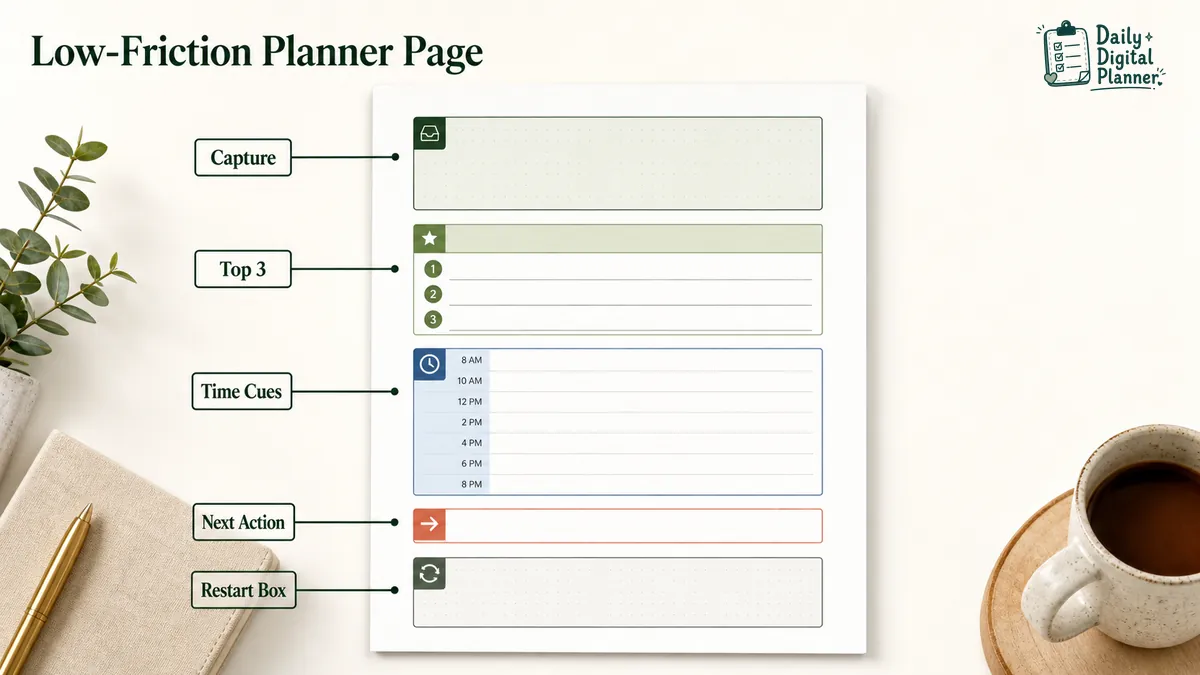
The smallest useful planner page keeps capture, priorities, time, and the next action visible while providing a clear way to carry unfinished work forward.
These elements can share one daily page, or they can be split between a weekly overview and a simple capture page. What matters is that each field has one job and the user does not need to remember a hidden rule.
One Capture Area
One capture area gives unsorted thoughts, tasks, and reminders a temporary place before they are organized.
The field can be labeled Brain Dump, Inbox, or Notes. It should be large enough for quick entries and separate from the final priority list. This separation matters because capture and selection are different actions: the first records information, while the second decides what deserves attention.
Do not turn the capture area into a second permanent task list. Review it at a predictable point, move active items to the right page, and remove anything that no longer matters. If unstructured capture is the main problem, a separate brain dump planner can keep the daily layout from becoming crowded.
One to Three Visible Priorities
One to three visible priorities separate today’s choices from the complete task inventory.
A long master list can still exist elsewhere. The daily page should show only the few items that need a decision now. Three lines are often enough to create a clear limit without pretending that the rest of the work has disappeared.
Write priorities as outcomes or concrete actions. Finish client summary is easier to evaluate than work on client project. When the hard part is deciding what belongs in the short list, use a priority planner template to compare urgency, importance, effort, or consequence before moving items onto the daily page.
Time Blocks or Time Cues
Time cues help only when they make the day easier to read.
A scheduled day may need hourly lines or broad morning, afternoon, and evening blocks. A less predictable day may work better with estimated durations beside the top priorities. The goal is to make capacity visible, not to assign a precise time to every small action.
Use a lighter structure when detailed scheduling becomes another task to maintain. Short repeated work intervals can also be useful for a clearly bounded session; the Pomodoro planner guide explains that separate method without requiring it for every ADHD-friendly layout.
One Concrete Next Action
A next-action field turns a broad task into the first observable step.
For example, plan presentation does not identify where to begin. Open the draft and write three slide headings does. The second version names an action, an object, and a stopping point.
The next action should be small enough to start without another planning session. It does not have to finish the project. Its job is to remove the next decision between reading the page and beginning the work.
A Carryover or Restart Box
A carryover or restart box tells the user what to keep when the planner has not been opened or the day did not follow the plan.
This box should not hold every unfinished item automatically. It can ask three short questions: Is this still active? Does it have a real next action? Does it belong on today’s page, a later date, or the master list?
The field makes interruption part of the layout instead of treating interruption as a failure. A planner that is easy to restart can be more useful than one that looks orderly only when every page is completed.
Should You Use a Daily or Weekly ADHD-Friendly Layout?
Use a daily layout for execution detail and a weekly layout for visibility across commitments, deadlines, and available capacity.
Neither planning horizon is automatically better. The choice depends on what the user needs to see before making the next decision.
| Layout | Best when | Information kept visible | Main risk |
|---|---|---|---|
| Daily layout | Today’s appointments, tasks, and work blocks compete for attention | Schedule, top priorities, next action, notes | Too much detail can hide the week’s larger commitments |
| Weekly layout | Deadlines, appointments, and repeated routines need one overview | Seven days, major outcomes, due dates, capacity | Small next actions may remain too vague |
| Daily plus weekly | The week needs an overview and each day needs execution detail | Weekly commitments plus today’s short plan | Copying every task between pages creates maintenance work |
A combined system should use each page for a different job. Keep fixed commitments and major outcomes on the weekly page. Move only today’s relevant items to the daily page. Do not duplicate the entire task list in both places.
For work-specific meetings, projects, focus sessions, and daily execution, compare the broader set of work planner PDFs.
How Much Structure Should an ADHD-Friendly Planner Have?
An ADHD-friendly planner should provide enough structure to reveal the next decision while leaving enough flexible space for changes.
An over-structured page asks the user to maintain many fields whether they are useful or not. Mood scales, habit grids, hourly schedules, meal boxes, gratitude prompts, and project trackers may each be useful, but they do not all belong on the same daily page.
An under-structured page creates the opposite problem. A blank sheet accepts anything but does not show which information should be selected, scheduled, or carried forward.
Use a simple test for each field: What decision does this field remove? Keep the field when the answer is clear. Remove it when the field exists only because another planner includes it.
A flexible notes area can hold changing details without redesigning the page. Fixed fields should be reserved for repeated decisions such as capture, priority, time, and next action.
Should You Choose a Printable or Fillable PDF Planner?
Choose a printable or fillable PDF planner by the way you will keep the page visible, update it, and return to it during the day.
The file format does not determine whether the layout is ADHD-friendly. The interaction method determines how much friction the planner creates in the user’s environment.
| Format | How entries are made | Visibility | Editing and reuse | Check before buying |
|---|---|---|---|---|
| Printable PDF | Write with a pen after printing | Can remain on a desk, wall, clipboard, or folder | Changes may require erasing or printing a new page | Page size, printer settings, and whether the design works in grayscale |
| Fillable PDF | Type into form fields in a compatible PDF reader | Stays on a laptop or device unless printed | Entries can be edited and the file can be saved when the reader supports it | Actual fillable fields, recommended software, save behavior, and printing support |
Choose printable planners when physical visibility and handwriting make the page easier to revisit. Choose fillable PDF planners when typing, editing, saving, and printing from the same file reduce setup.
Not every PDF includes fillable form fields. Read the product details before assuming that a file can accept typed entries.
How Can You Start Without Building a Complicated System?
Start with one planning page, one capture area, and one short review time instead of activating every template in a bundle.
Use this minimum setup for the first week:
- Choose one planning horizon. Start with a daily page when today’s execution is unclear, or a weekly page when commitments are difficult to see together.
- Keep one capture location. Put unsorted tasks and reminders in one field or one separate capture page.
- Set one review cue. Open the page at a repeatable event, such as starting work, finishing breakfast, or shutting down for the day.
- Test before adding fields. Use the page long enough to identify a repeated problem, then add only the template that solves it.
The first test is not a permanent commitment. It is a way to learn which page earns a place in the system. The digital planner PDF templates page provides the broad product route after the required format and layout are clear.
What Should You Do When You Stop Using the Planner?
Restart with today instead of backfilling every missed planner page.
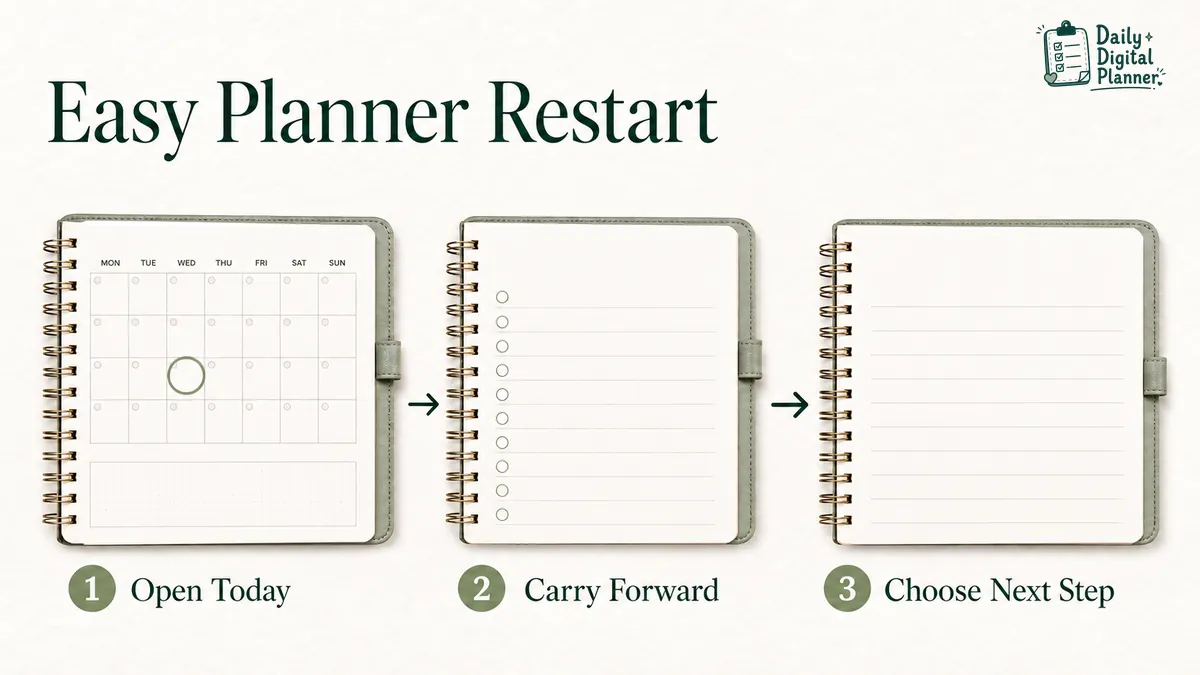
A missed day does not require a repair project. Use a three-step restart:
- Open today’s page. Use the current date or a fresh undated page without completing the gap.
- Carry forward only active items. Review unfinished tasks and keep only work that still has a deadline, consequence, owner, or clear purpose.
- Choose one next step. Write the first concrete action before rebuilding a full schedule.
Archive or ignore pages that no longer help. Backfilling can make the planner look complete, but it does not necessarily improve the next decision. A clean restart keeps the system focused on current work.
Which Planner Page Matches Your Current Planning Problem?
Choose the planner page that removes the current bottleneck instead of adding every available template at once.
| Current problem | Start with | Why this page fits | Related route |
|---|---|---|---|
| Thoughts and tasks have no capture point | Brain dump page | It records information before sorting and scheduling | Brain dump planner guide |
| The task list is long but today’s choice is unclear | Priority page | It separates a small active set from the full inventory | Priority planner template |
| One work block needs a clear boundary | Focus page | It defines the task, time boundary, distractions, and review point | Focus planner PDFs |
| Starting a long session feels too vague | Short interval page | It breaks one session into repeated work and break intervals | Pomodoro planner guide |
| Daily organization needs capture, focus, and visible actions | Daily ADHD-focused layout | It brings the main daily fields onto one printable page | ADHD focus planner printable |
| Unsorted thoughts need a dedicated printable page | Thought organizer | It provides a separate place for brain-dump and focus sorting | ADHD thought organizer printable |
The route should remain reversible. If a specialized page adds more maintenance than clarity, return to the basic daily or weekly layout and keep the extra page only for the days when that problem appears.
What Should an ADHD-Friendly Planner Not Promise?
An ADHD-friendly planner should not promise diagnosis, treatment, symptom control, or guaranteed productivity.
A planner can externalize tasks, dates, priorities, and next actions. It can provide a visible place for information that would otherwise remain scattered. Those are organizational functions, not clinical outcomes.
A planner is an organization aid, not a diagnostic tool or treatment for ADHD or executive dysfunction. Health questions, diagnosis, and treatment decisions belong with qualified professionals and appropriate health resources.
Product descriptions and planner guides should therefore explain what the PDF contains and how the page is used. They should not claim that a layout cures procrastination, fixes executive dysfunction, reduces symptoms, or works for every person with ADHD.
ADHD-Friendly Digital Planner FAQs
These answers clarify common format and use questions without changing the main layout decision.
Can a digital planner work for ADHD-friendly planning?
Yes, a digital planner can support ADHD-friendly planning when the page is easy to see, reopen, understand, and update with little setup.
The format can be printable, fillable, or both. Test the page in the place where it will actually be used. A well-designed file still creates friction if it remains buried in a downloads folder or requires several apps to open.
Is a colorful planner always better?
No. Color helps when it signals priority, page type, time, or status, but decorative color can compete with the information the user needs to find.
Use a small, consistent palette. For example, one color can mark appointments and another can mark the current priority. Leave most writing areas neutral so entries remain legible.
Is time blocking required in an ADHD-friendly planner?
No. Time blocking is optional, and a task list with one next action may be easier when the day is unpredictable.
Use time blocks when seeing boundaries helps with capacity or transitions. Use broader morning and afternoon cues when detailed hourly planning creates too much maintenance.
Can a planner treat executive dysfunction?
No. A planner can hold tasks, reminders, priorities, and next actions outside the user’s memory, but it cannot diagnose or treat executive dysfunction.
Treat the planner as one organization tool. Do not use it as a substitute for professional care, workplace support, or other resources a person may need.
How many planner pages should you start with?
Start with one daily or weekly planning page plus one capture page.
Add another template only after a repeated problem becomes clear. This keeps the first system small enough to evaluate and prevents setup work from replacing the work the planner is meant to support.
Choose the Layout You Can Reopen Tomorrow
The best starting layout is the smallest page you can understand quickly and reopen after an imperfect day.
Look for one capture area, one to three visible priorities, usable time cues, one concrete next action, and a simple carryover or restart field. Choose daily or weekly by the horizon you need to see. Choose printable or fillable by the interaction method you will actually maintain.
When focus is the main bottleneck, browse the current focus planner PDFs. When the required page type is still unclear, return to the broader digital planner PDF templates and compare the available routes without adding every template at once.