
Blog
Blank PDF Planner vs Fillable PDF Planner: Which Version Should You Use?

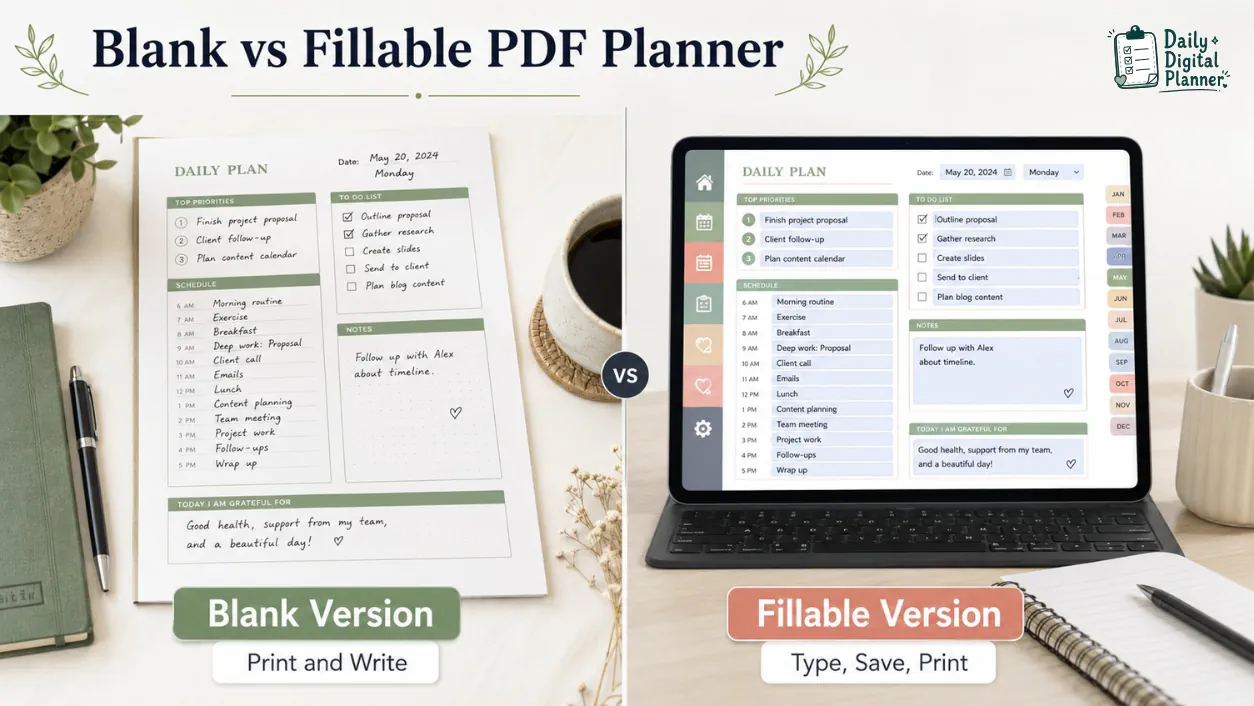
A blank PDF planner is best when you want to print planner pages and write by hand, while a fillable PDF planner is best when you want to type into supported fields before saving or printing. Both versions can belong to the same printable planner workflow, but the version you choose changes how you enter information, save pages, and check product details before buying.
Daily Digital Planner focuses on downloadable planner PDF products, so this guide compares the two file-version choices a shopper may see on a product page. If your main plan is to print pages and use a pen, start with printable planner PDFs. If typing into fields is the priority, compare fillable PDF planners you can type into and print.
The safest rule is simple: check the product page before checkout. A product may include a blank version, a fillable version, both versions, different page sizes, or specific software notes. The product page is the source of truth for what is included in that download.
Quick Answer: Should You Use a Blank or Fillable PDF Planner?
Use a blank PDF planner if you prefer handwriting, and use a fillable PDF planner if you want to type into supported fields before saving or printing. Choose both when a product includes both versions and you want a paper-first workflow on some days and a type-first workflow on others.
- Choose the blank version for handwriting, pen planning, and print-first use.
- Choose the fillable version for typed entries, saved copies, and print-after-typing use.
- Choose both versions when your planning routine switches between paper, screen, printer, and saved PDF files.
Blank and fillable PDF planner versions are not competing ideas as much as they are different input methods. The next sections define each version before comparing the practical differences.
What Is a Blank PDF Planner?
A blank PDF planner is a PDF planner page designed for printing or annotation without built-in fillable form fields. The page layout is already designed, but the writing areas are empty so you can print the page and write with a pen.
A blank PDF planner usually fits a paper-first routine. You download the PDF, print the page, and fill in schedules, priorities, notes, meals, tasks, or habits by hand. Some PDF apps may also let you add separate text boxes or annotations, but those added notes are different from built-in fillable fields.
Blank planner pages work well when you want:
- Blank spaces for handwriting.
- A reusable PDF file you can print again for personal use.
- A simple printable page without software setup.
- A planner page that feels closer to paper stationery.
If the whole idea of a downloadable planner file is still unclear, start with what a PDF planner is before comparing blank and fillable versions.
What Is a Fillable PDF Planner?
A fillable PDF planner is a PDF planner that includes fields or text-entry areas for typed planning in a compatible PDF reader. The fillable version lets you type into supported areas, save a copy, and print the page after entering information when the file and software support that workflow.
Fillable PDF planners are useful when you want the structure of a printable planner but prefer typed text. For example, you may type a daily task list, save the completed page as a separate file, or print the typed version for a desk, binder, or meeting.
The important condition is compatibility. A fillable PDF planner depends on the PDF fields and the PDF reader. When you need the step-by-step workflow, use the guide on how to use a fillable PDF planner in Adobe Acrobat Reader.
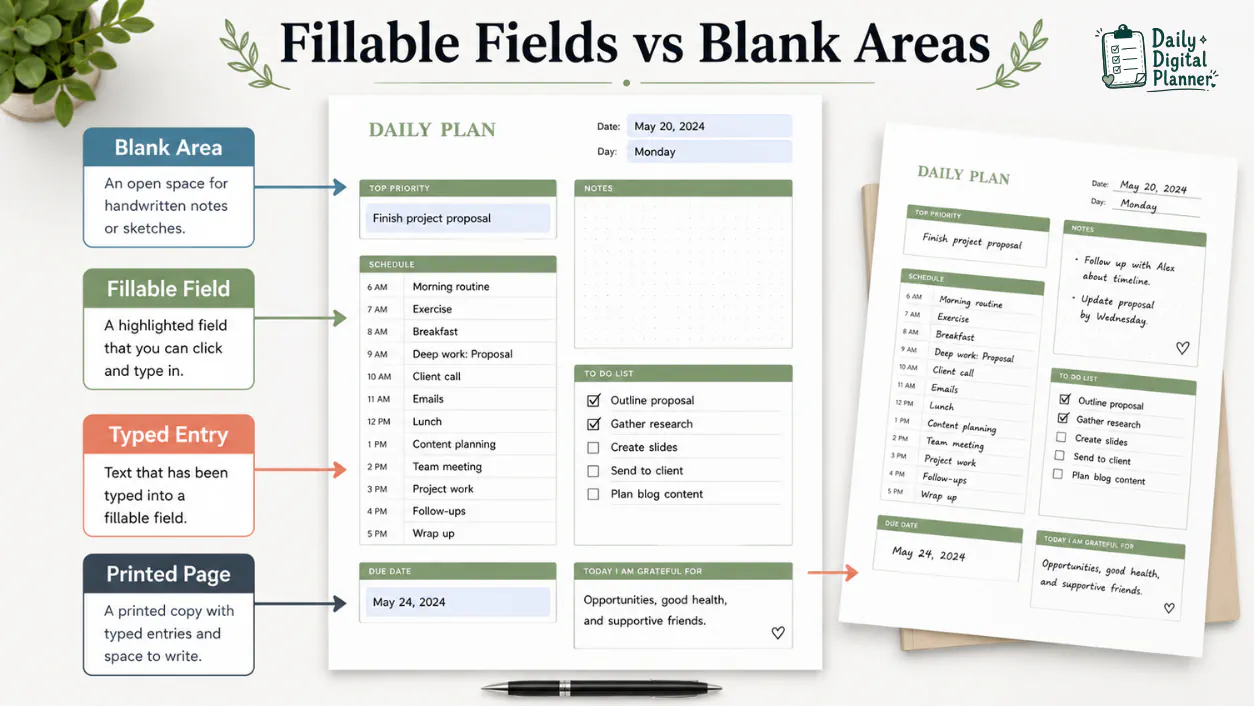
What Is the Difference Between Blank and Fillable PDF Planners?
Blank PDF planners are mainly for handwriting, while fillable PDF planners are for typing into supported fields before saving or printing. The difference is not the PDF file extension itself; the difference is how the planner page accepts information.
| Comparison Basis | Blank PDF Planner | Fillable PDF Planner | Check Before Buying |
|---|---|---|---|
| Input method | Write by hand after printing, or add separate annotations in some apps. | Type into supported fields or text-entry areas. | Confirm whether the product says blank, fillable, typeable, or editable. |
| Best use | Paper-first planning, binders, desk pages, and handwriting routines. | Type-first planning, saved copies, printed typed pages, and cleaner text entry. | Match the version to the workflow you use most often. |
| Printing sequence | Print the blank page first, then write by hand. | Type first, save if needed, then print the filled page. | Check page size and print instructions before using a full batch of pages. |
| Saving behavior | The original blank file can usually be reused, but handwritten paper is separate. | Typed entries may be saved as a copy when the file and reader support saving. | Use compatible PDF software and test one page first. |
| Reader requirement | Less software-dependent if you print first. | More dependent on fillable fields and a compatible PDF reader. | Check any software notes on the product page. |
| Product-page proof | Look for screenshots and blank page examples. | Look for screenshots showing fields, typed entries, or fillable notes. | Do not assume a printable PDF is automatically fillable. |
| When not to use | Skip blank-only pages if you need built-in typing fields. | Skip fillable-only expectations if you want a pen-and-paper planner with no screen step. | Choose the version that matches your real planning routine. |
For the broader format choice, read the fillable PDF planner vs printable planner guide. This page stays narrower: it compares the blank and fillable versions that may appear inside a planner PDF product.
Handwriting vs Typing
Handwriting vs typing is the main comparison basis because a blank PDF planner receives information by hand, while a fillable PDF planner receives typed text through supported fields. The blank version keeps the page open for pen marks, sketches, arrows, margin notes, and printed checklists.
The fillable version supports typed entries when the PDF includes fields. That typed workflow can help if you want cleaner text, duplicate saved copies, or a planner page you prepare before printing.
Printing Before or After Filling
Printing sequence differs because a blank PDF planner is usually printed before filling, while a fillable PDF planner can often be filled before printing. This matters when you are planning around a printer, a binder, a work desk, or a saved digital copy.
If printing settings are the hard part, use the guide on how to print a printable planner PDF at home. That page is the better place for page size, scale, and test-print workflow.
Reader Compatibility and Saving
Reader compatibility matters more for fillable PDF planners because typed fields depend on both the PDF file and the reader used to open it. A blank PDF planner is less dependent on software when the workflow is simply download, print, and write.
Saving behavior also depends on the software and device. A good habit is to keep an untouched original file and save a separate working copy when filling planner pages.
Which Version Should You Choose for Your Planning Routine?
Choose the planner version that matches how you enter planner information most often. A good planner file should reduce friction in your routine, not force you into a workflow you will avoid.
Choose a Blank PDF Planner If You Prefer Writing by Hand
Choose a blank PDF planner if your planning routine starts with paper, a pen, and printed pages. Blank versions fit users who like handwriting priorities, crossing out tasks, drawing arrows, using highlighters, or keeping pages in a binder.
A blank version can also be easier when you do not want to think about software compatibility. Download the file, print the page, and fill it in by hand. If that is your main workflow, the parent page for printable planner PDFs is the natural next place to browse.
Choose a Fillable PDF Planner If You Want to Type First
Choose a fillable PDF planner if your planning routine starts with typed text, saved copies, or a page you want to complete before printing. Fillable versions fit users who want typed tasks, repeated entries, cleaner formatting, or a digital copy of a completed planner page.
A fillable version is also useful when you plan on a computer before moving the page to paper. Compare fillable PDF planners you can type into and print when typed fields are the main feature you need.
Use Both Versions If You Switch Between Paper and Screen
Use both versions if your routine changes between handwriting and typing. Some days may call for a printed blank page beside your keyboard; other days may call for a typed version you can save, update, or print after filling.
Before buying, check whether the specific product includes a blank version, a fillable version, or both. The word "planner PDF" tells you the file format, but the product details tell you the included versions.
Can You Type Into a Blank Printable Planner PDF?
You cannot type into a blank printable planner PDF through built-in fields unless the file is also fillable; however, some PDF apps may let you add separate text boxes or annotations. A separate text box is not the same as a built-in fillable field.
This distinction matters because shoppers often see words like printable, editable, typeable, and fillable used loosely across the web. For Daily Digital Planner buying decisions, look for product language that states the included file version clearly.
Use these checks:
- Fillable fields mean the PDF includes areas intended for typed entries.
- Annotation text boxes mean an app lets you place text over the page.
- Blank printable pages mean the page is designed to be printed and filled by hand unless another version is included.
If your goal is to type into planner fields, follow the support guide for how to use a fillable PDF planner in Adobe Acrobat Reader after confirming the product includes a fillable version.
What Should You Check Before Buying a Blank or Fillable Planner PDF?
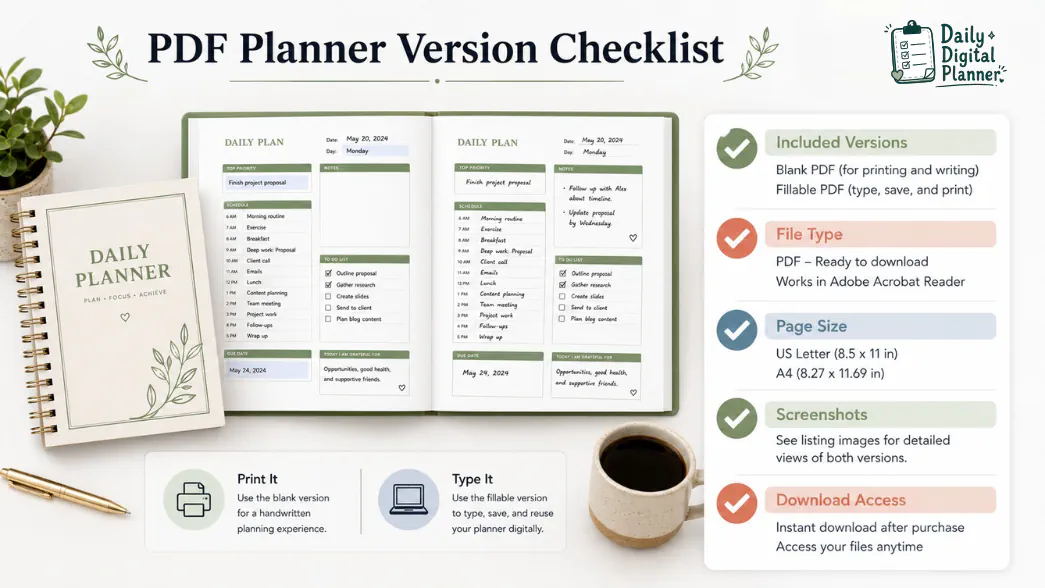
Check the product page for included versions, file type, paper size, screenshots, software notes, price, and download access before buying a blank or fillable planner PDF. The product page should answer what you receive and how the planner can be used after checkout.
Use this buyer checklist before purchase:
- File type: confirm the download is a PDF planner file.
- Included versions: confirm whether the product includes a blank version, a fillable version, or both.
- Page size: check whether the product lists US Letter, A4, or another size.
- Orientation: check portrait or landscape when the layout matters.
- Screenshots: confirm the layout, writing areas, and visible field behavior.
- Software note: check whether fillable fields need a compatible PDF reader.
- Print workflow: test one page before printing a full set.
- Download access: confirm how files are received after checkout.
- No physical item: confirm the product is a digital download, not a shipped notebook.
US Letter is 8.5 x 11 in, and A4 is 210 x 297 mm. These are common planner page sizes, but the exact included size depends on the product.
Before checkout, review how to buy and download planner files from Daily Digital Planner if you want the download process explained before purchase.
How Blank and Fillable Versions Fit Daily Digital Planner Products
Daily Digital Planner sells downloadable PDF planner products, so blank and fillable versions should be checked as product-file details before purchase. Before buying a Daily Digital Planner product, check the product page to confirm whether the download includes a blank version, a fillable version, or both.
This source-specific check prevents two common mistakes. The first mistake is assuming every printable planner PDF is fillable. The second mistake is assuming every fillable PDF planner is a physical planner or a separate software app.
Daily Digital Planner product pages may also mention page size, color style, orientation, screenshots, file access, and usage notes. Treat those details as the buying proof. If a product page does not clearly match your workflow, choose a better-matching product category or support guide before checkout.
FAQ About Blank and Fillable PDF Planners
Is a blank PDF planner the same as a printable planner?
A blank PDF planner is usually a type of printable planner PDF, but the terms are not always identical. "Printable planner" describes a page designed to print, while "blank PDF planner" emphasizes that the page does not rely on built-in fillable fields.
Is a fillable PDF planner the same as an editable PDF?
A fillable PDF planner is not always the same as an editable PDF. "Fillable" usually means you can type into supported fields, while "editable" may refer to design customization, form fields, annotations, or software-specific editing.
Can I print a fillable PDF planner after typing?
Yes, you can print a fillable PDF planner after typing when the PDF file and reader support typed fields and printing. Save a copy before printing if you want to keep a reusable record of the completed page.
Can I use both blank and fillable planner versions?
Yes, you can use both blank and fillable planner versions when the product includes both files. Use the blank version for handwriting and the fillable version for typing, saving, or printing after completing the page.
Are blank or fillable PDF planners physical products?
Blank and fillable PDF planners from Daily Digital Planner are digital download files, not shipped physical products. Review how to buy and download planner files if you want to understand file access after checkout.
Are there free blank or fillable PDF planners?
Free blank or fillable PDF planners exist on some websites, but this guide does not promise a free Daily Digital Planner download. For a paid planner PDF, compare the product details, screenshots, included versions, and download access before buying.